


 Alex Thompson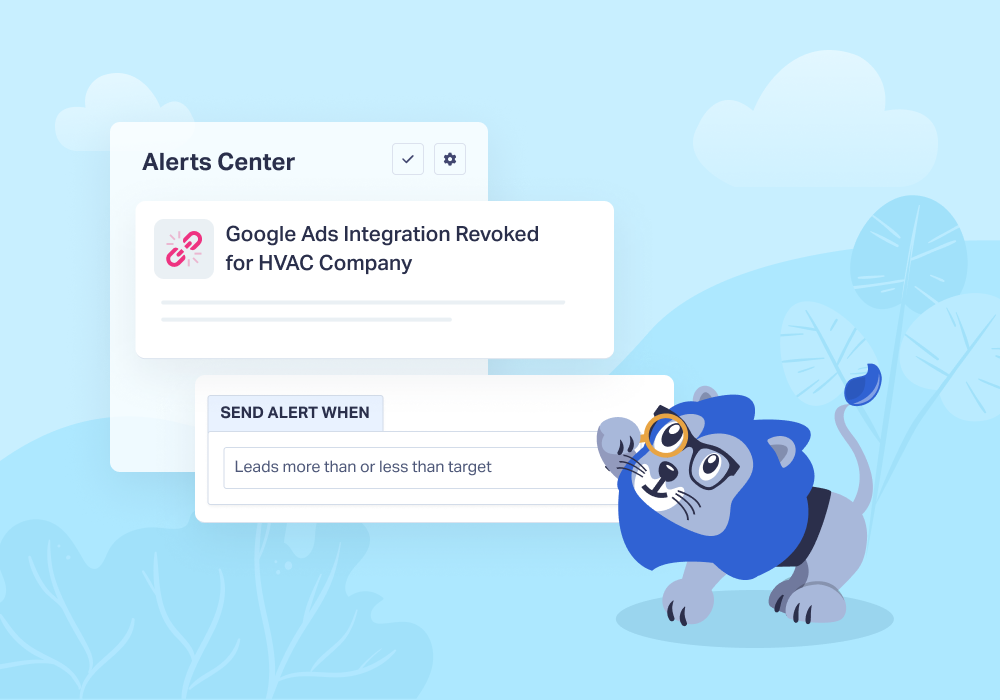
Your alerts just got more powerful and more flexible. The latest updates to the WhatConverts alert system help you stay informed, act faster, and customize notifications around what matters most to your marketing performance.
Here’s a quick snapshot of what’s new:
- Lead target alerts: Get notified when lead volume hits a specific number
- Customizable alert messages: Add dynamic variables to make alerts more informative
- Number pool visibility: See how many tracking numbers are tied to a pool
- Integration disconnect alerts: Automatically get notified if an integration like Google Ads or Facebook Ads is revoked
Let's take a closer look at what’s changed.
Note: Not a WhatConverts user yet? Start your free 14-day trial of WhatConverts today or book a demo with a product expert to see how we help prove and grow your ROI.
Why This Matters
Alerts are most valuable when they tell you something meaningful at the right time. Whether you’re monitoring lead volume, tracking system performance, or managing integrations, these updates make alerts more actionable and easier to understand.
Instead of reacting late or digging through reports, you can now:
- Know when performance hits key milestones
- Receive alerts that include the context you need
- Catch system issues like revoked integrations immediately
- Make faster decisions without manual checks
These improvements help you stay ahead of problems and opportunities without adding extra work to your day.
If you aren’t using alerts yet, you can familiarize yourself with them below.
Help Center: The Alerts Center
What’s New: Lead Target Alerts
What it does
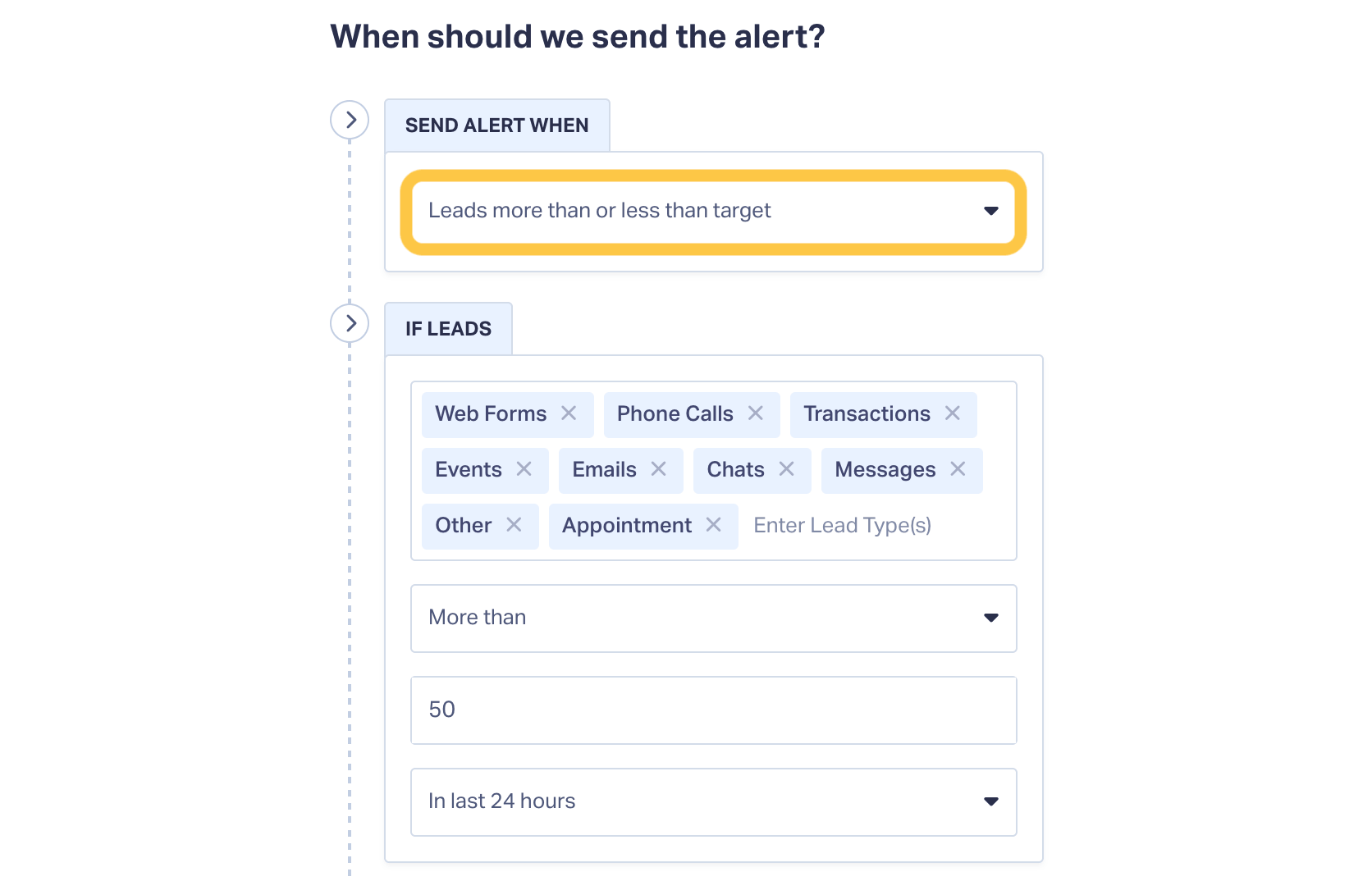
Allows you to trigger an alert when your lead count reaches a specific number within a defined time period.
How it works
When creating an alert, you now have a new option to set an exact lead target. For example, you can receive a notification if you generate more than 100 leads in the last seven days.
Why it matters
This gives you a clear signal when performance hits an important milestone. Unlike percentage-based alerts, this is based on a fixed goal, making it ideal for tracking growth targets, campaign launches, or high-performing periods.
Customizable Alert Messages with Variables
What it does
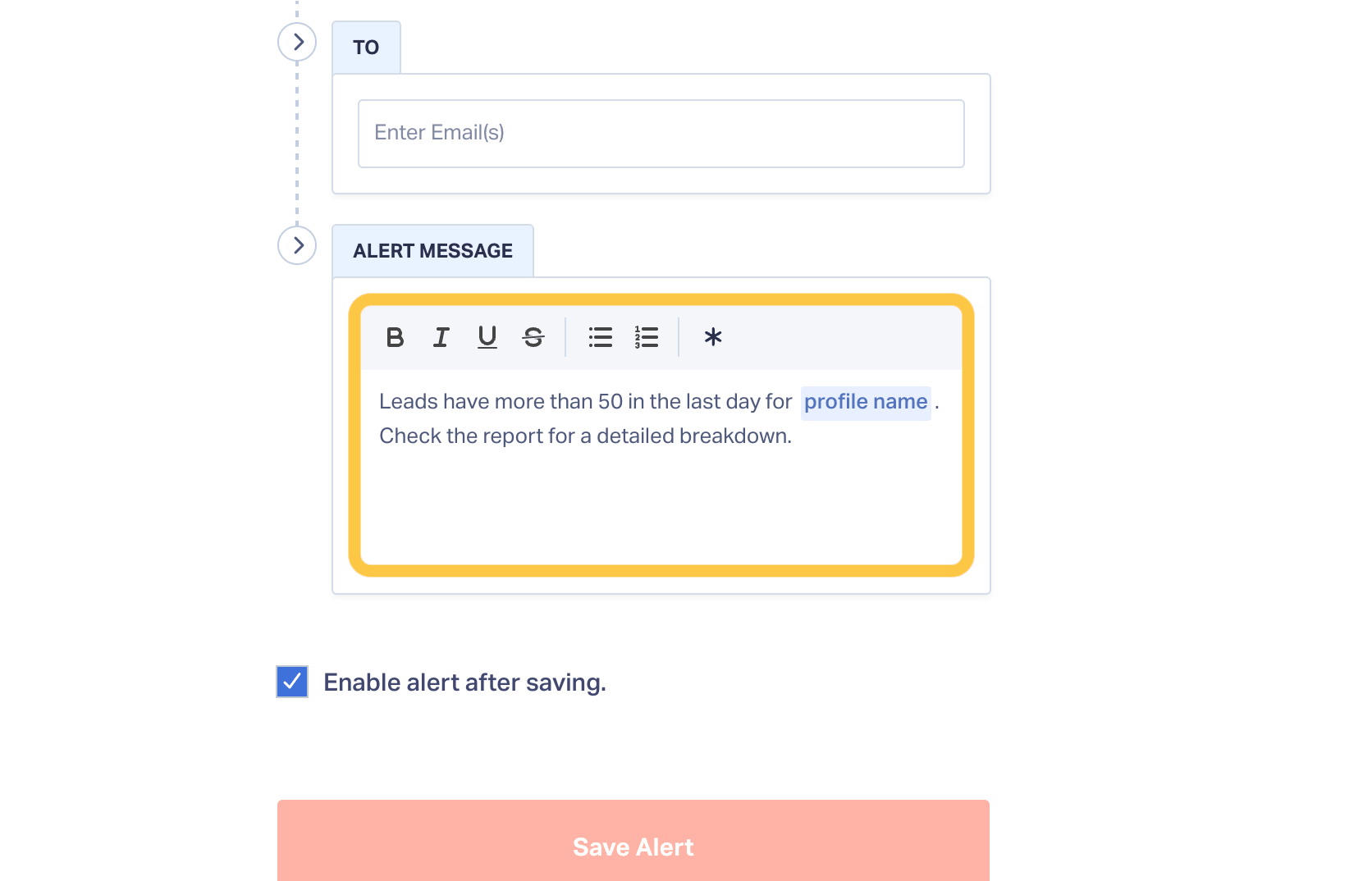
Lets you personalize alert notifications by inserting dynamic variables into the message.
How it works
When setting up an alert, you can now customize the notification text and include variables like profile name or number pool. A preview shows exactly how the message will appear before it’s sent.
Why it matters
Alerts become easier to understand and more relevant to the recipient. Instead of generic notifications, you get messages that clearly identify what happened and where.
Number Pool Visibility for Call Tracking Alerts
What it does
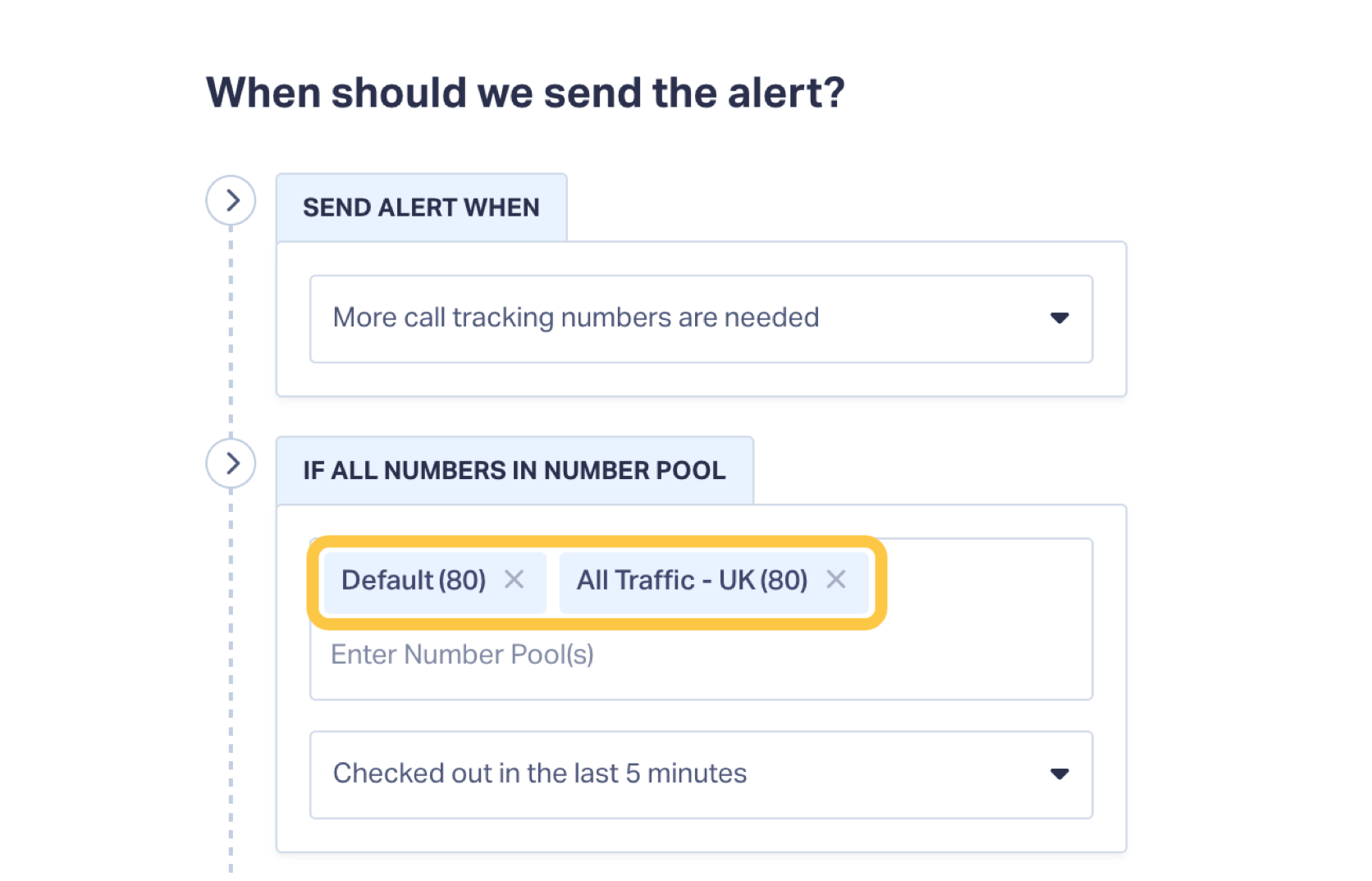
Shows how many tracking numbers are currently tied to a number pool when creating alerts
How it works
When selecting a number pool in the “More Call Tracking Numbers” alert option, you can now see how many numbers are already associated with that pool.
Why it matters
This provides immediate context and helps you make better decisions about when to expand your number pool, preventing shortages and missed tracking opportunities.
Automatic Alerts for Revoked Integrations
What it does
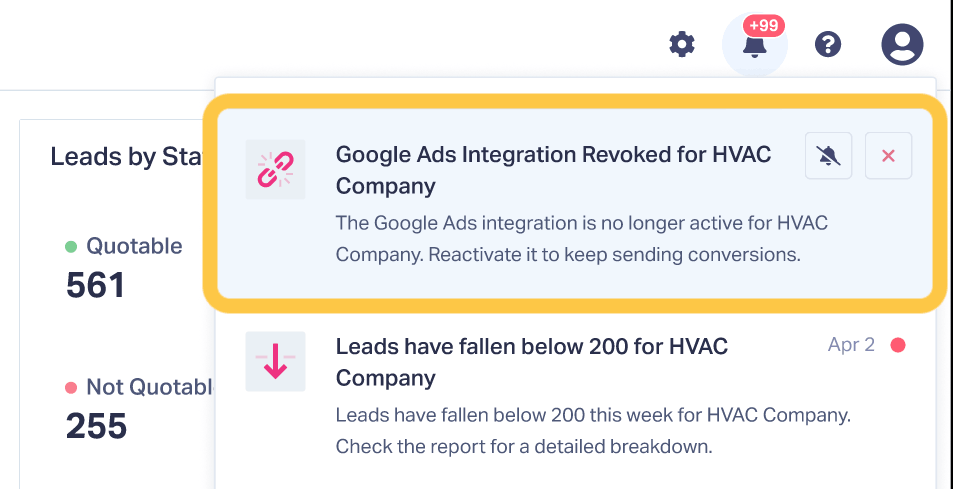
Automatically notifies you if an integration such as Google Ads, Facebook Ads, or Bing Ads becomes disconnected.
How it works
These alerts are built into the system and do not require manual setup. If an integration is revoked, you will receive a notification in the alerts panel and an email prompting you to reconnect it.
Why it matters
Disconnected integrations can quietly disrupt your tracking and reporting. These automatic alerts ensure you know immediately when action is needed, so data remains accurate and campaigns stay optimized.
Real-World Example
Imagine launching a new campaign with a goal of generating 100 leads in the first week. Instead of checking reports daily, you set a lead target alert. As soon as the goal is reached, you receive a notification with the exact details.
At the same time, if an integration disconnects or your number pool starts running low, you are alerted instantly. Everything that could impact performance is surfaced automatically, without manual monitoring.
How to Get Started
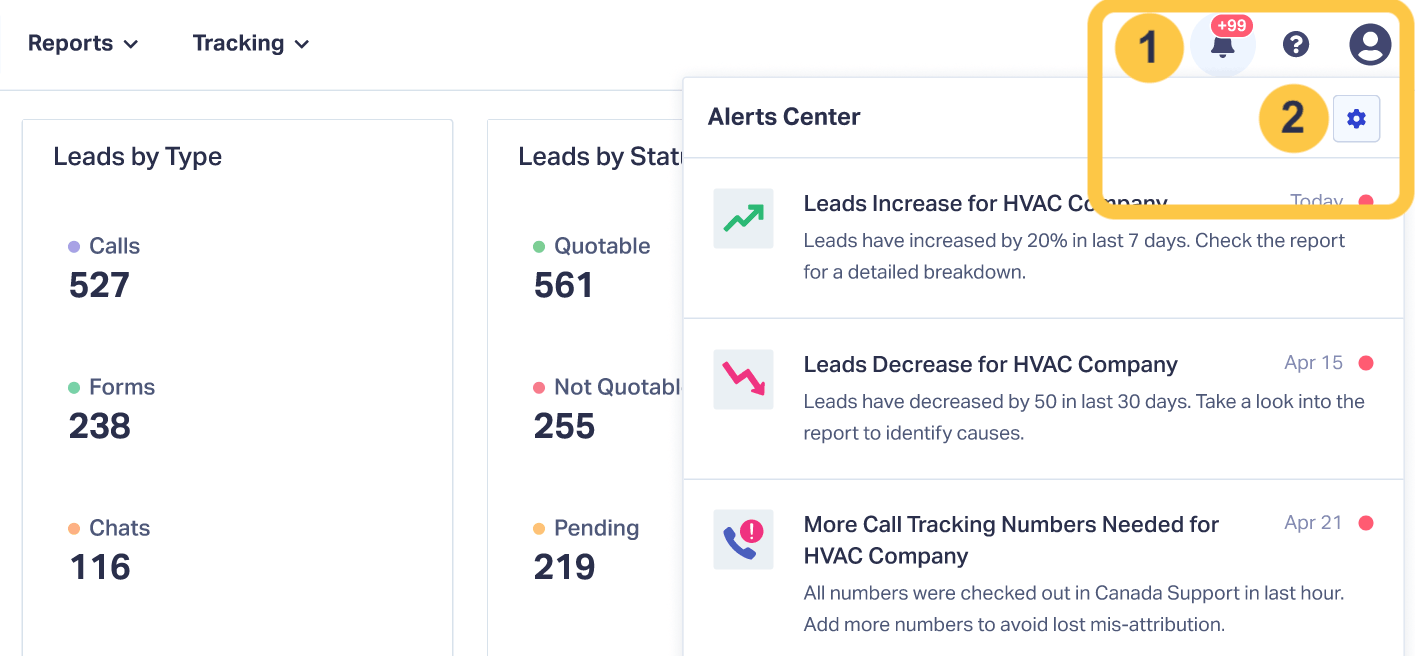
- Log in to WhatConverts
- Navigate to Alerts
- Click + Create Alert
- Choose your alert type and set your threshold
- Customize your notification message if needed
Once saved, alerts will appear in your panel and be sent via email to the selected users.
Tips & Best Practices
- Use lead target alerts to track campaign milestones or performance goals
- Customize alert messages so teams immediately understand what changed
- Monitor number pools regularly to prevent tracking gaps
- Keep integrations connected to maintain accurate attribution and reporting
What’s Next
We are continuing to expand the alert system to give marketers even more visibility into performance changes, tracking health, and optimization opportunities. Expect additional alert options and smarter notifications in future updates.
Log in to your account to start setting smarter alerts, or book a demo to see how automated notifications can help you stay on top of your marketing performance.
Start your free 14-day trial of WhatConverts today or book a demo with a product expert to see how we help prove and grow your ROI.
Get a FREE presentation of WhatConverts
One of our marketing experts will give you a full presentation of how WhatConverts can help you grow your business.
Schedule a DemoGrow your business with WhatConverts







