


 Amanda Pell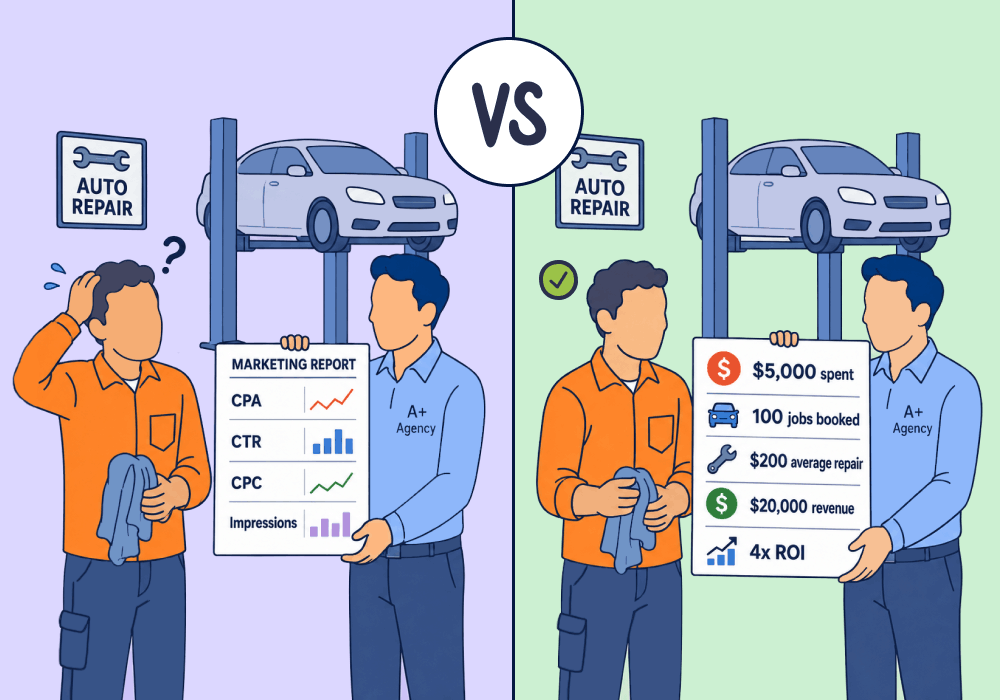
Your client rarely ever asks about their conversion rate. They ask how many jobs they booked.
That’s the disconnect at the center of most reporting calls. You open Google Ads and talk about CPA, CTR, and cost per conversion, but your client hears static. They run a business measured in booked work and revenue, not clicks and conversions.
That’s how a strong month can still land flat. You did the work, the numbers moved, and the client still walks away unsure whether marketing paid off.
The problem isn't your performance. It's the language your report is written in.
This article shows how to translate Google Ads metrics into the two things your client actually tracks: jobs booked and what each one brings in.
The Problem: Your Report Speaks a Language the Client Doesn't
Marketing metrics describe marketing activity. They're built for marketers, not clients.
- "Cost per conversion" counts form fills and calls, not booked work
- "Conversion rate" measures clicks to leads, not leads to revenue
- "CPA" tells you what a lead costs, not what a customer costs
A client running an auto repair shop doesn't think in conversions. They think in cars in the bay and invoices out the door.
When your report stops at cost per lead, you're asking them to do the translation themselves: to guess how many of those leads became paying jobs. Most won't. They'll just wonder why they're paying for numbers they can't read.
Related Reading: How to: Build Trust with the Skeptical Client
The Insight: Report on Outcomes, Not Conversions
A lead is not a job, and a conversion is not revenue.
The metrics that impress another marketer are not the same ones that capture a client's attention. What a client wants to see is a number tied to their bottom line: cost per job booked, not cost per lead.
It's a small change, but it reshapes how the entire report reads.
"We generated 200 leads at $25 each" invites a shrug. "We booked 60 jobs at $83 each, and the average job is worth $400" ends the conversation. One reports activity that proves you're busy; the other reports a result the client can act on.
The catch: Google Ads can't show you cost per job booked on its own. It doesn't know which leads turned into work. You have to give it that information.
How to Report Cost per Job Booked
The fix is to get booked-job data back into Google Ads so it can do the math for you.
Here's the workflow:
- Track every lead back to its campaign and keyword. Tie each call and form to the exact source that drove it.
- Mark which leads booked. Assign a "booked" status and a value to the leads that turned into real jobs.
- Sync that data into Google Ads. Push booked-job values back into the platform through the native integration.
- Build custom columns. Use the synced data to create "Jobs Booked" and "Cost per Job Booked" columns right alongside your standard metrics.
Your Google Ads report now shows what a booked job costs by campaign, not just what a lead costs. It's a number you can hand a client without a translation step.
Why WhatConverts
WhatConverts sits between the lead and the ad platform, so outcome data makes it back to where the budget decisions happen.
- Assign a booked status to every lead. Mark leads as booked and attach a value in the Lead Manager, so your data reflects real jobs, not raw conversions.
- Sync outcomes back to Google Ads. The native integration pushes booked-job values into the platform, turning them into custom metrics you can report on.
- Report in the client's own terms. Show cost per job booked by campaign, ad group, and keyword, so your reporting speaks the language the client already uses.
WhatConverts doesn't replace Google Ads reporting. It fills in the one thing the platform can't see on its own: what happened after the click.
Proof: How Distribute Digital Reported "Cost per Job Booked"
Distribute Digital, a UK performance marketing agency, ran PPC for an auto repair shop. The leads looked efficient on paper, but the agency had no view of what happened after a lead came in. Every lead counted the same whether they booked a job or not.
Working with the client's appointment data, they marked which leads booked and gave each one a value in WhatConverts. Then they synced that data back to Google Ads through the native integration and built custom metrics: Jobs Booked, Cost per Job Booked, and Actual Conversion Rate.
Now the report spoke the client's language. Distribute could show cost per booked job by campaign, keyword, and even vehicle make, then shift budget toward the work that actually paid.
"We now have a clear, honest, full picture of our marketing results."
The Unlock
When your report is written in the client's language, you stop defending the numbers and start building on them.
- Track every call and form back to its campaign and keyword
- Mark which leads booked and assign each a value
- Sync that outcome data back into Google Ads
- Build "Cost per Job Booked" columns beside your standard metrics
- Report in jobs and dollars, the terms your client already thinks in
Cost per lead tells a client marketing is busy. Cost per job booked tells them it's working.
Ready to report in a language your client already speaks?
Start your free 14-day trial of WhatConverts today or book a demo with a product expert to see how we help prove and grow your ROI.
Get a FREE presentation of WhatConverts
One of our marketing experts will give you a full presentation of how WhatConverts can help you grow your business.
Schedule a DemoGrow your business with WhatConverts







