















































 Amanda Pell
Someone clicks your Google Ad. They call your business. They book an appointment. They become a customer.
Two weeks later, they're still seeing your ads.
Google keeps spending your budget showing ads to someone who's already converted. They might click again out of curiosity or confusion, costing you another $50 for a lead you already have.
This happens because Google doesn't automatically know someone called you. Without phone call tracking connected to your Google Ads account, the platform treats callers as unconverted prospects who need more advertising.
WhatConverts fixes this by capturing caller contact data and enabling you to exclude converted callers from future ad targeting.
Note: Not a WhatConverts user yet? Start your free 14-day trial today or book a demo with a product expert to see how we help prove and grow your ROI.
Why Google Keeps Advertising to Your Customers
Google Ads optimizes based on conversion data. When someone fills out a form, Google tracks that conversion and can adjust targeting accordingly. When someone calls, Google only knows a click happened—not that it resulted in a conversion.
From Google's perspective:
- Form submission = confirmed conversion, adjust targeting
- Phone call = just a click, keep advertising to this person
Your caller enters your sales pipeline. Google thinks they're still a cold prospect. Your ads follow them around the internet, wasting budget on someone who's already moving toward a purchase or has already bought.
How to Exclude Callers from Google Ads
Excluding converted callers requires two steps: capturing their contact information and uploading it to Google as an exclusion list.
Step 1: Capture Caller Contact Data
WhatConverts automatically captures phone numbers for every call. When callers also fill out forms or provide email addresses during conversations, those details get stored in their lead profile.
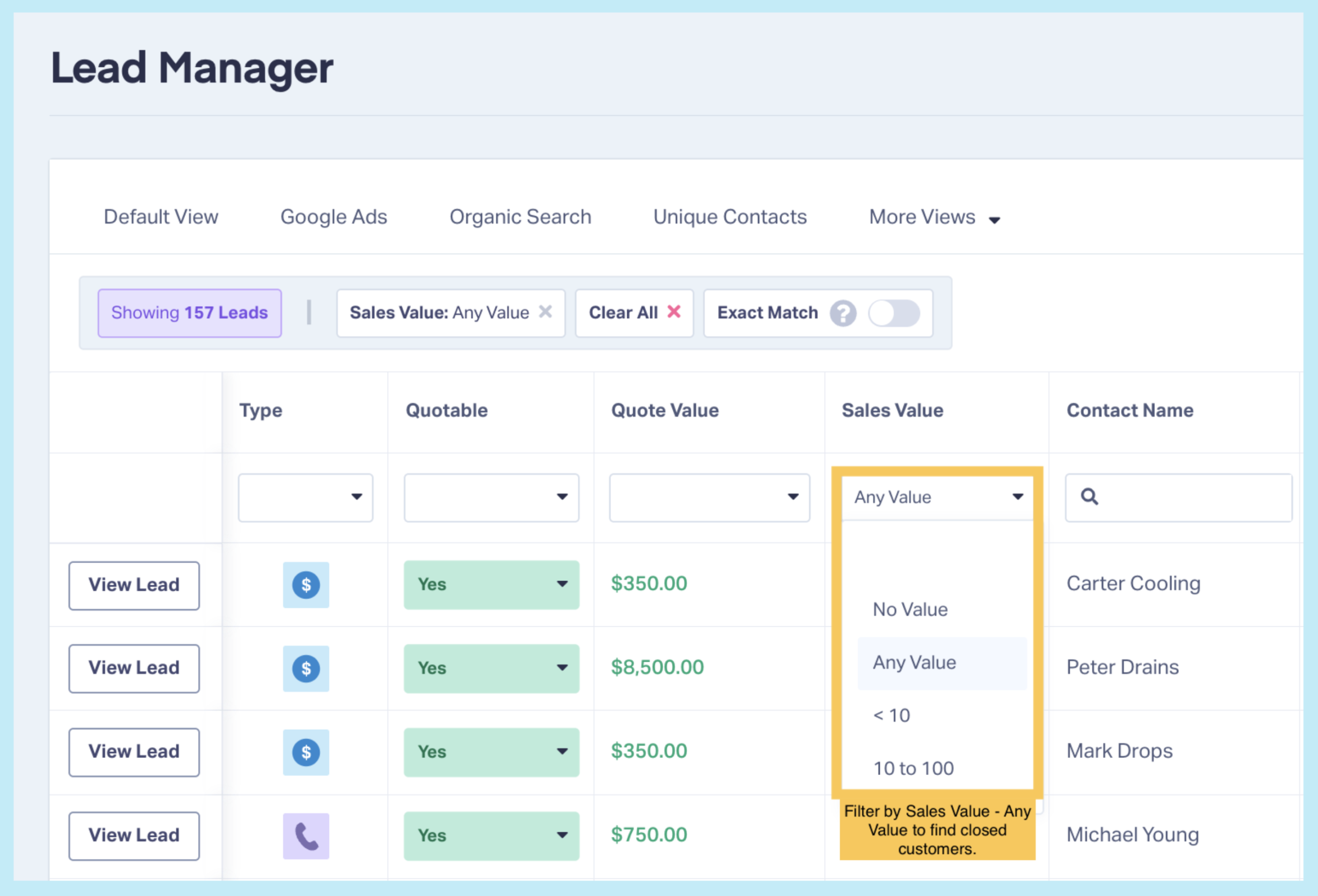
Navigate to your leads in WhatConverts and filter for leads with a sales value or leads with appointments booked. This will show you all closed customers.
Step 2: Export Contact Information
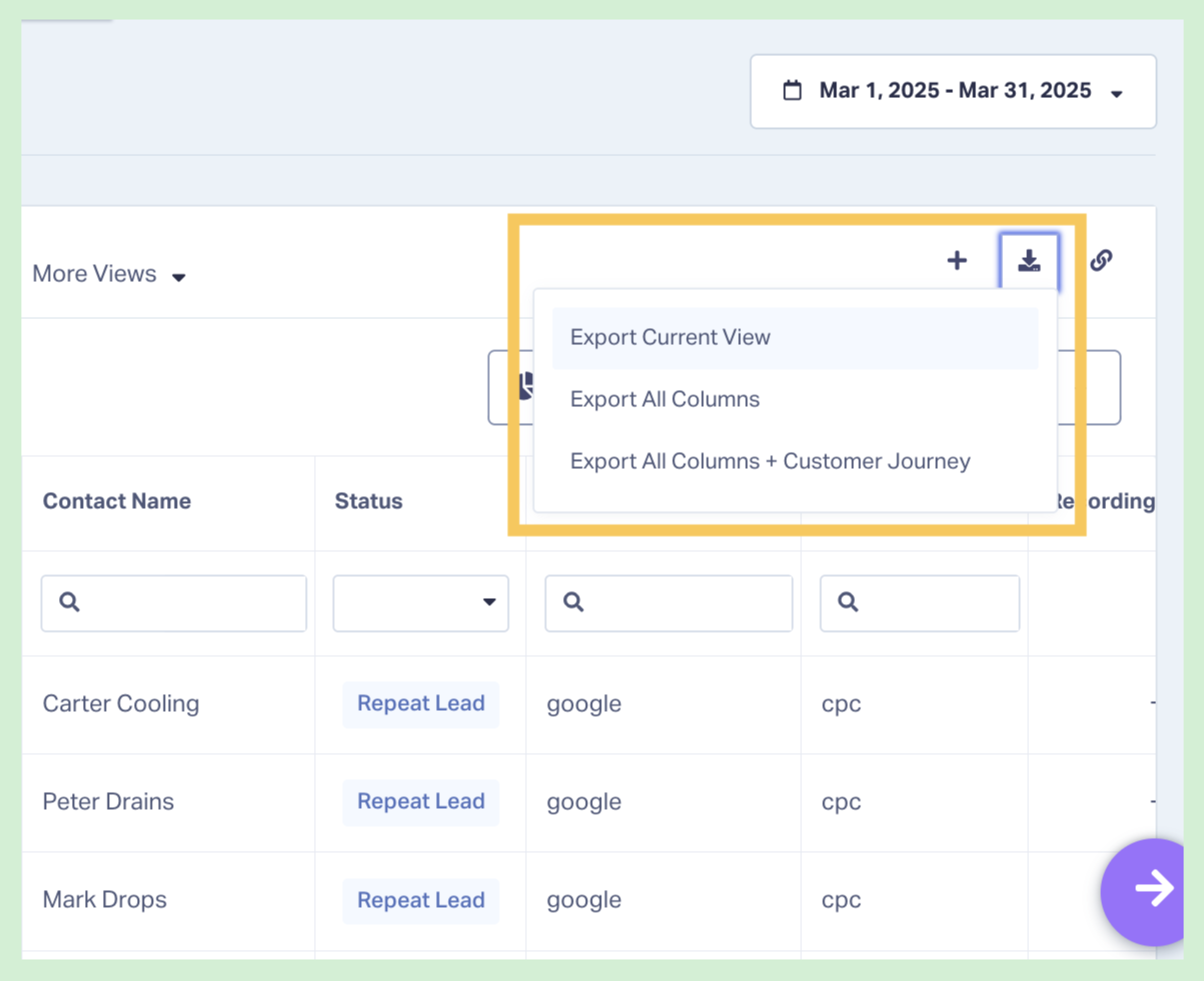
Export your converted leads' contact data:
- Phone numbers
- Email addresses (when available)
WhatConverts lets you export this data as a CSV file containing the phone numbers and emails of people who've already converted.
Step 3: Create a Customer Match List in Google Ads
In Google Ads, navigate to Tools & Settings → Audience Manager → Customer Lists.
Upload your CSV file. Google matches the phone numbers and email addresses to user accounts in its system.
Step 4: Exclude the Customer List from Campaigns
In your campaign settings, add your customer list as an excluded audience. Google will stop showing ads to people on that list.
What Customer Match Lists Exclude
When you upload phone numbers to a Customer Match list, Google matches those numbers to:
- Google accounts associated with that phone number
- Devices logged into those Google accounts
- YouTube accounts
- Gmail accounts
This means when your converted caller browses websites, searches Google, or watches YouTube, your ads won't appear—saving budget for actual prospects.
Maximizing Conversion Data with Automated Tracking
In addition to excluding existing customers, WhatConverts also improves how you target your actual prospects by sending qualified call conversion data back to Google Ads.
When you connect WhatConverts to Google Ads, the platform automatically reports call conversions. This helps Google's Smart Bidding algorithms understand:
- Which keywords generate calls that convert to customers
- Which audience patterns lead to valuable calls
- When to reduce bids on users showing post-conversion behavior
Better conversion data means better automated optimization—helping Google spend your budget more efficiently on prospects likely to convert, not just on high click volume.
Setting Up Automated Call Conversion Tracking
Connect WhatConverts to Google Ads
Navigate to Integrations in WhatConverts and authorize the Google Ads connection.
Configure Conversion Actions
With WhatConverts, you can send any of the following lead groups back to Google Ads:
- Qualified (“quotable”) leads
- Leads with quote values
- Leads with sales values
To tailor even further, you can set up automated rules that determine which leads get marked as qualified/quotable and sent to Google Ads—criteria like “all calls over 60 seconds,” “all calls that mention X service,” etc.
Combining Both Strategies
The most effective approach uses both methods:
For closed customers: Export their contact data and add them to exclusion lists. These people have already purchased and shouldn't see acquisition ads.
For qualified leads in your pipeline: Let automated conversion tracking inform Smart Bidding while they move through your sales process. They're still prospects—just highly qualified ones.
For unqualified leads: Let them continue seeing ads normally. They showed interest but weren't ready to convert—continued advertising might capture them when circumstances change.
Updating Exclusion Lists
Customer Match lists should be updated regularly as new customers convert.
Monthly process:
- Export new qualified/customer leads from WhatConverts
- Upload updated contact list to Google Ads
- Replace or append to existing Customer Match list
This ensures your exclusion list stays current and prevents ad waste on your newest customers.
When to Keep Advertising to Customers
Exclusion isn't always the right strategy. Consider continuing to advertise to existing customers when:
You offer multiple services: A customer who hired you for plumbing might need electrical work later. Existing customers might be targets for upgrades or additional services.
You have subscription or recurring services: Showcase new features or value adds, so existing customers keep their subscriptions active.
You’re running referral campaigns: Build a low-cost, high-value referral strategy by showing satisfied customers referral-focused ads with offers for discounts for customers that bring in new clients.
Measuring Ad Waste Reduction
Track these metrics after implementing caller exclusions:
Wasted Click Reduction
Compare clicks from returning visitors before and after exclusions. Reduced clicks from the same users indicate successful exclusion.
Cost Per New Customer
When you stop spending on people who already converted, your cost per NEW customer should decrease.
Conversion Rate Improvement
As your audience becomes more focused on unconverted prospects, overall conversion rates typically improve.
The Bottom Line: Stop Advertising to People Who Already Said Yes
Every dollar spent showing ads to converted customers is a dollar not spent acquiring new ones. Google doesn't automatically know when someone called you, so it keeps treating them as prospects needing more advertising.
Capture caller contact data, upload it to Google as exclusion lists, and stop wasting budget on people who've already entered your sales pipeline.
Your existing customers stop seeing repetitive ads. Your budget focuses on actual prospects. Your cost per acquisition drops.
Ready to stop retargeting people who already called?
Start your free 14-day trial of WhatConverts today or book a demo with a product expert to see how we help prove and grow your ROI.
Get a FREE presentation of WhatConverts
One of our marketing experts will give you a full presentation of how WhatConverts can help you grow your business.
Schedule a Demo
Grow your business with WhatConverts







