


 Amanda Pell
Most call routing setups are pretty simple: a dial menu tells callers to press one for sales or two for support, and most businesses never take it further than that.
But call routing is capable of doing a lot more than just basic dial menus. They can match callers based on what they searched for, provide information to the call recipient before the call connects, and even allow sales reps to qualify and value the caller before they hang up the phone.
This article showcases four advanced use cases for call routing:
- Automatically sending callers to representatives with the right expertise
- Sending your most promising calls to your best sales closers
- Turning dial menu inputs into data that self-qualifies call leads
- Giving sales reps a dial menu they can use to add a job quote value directly to the lead profile before they hang up the phone
Note: Not a WhatConverts user yet? Start your free 14-day trial of WhatConverts today or book a demo with a product expert to see how we help prove and grow your ROI.
How Call Routing Works
A call flow is a sequence of steps that a call moves through to connect it to the right destination. Businesses often use call flows to do things like:
- Connect callers to the department they want to reach
- Distribute calls evenly across available representatives
- Send calls to different locations or to voicemail outside business hours or on holidays
Call flows work like a flow chart, and there are a few different types of actions and steps that marketers can add to the flow to direct the call. The basic call flow steps are:
- IVR Menu Step: Prompts the caller to press a number on the dialpad to reach a particular department.
- Voicemail Step: Sends the caller to voicemail under certain circumstances, like during a holiday, outside business hours, or after a certain number of rings with no answer.
- Message Step: Plays an automated message, like a readout of business hours or a call recording notification.
- Schedule Step: Routes calls to different recipients based on day or time.
- Call Recording Step: Enables or disables call recordings.
WhatConverts also offers advanced call routing steps, including:
- Geo-Routing Step: Connect callers to the representative or office location that’s closest to the caller’s area code.
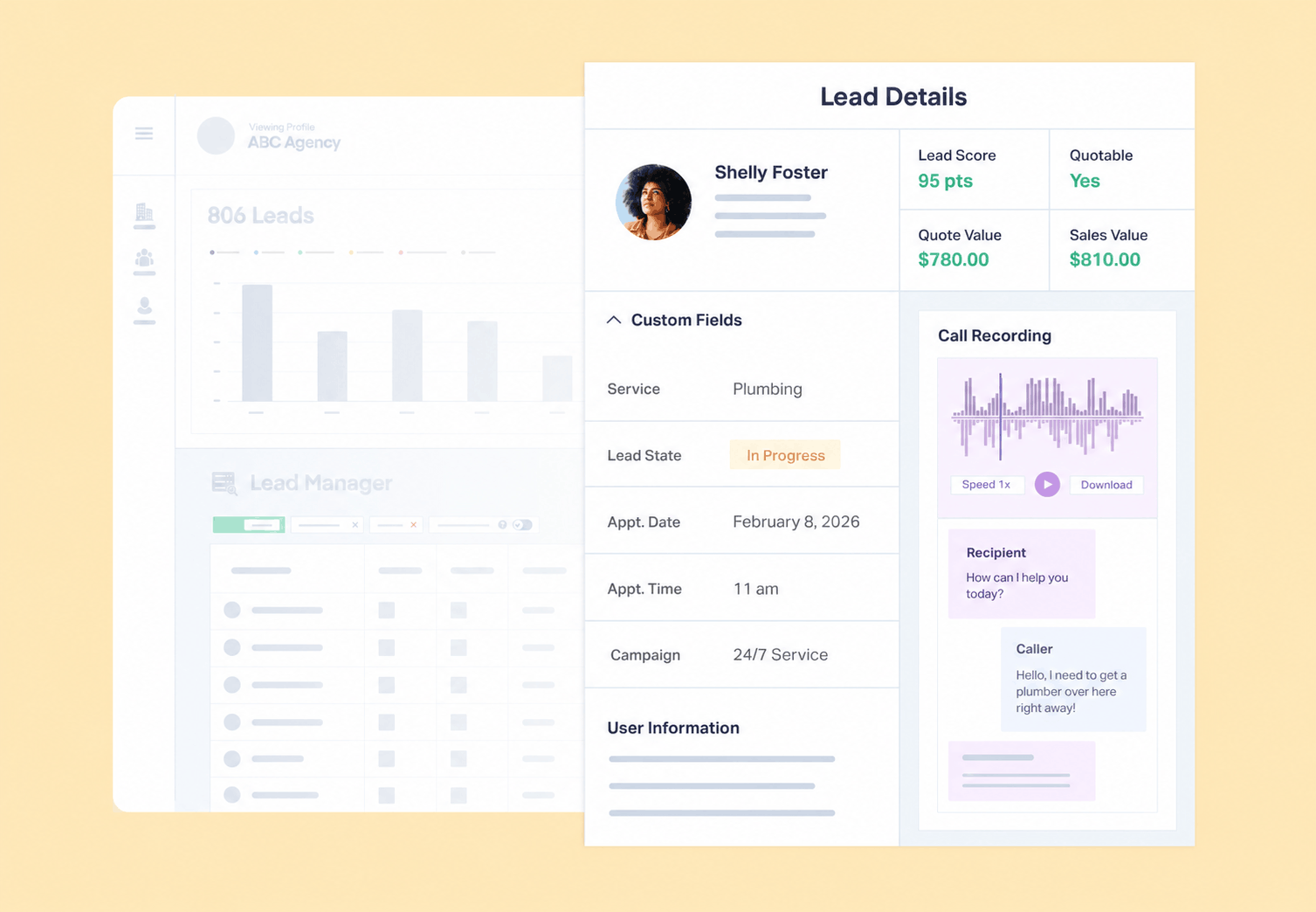
- Set Lead Data Step: Adds data to the caller’s Lead Profile, like quotable status, quote value, or a custom field like job type or requested service.
- Smart Routing Step: Route callers depending on marketing data, like the ad channel channel or keyword they clicked on before calling.
- Split Routing Step: Split calls to different recipients equally or rebalance call volume based on availability.
With these advanced options, marketers can set up call flows that accomplish far more than basic call routing. Here are four examples that you can copy for your business:
Feature Highlight: Call Flows
Example #1: Send Specific Requests to Specialized Teams
A simple dial menu works in situations where the caller already knows what they need, like an HVAC call flow that asks leads to press one for heating or two for cooling.
But if you’re running ads for a law firm, the average caller isn’t going to know whether they need to reach your corporate, criminal, or employment law department to discuss their whistleblower case. That’s where Smart Routing comes in.
WhatConverts's Smart Routing lets you route calls based on the marketing attribution data associated with the conversion that started the call. So when that person searches for “whistleblower retaliation attorney” and clicks on your ad, they might not know they need an employment attorney, but your call flow will connect them to your employment law department.
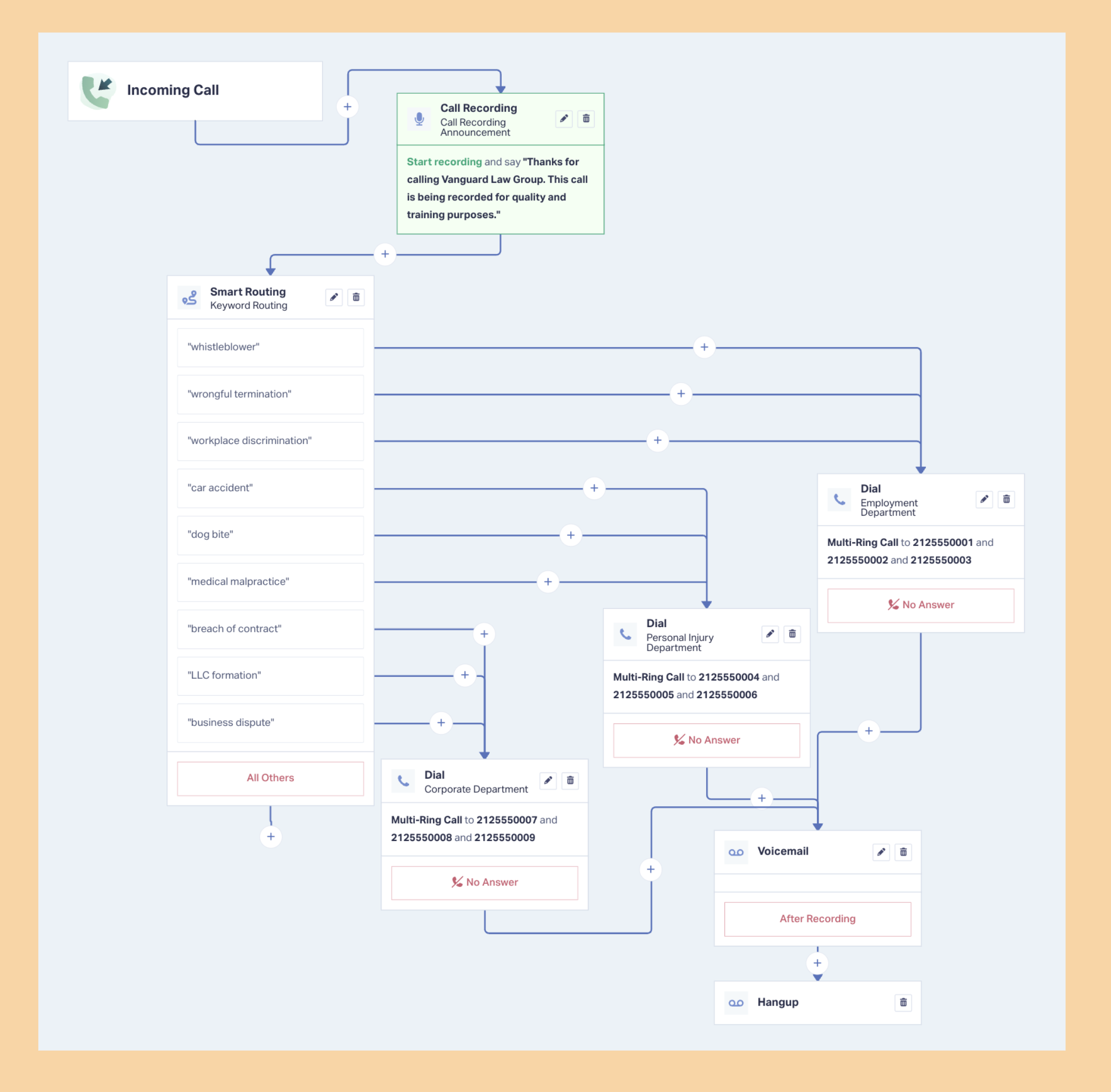
This works especially well for businesses with many services covered by a handful of departments or experts. You wouldn’t set up a thirty-option call menu, but you can use Smart Routing to match thirty different keywords to the departments that match:
- “whistleblower retaliation,” “wrongful termination,” and “workplace discrimination” all route to the Employment Law department
- “car accident attorney,” “dog bite lawsuit,” and “medical malpractice lawyer” all route to the Personal Injury department
- “breach of contract lawyer,” “LLC formation process,” and “business partnership dispute” all route to the Corporate department
You can also set up a Call Whisper message that announces the campaign or keyword to the person who picked up the phone before the call connects, so they know what the call is about before the caller even says hello.
Example #2: Give High-Intent Calls to Your Strongest Reps
Routing calls based on service is about connecting callers to the right person for the job. But you can also use Smart Routing to route calls by urgency and intent, so that leads with the highest sales potential go to the experienced reps with the highest chance of closing the sale.
Smart Routing directs calls based on marketing attribution data, so you can add a step that sends calls from your highest-converting campaigns to a group of senior reps while all other calls enter the standard queue.
With multi-ring, you can have each call ring every phone in the group so high-intent leads reach the first person available instead of waiting for one person to pick up the phone.
Campaign and keyword are the most obvious ways to spot a high-value call, but with roughly 20 different available Smart Routing parameters, there are a few other creative uses for this step as well:
- Device sends mobile callers to reps who can text a quote back
- Repeat caller sends existing customers to customer success instead of sales
- Tracking number gives an offline campaign like a billboard or direct mailer its own destination
- Quotable status sends a lead you already marked qualified to the rep who’s working the deal
Example #3: Use IVR Menus to Auto-Qualify Calls
A phone menu usually does one job: transferring callers to the department they want to reach. The caller presses 2, the call transfers, and the press is forgotten.
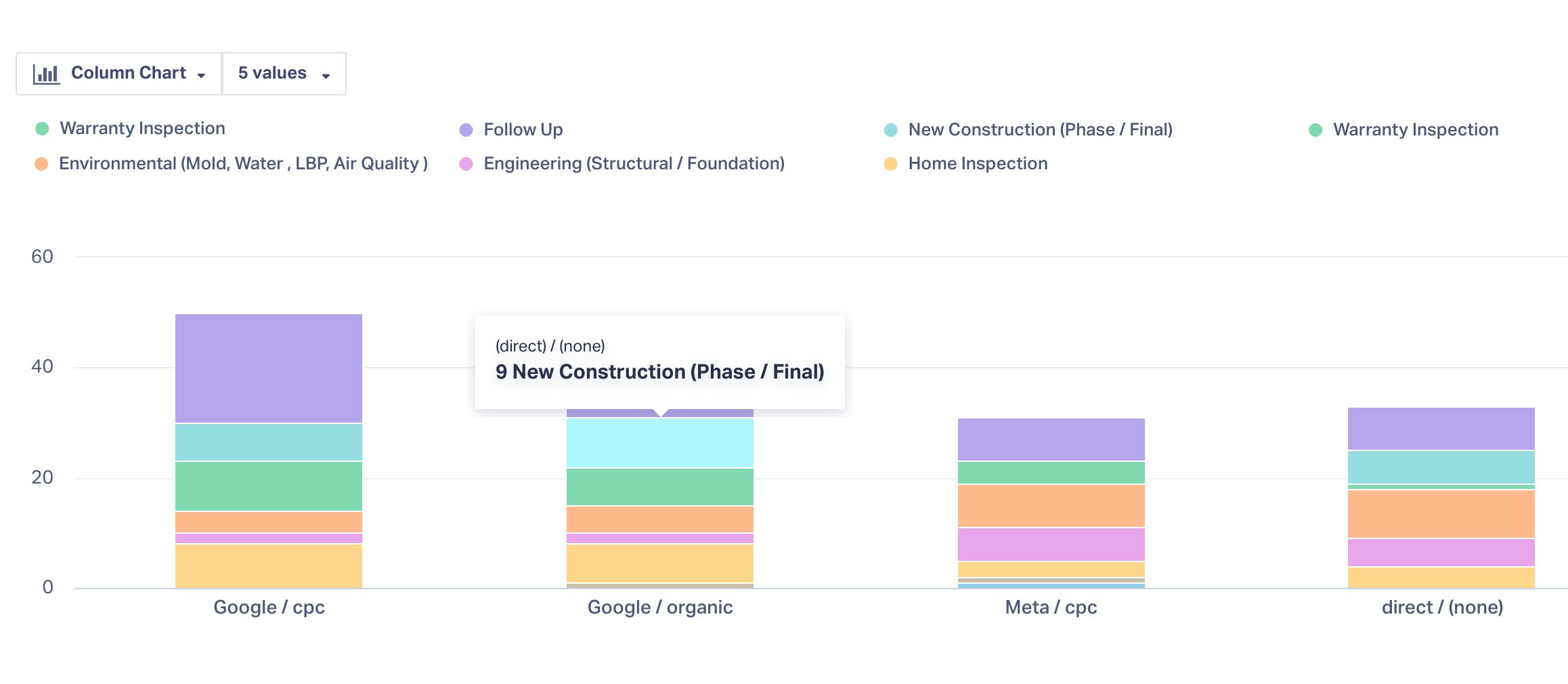
If you add a Set Lead Data step after each menu option, each keypress can become data that gets added to the caller's Lead Profile and can be used to qualify them as a potential customer.
Say a construction company runs a menu with six options: new construction, home inspection, warranty inspection, environmental assessments, engineering assessments, and follow ups. The caller uses their keypad to reach the right team, and behind the scenes, a Set Lead Data step adds their selection to their profile under a custom field labeled “Requested Service.”
Related Reading: ROAS in a Rut? Try Optimizing Ad Spend by Product or Service
Without any additional work on your part, you’ve now enriched your entire lead database with information that allows you to pull reports on things like:
- Which campaigns are bringing in big new construction jobs
- If your ad campaigns are generating real business or bringing in valueless follow-up calls from existing customers
- Whether a high-volume campaign is producing big jobs that justify its ad budget
Set Lead Data does more than tag a service. Depending on which path a caller takes, it can also mark the lead quotable, assign it a value, or flag it as spam.
Example #4: Let Reps Add Quote Values Directly to the Call
A menu captures the information a caller knows about their own request, but a sales rep who spends ten minutes on the phone with a lead gathers a lot more data in the process. With a post-call flow, you can make sure that data gets documented in the Lead Profile immediately, before the rep gets interrupted by another call or pulled onto a different task.
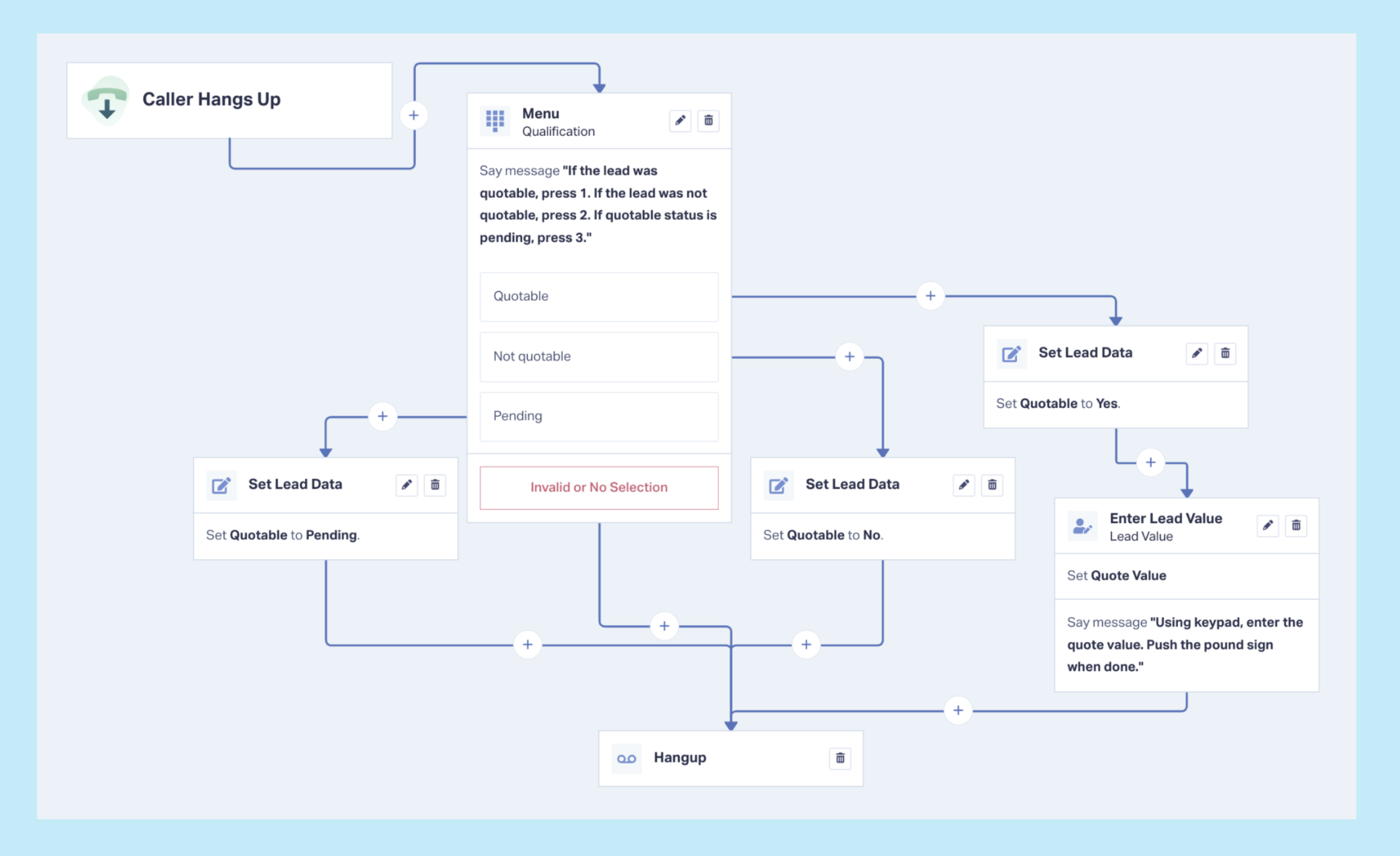
Post-call flows are like IVR menus that prompt the sales rep for inputs after the caller hangs up, like:
- “If the lead was quotable, press 1. If the lead was not quotable, press 2. If quotable status is pending, press 3.”
- “Using the keypad, enter the estimated quote value and then press pound.”
The Lead Profile for the caller will update automatically with the sales rep’s inputs. Nobody has to open the platform, replay a call recording, or read a transcript to find out how it went.
The agency Bake More Pies built this into their client's daily process and drove 42% year-over-year growth:
Real Results: 42% More Patients with Value-Driven PPC Strategy
Start With One
All of these call flow setups use data that you already have: keyword, campaign, landing page, the caller’s own keypress, the rep’s assessment of the call. Call flows just give you the ability to harness that data for better lead outcomes, better revenue, and better marketing ROI.
Call Flows are available on WhatConverts Pro plans and above.
Ready to start putting your call data to good use?
Start your free 14-day trial of WhatConverts today or book a demo with a product expert to see how we help prove and grow your ROI.
Get a FREE presentation of WhatConverts
One of our marketing experts will give you a full presentation of how WhatConverts can help you grow your business.
Schedule a DemoGrow your business with WhatConverts







