


 Amanda Pell
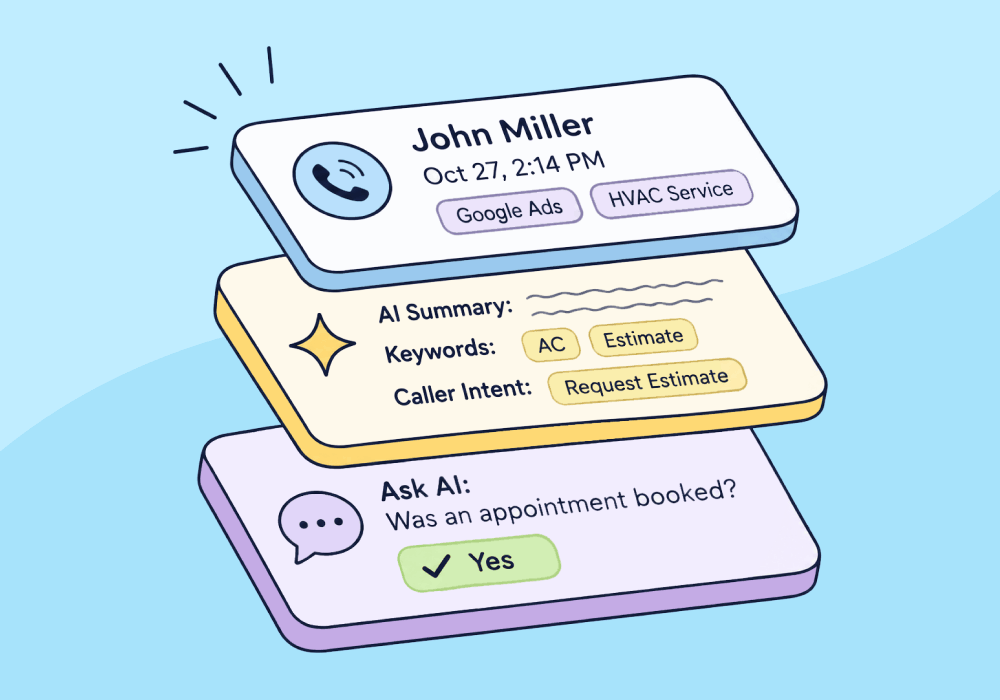
Just about every major call tracking platform now lets you use AI to read and analyze your phone calls. What makes a difference now is how deep that analysis goes and what the platform allows you to do with it.
WhatConverts offers four main AI functions:
- AI Lead Analysis for Calls, which analyzes calls and automatically generates a standard set of outputs including a lead summary, extracted keywords, and buyer intent
- AI Lead Analysis for Non-Call Leads, which produces the same set of standard outputs for text-based lead types like forms, chats, transactions, and text messages
- Ask AI Analysis, which provides custom insights using AI to automatically query leads with prompts marketers write
- AI-Enabled Lead Intelligence Rules, which uses Lead Intelligence automation rules to take actions based on AI insights, like qualifying a lead based on extracted keywords or buyer sentiment
Here we’ll break down each feature, what it does, and what it costs.
Note: Not a WhatConverts user yet? Start your free 14-day trial of WhatConverts today or book a demo with a product expert to see how we help prove and grow your ROI.
The Complete List of WhatConverts AI Features
WhatConverts has four core functions, each with its own purpose, access level, and cost:
| Feature | What It Does | Available On | Cost |
| AI Lead Analysis - Call Leads | Analyzes the call transcript and generates a set of standard outputs | All plans | Included in the cost of call transcription ($.02/min) |
| AI Lead Analysis - Non-Call Leads | Analyzes non-call leads (forms, chats, transactions, etc.) and generates a set of standard outputs | Elite | Billed by token usage; costs typically range $.05 - $.07 per lead but can be higher for longer forms or chats |
| Ask AI Analysis | Analyzes any lead and generates outputs based on the user’s custom prompts | Elite | Billed by token usage; for analysis with 3-5 prompts, costs typically range $.06-$.09 per lead but can be higher for longer leads or additional prompts |
| AI-Enabled Lead Intelligence Rules | Runs automated if/then rules and takes actions based on AI Analysis outputs | Elite | Automation rules are included in the plan at no additional cost |
How WhatConverts Calculates AI Usage Costs
WhatConverts calculates AI usage based on the amount of text being analyzed (inputs) and generated (outputs).
Text is measured in groups of roughly 1,000 characters or 750 words each and billed at a rate of $0.015 per input group and $.05 per output group. That means that your individual usage costs will vary depending on the length of your leads, but on average:
- AI Lead Analysis typically comes out to about $.05 - $.08 per lead
- Ask AI Analysis with between three and five prompts typically comes out to between $.06 - $.09 per lead
In other words, for most users, AI Analysis for 100 leads comes out to a total of about $5-$9.
How It Works: Understanding WhatConverts's AI Usage Rates
AI Lead Analysis
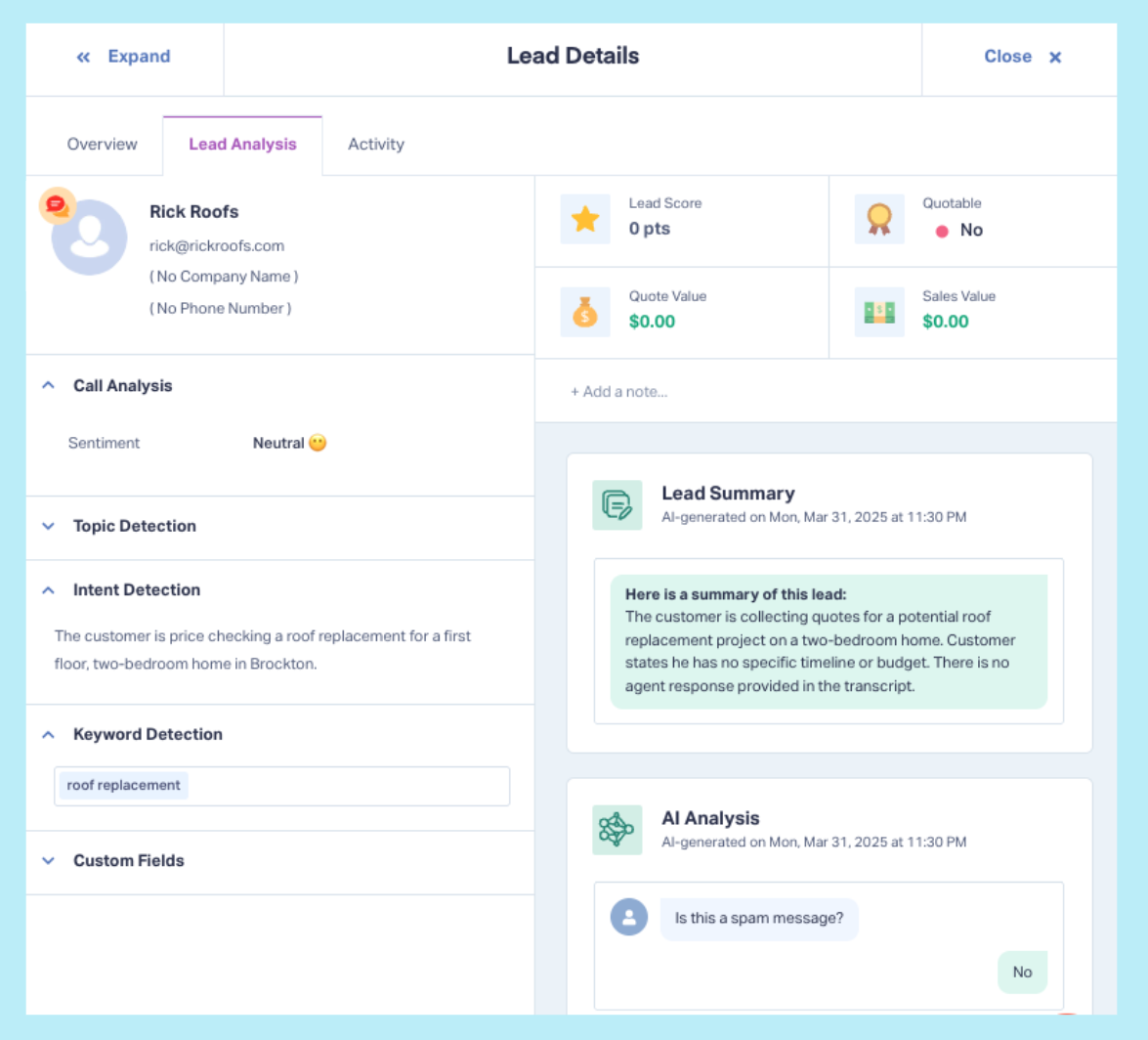
AI Lead Analysis reads the content of a lead and generates a structured set of outputs including a lead summary, lead intent, topic detection, extracted keywords, call handling score, and buyer sentiment.
These outputs appear in the Lead Analysis tab of the Lead Details panel for each prospect.
AI Lead Analysis for Calls
AI Lead Analysis for calls is available on every WhatConverts plan. Because transcription already processes the call text, AI Lead Analysis for calls costs nothing extra. Transcription is billed at a flat $.02 per minute.
To turn it on:
- Navigate to Tracking → Calls → Phone Numbers. Click the edit button next to your tracking number.
- Scroll down to and toggle Call Transcription on, then make sure Call Analysis is selected.
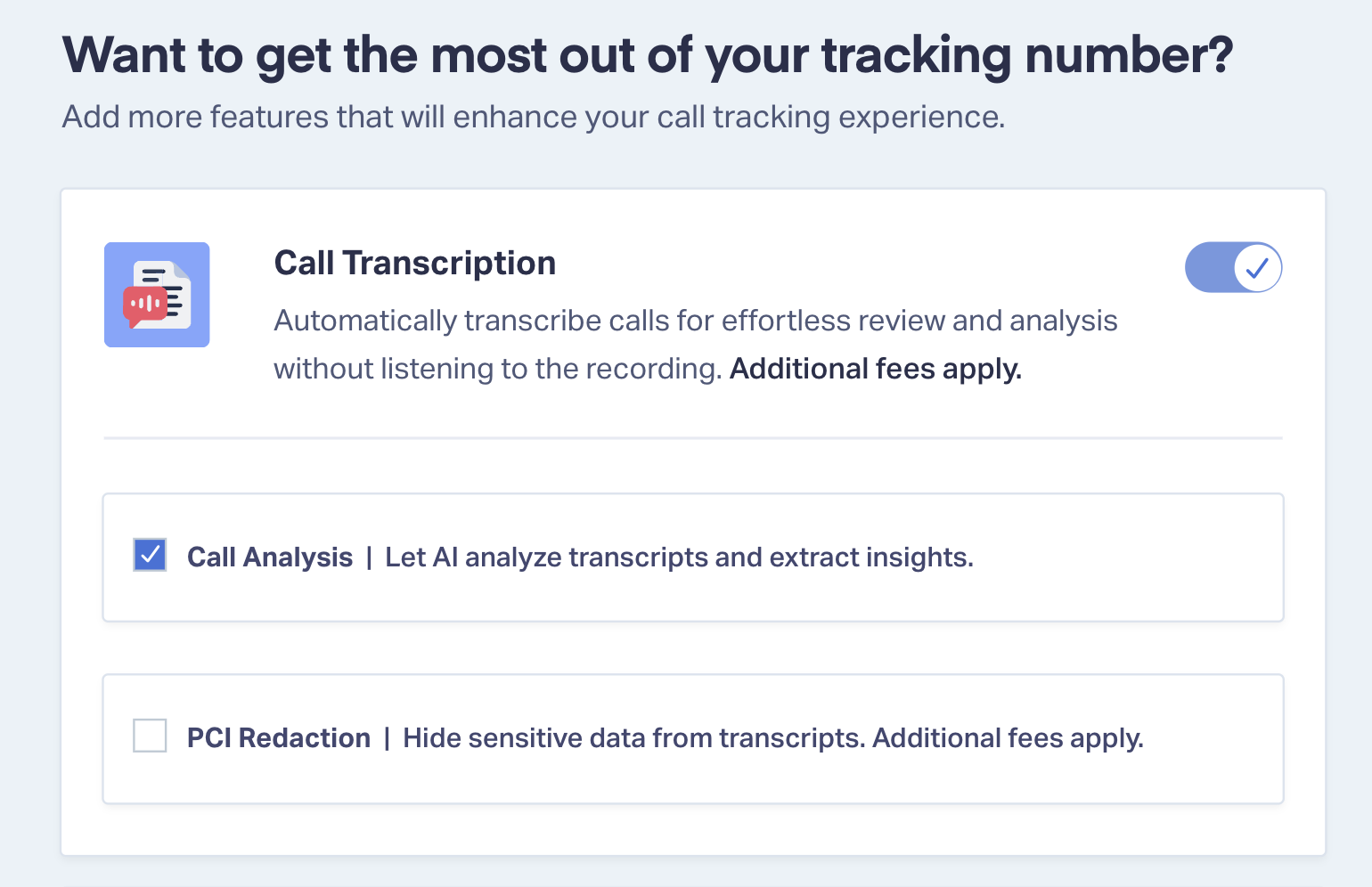
Once Call Analysis is enabled, WhatConverts automatically analyzes each call as it arrives.
AI Lead Analysis for Non-Call Leads
For non-call leads, AI Lead Analysis runs using Lead Intelligence rules, which are available on Elite plans.
To set up an AI Lead Analysis rule with Lead Intelligence:
- Navigate to the Lead Intelligence tab in the Control Center and select “Add Intelligence Rule.”
- In the Conditions section on the left, select “when a lead is created.” Set dimension to “Type is” and choose the lead type you want to analyze (web form, chat, transaction, etc.)
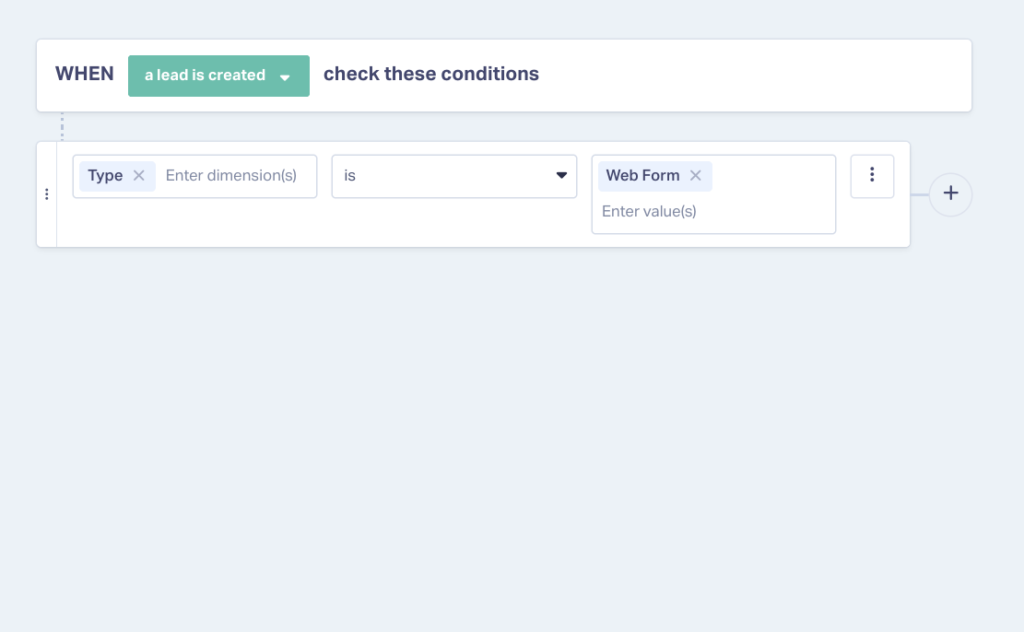
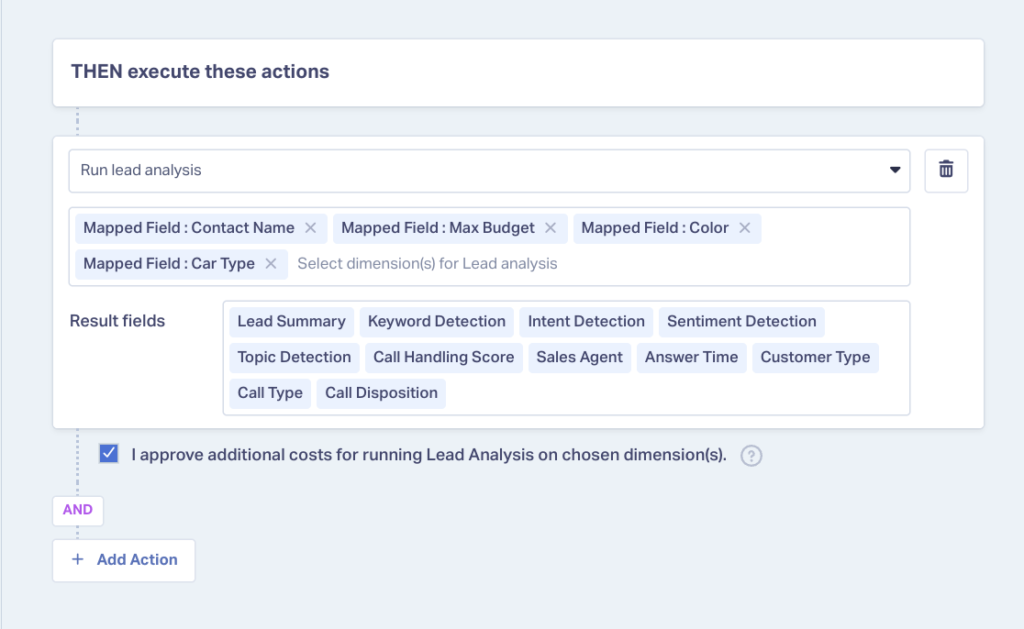
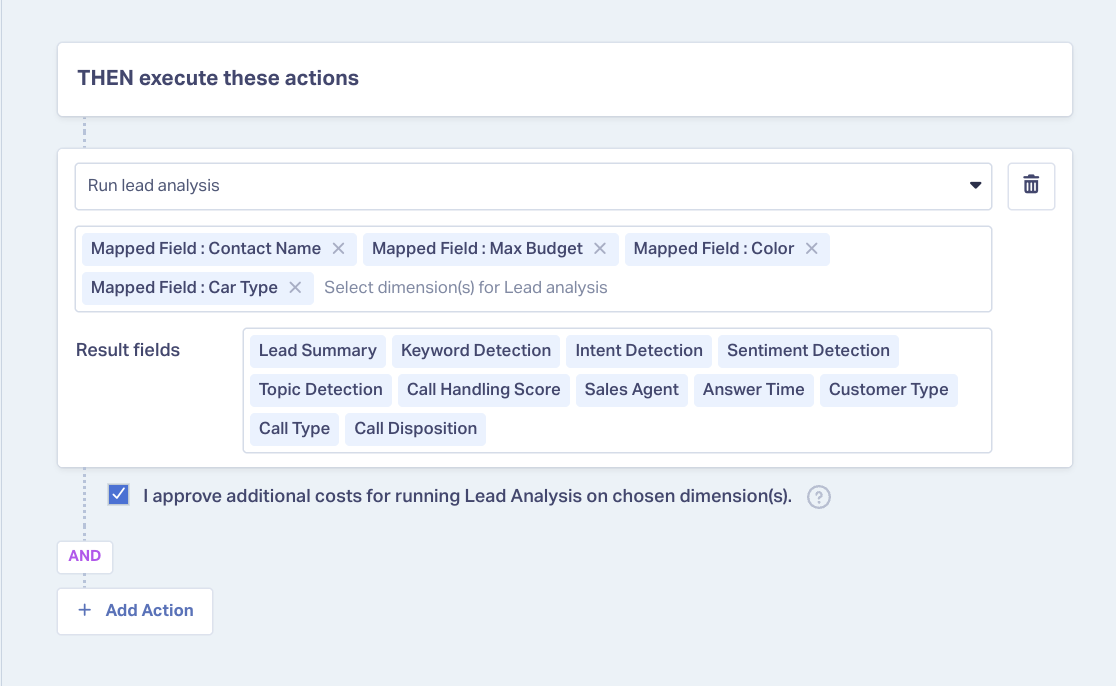
- In the Actions section on the right, set “Type of Action” to “Run Lead Analysis.” Choose the lead fields you want to include in your analysis, then check the box approving AI Lead Analysis usage costs.
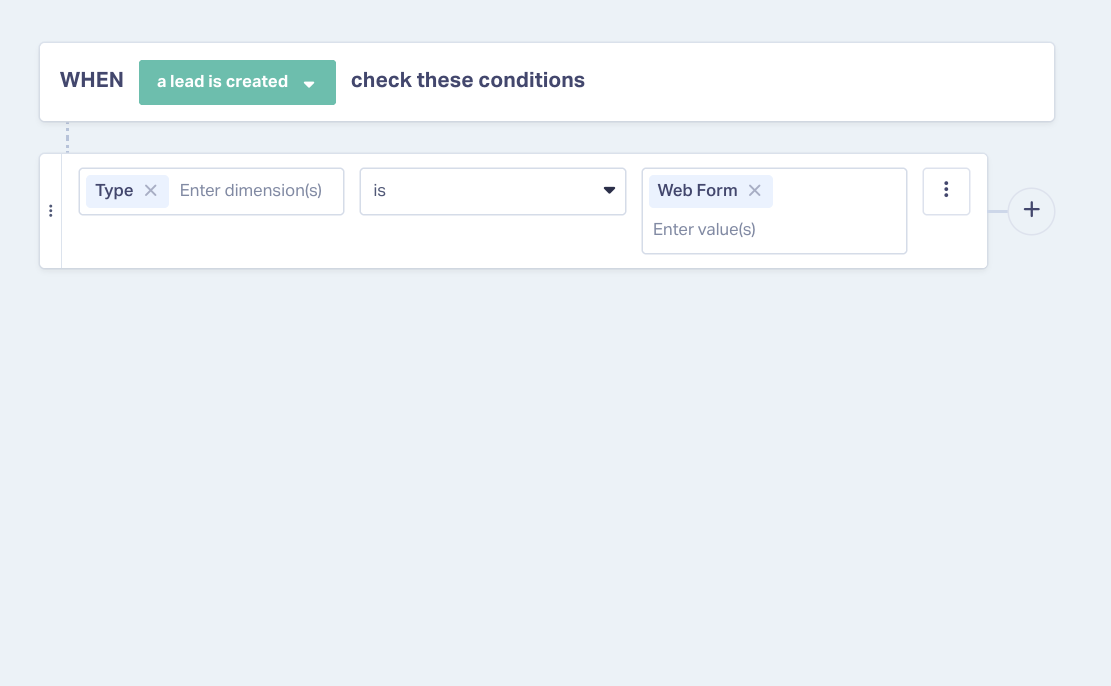
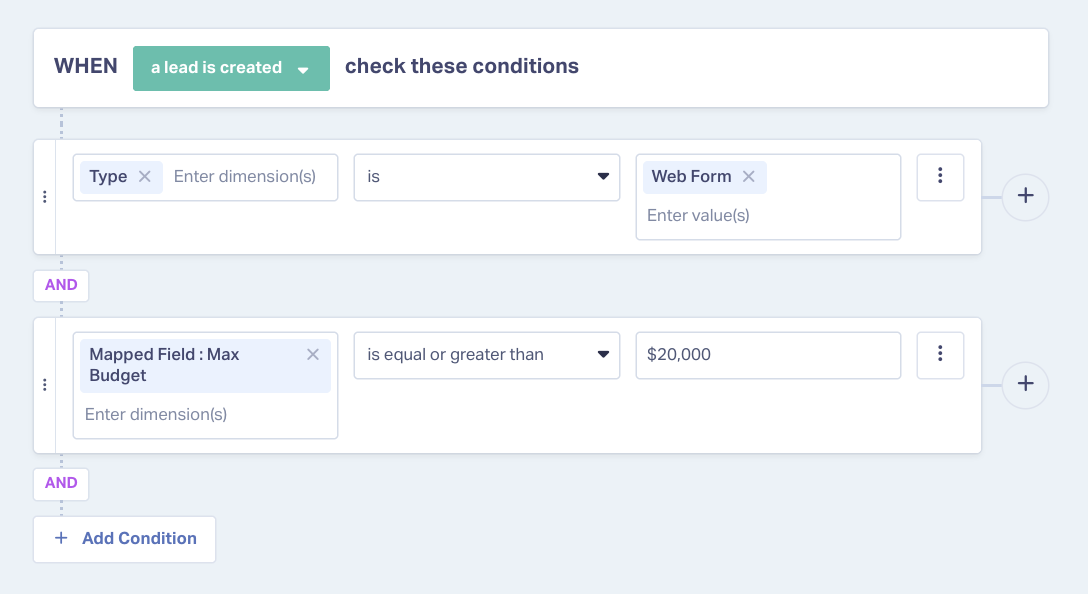
Note that you can save on AI Lead Analysis costs by setting limits on which incoming leads are worth analyzing. For example, if you only want to analyze leads whose budget is in your service range, you can set your conditions so that lead type is web form and budget is greater than $20,000.
Ask AI Analysis
AI Lead Analysis generates a standard set of outputs that includes summary, keywords, intent, and call handling score. Ask AI Analysis allows marketers to add custom outputs using Lead Intelligence, which automatically queries incoming leads with custom AI prompts and stores the answers under the Lead Analysis tab.
To set up an Ask AI Analysis rule:
- Navigate to the Lead Intelligence tab in the Control Center and select “Add Intelligence Rule.”
- In the Conditions section, set dimensions to determine which leads should be analyzed, like phone leads where duration is greater than 60 seconds.
- In the Actions section, set “Type of Action” to “Ask AI questions about” and select the fields you want to be included in the analysis. Then write your question(s), like “Was an appointment booked or scheduled?” or “What service or product is the customer interested in?”
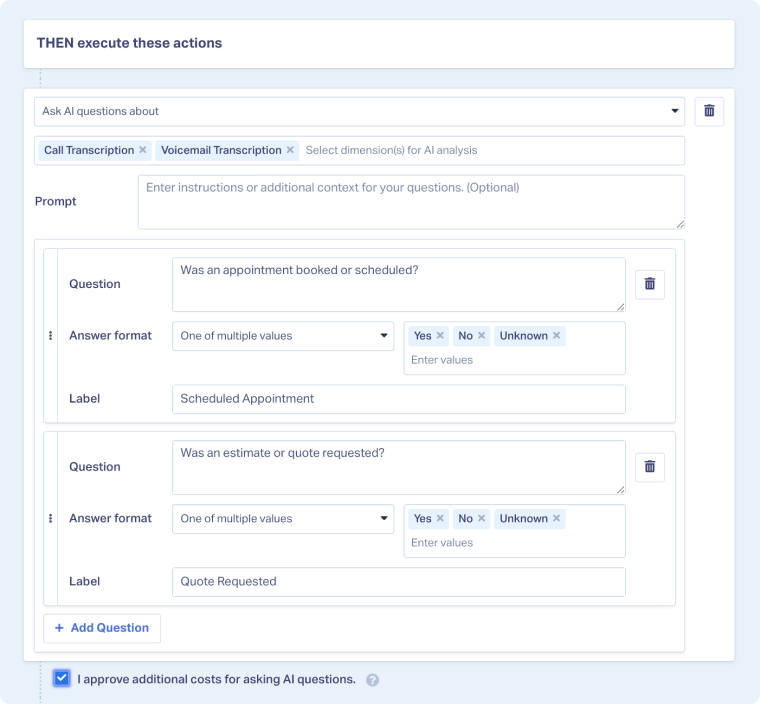
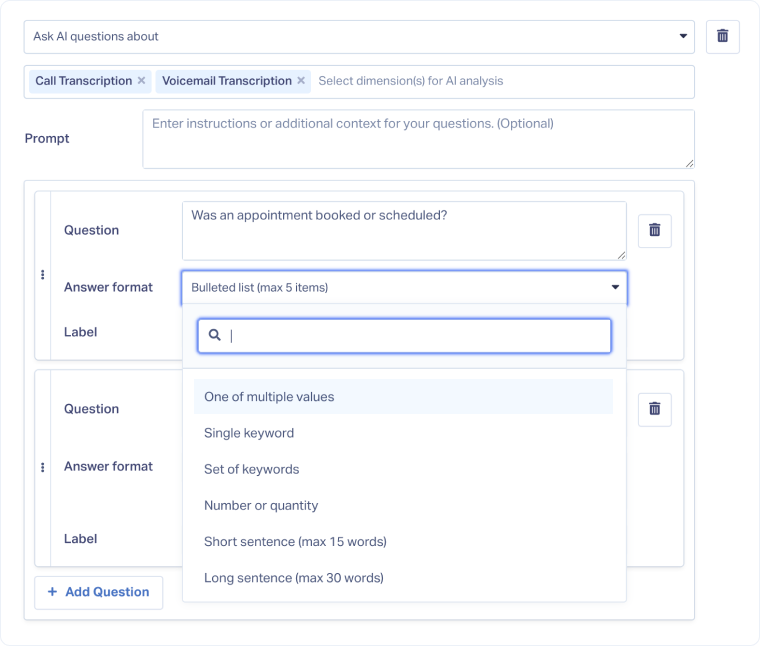
- In the “Answer format” field, select how AI should respond from the dropdown menu: with a single keyword, set of keywords, a numerical value, or a short or long sentence.
- Finally, add a label for the type of information being extracted, like “Appointment Scheduled” or “Requested Service.”
The label you give the answer becomes a field name in the Lead Manager that populates with your output. You can then use that output field sort and filter leads by that category.
How It Works: Understanding WhatConverts's AI Usage Rates
AI-Enabled Lead Intelligence Rules
WhatConverts’s AI features do more than just extract insights. They’re also designed to act on them.
Because the outputs generated by AI Lead Analysis and Ask AI Analysis are stored as lead fields, you can use them as conditions in your automation rules. WhatConverts can then take actions like marking a lead as quotable, adding a quote or sales value, scoring the lead, or marking an unqualified lead as spam based on information extracted as part of the analysis.
To build a Lead Intelligence rule that acts on AI outputs:
- Navigate to the Lead Intelligence tab in the Control Center and select “Add Intelligence Rule.”
- In the Conditions section, set your dimensions to your desired outputs from your AI Analysis, like a particular spotted keyword or an answer from an Ask AI prompt.
- In the Actions section, set “Type of Action” to the change you want made:
- Set Value lets you set quotable status as yes or no, lead score as a value, quote value as a dollar amount, or any other field as the value you chose
- Send Conversion lets you push a qualified lead and its value to your ad platform to train its bidding algorithm to target similar leads
- Mark as Spam lets you filter junk leads out of your reporting
You can set up multiple actions on a single rule, so a rule can mark a lead quotable, assign it a score, set the quote value, and then send the entire conversion back to Google Ads.
How the Pieces Work Together on a Single Lead
Here’s what happens to a single call from a Google Ads campaign for a roofing company when it runs through the whole process:
- The call comes in on a tracking number, and WhatConverts attaches the source, campaign, ad group, and keyword to the lead record.
- AI Lead Analysis reads the transcript and returns a summary, an intent of "storm damage repair estimate," extracted keywords including "insurance claim," positive sentiment, and a call handling score.
- An Ask AI rule asks and answers your question. You asked "Did the caller schedule an inspection?" The answer, Yes, lands in a column called Inspection Booked.
- A Lead Intelligence rule acts on all of it. Intent indicates a repair estimate and the inspection is booked, so the rule marks the lead quotable, sets a Quote Value of $9,500, and sets Lead Score to 90.
- The conversion syncs to Google Ads with the $9,500 value attached to the keyword that produced it.
No one ever has to listen to the call recording, read the transcript, or even evaluate the lead data. The lead gets qualified, valued, and sorted, and the campaign learns to optimize toward more booked inspections instead of more clicks and calls.
Start with One Rule
The fastest way to see what this does is to turn on Call Analysis for your highest volume tracking number and write a single Ask AI rule with the one question you currently answer by listening to calls. Within a day you'll have that answer as a column, on every lead, next to the campaign that produced it.
From there the rest follows: analysis on forms and chats, scores and values set automatically, and conversion data flowing back to your ad platforms with real numbers attached.
Ready to start getting AI insights from your call leads?
Start your free 14-day trial of WhatConverts today or book a demo with a product expert to see how we help prove and grow your ROI.
Get a FREE presentation of WhatConverts
One of our marketing experts will give you a full presentation of how WhatConverts can help you grow your business.
Schedule a DemoGrow your business with WhatConverts


