


 Alex Thompson
Marketing Spend is now available on Pro plans and higher. If your account is on Pro or Elite and you have connected Google Ads, Meta Ads (Facebook Ads), or Bing Ads, your ad cost is already importing. There is no setup step and nothing to switch on.
WhatConverts pulls spend from those platforms daily and attaches it to the campaigns that produced your leads, so cost per lead shows up in your reports without a month-end spreadsheet. Add sales value to those same leads and the reports show what each campaign returned.
Note: On the Plus or Call Tracking plan? Upgrading your account is a snap, and Marketing Spend turns on as soon as your ad platform integrations are connected.
What You Can Do with the New Marketing Spend Feature?
Knowing how much you spend on each marketing channel is essential for understanding ROI.
With the updated Marketing Spend feature, you can:
- Automatically track spend from Google Ads, Meta Ads, and Bing Ads as soon as those integrations are connected.
- Manually add spend for other channels like SEO, print, or sponsorships to calculate full ROI across all marketing.
- See cost per lead instantly in reports, helping you identify which channels and campaigns drive the best returns.
- Drill down by campaign, keyword, landing page, and more to see which parts of your marketing deliver the highest value.
- Spot high-value opportunities and shift budget towards what works.
Spend only imports from platforms you have connected. If Google Ads, Meta Ads, or Bing Ads is not linked to your account yet, connect it and your cost data starts importing automatically.
Integration Spotlight: Ad Platforms
Example Use Case: The Summary Report
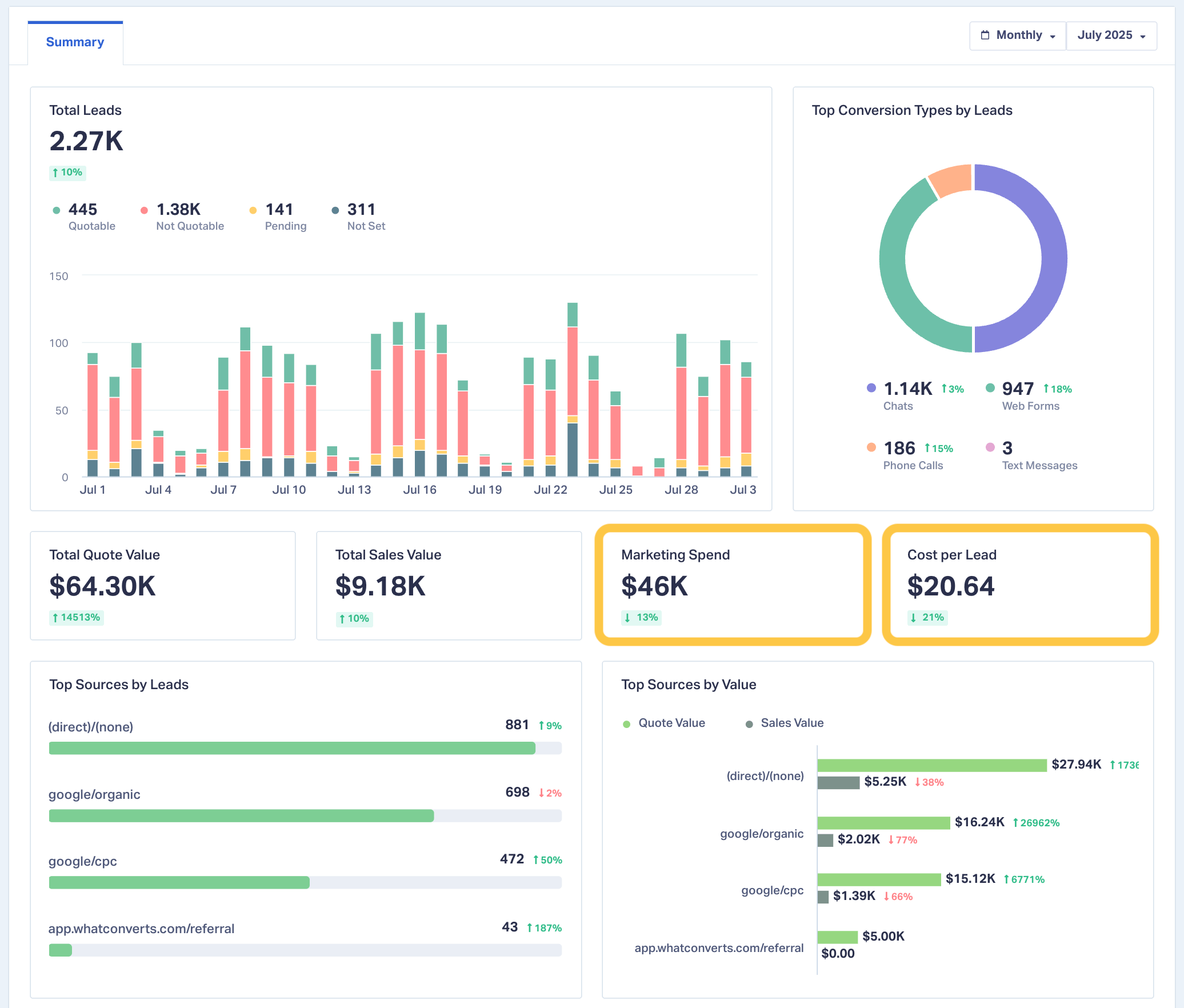
For these weekly check-ins, you head over to the newly updated Summary Report, which now includes Marketing Spend and Cost Per Lead. Here, you can instantly view the overall cost per lead across all campaigns, plus how it’s changed week-over-week or month-over-month.
For example, this week you notice the cost per lead is $20.64, which is 21% lower than last month. What could this change mean?
| Change in Cost Per Lead (CPL) | What It Could Mean | Recommended Action |
| CPL is lower than last period | Campaigns are performing well | Shift more budget into high-performing campaigns or commit more to experimental campaigns to find new opportunities. |
| CPL is lower, but lead quality drops | Increase in low-quality, spam, or unqualified leads | Review leads in the dashboard to verify quality. Adjust targeting or filters to focus on high-value leads. |
| CPL is lower, but conversion rate from lead to sale also drops | Leads are cheaper but less likely to generate revenue | Reassess campaign targeting and messaging to attract more purchase-ready prospects. |
| CPL is lower, and lead volume has increased significantly | Your reach and efficiency have improved | Monitor quality and capacity to handle more leads. Consider scaling ad spend to maximize momentum. |
Bottom line: One dashboard now gives you both ROI and cost trend data, helping you act faster on opportunities and potential problems.
What’s New
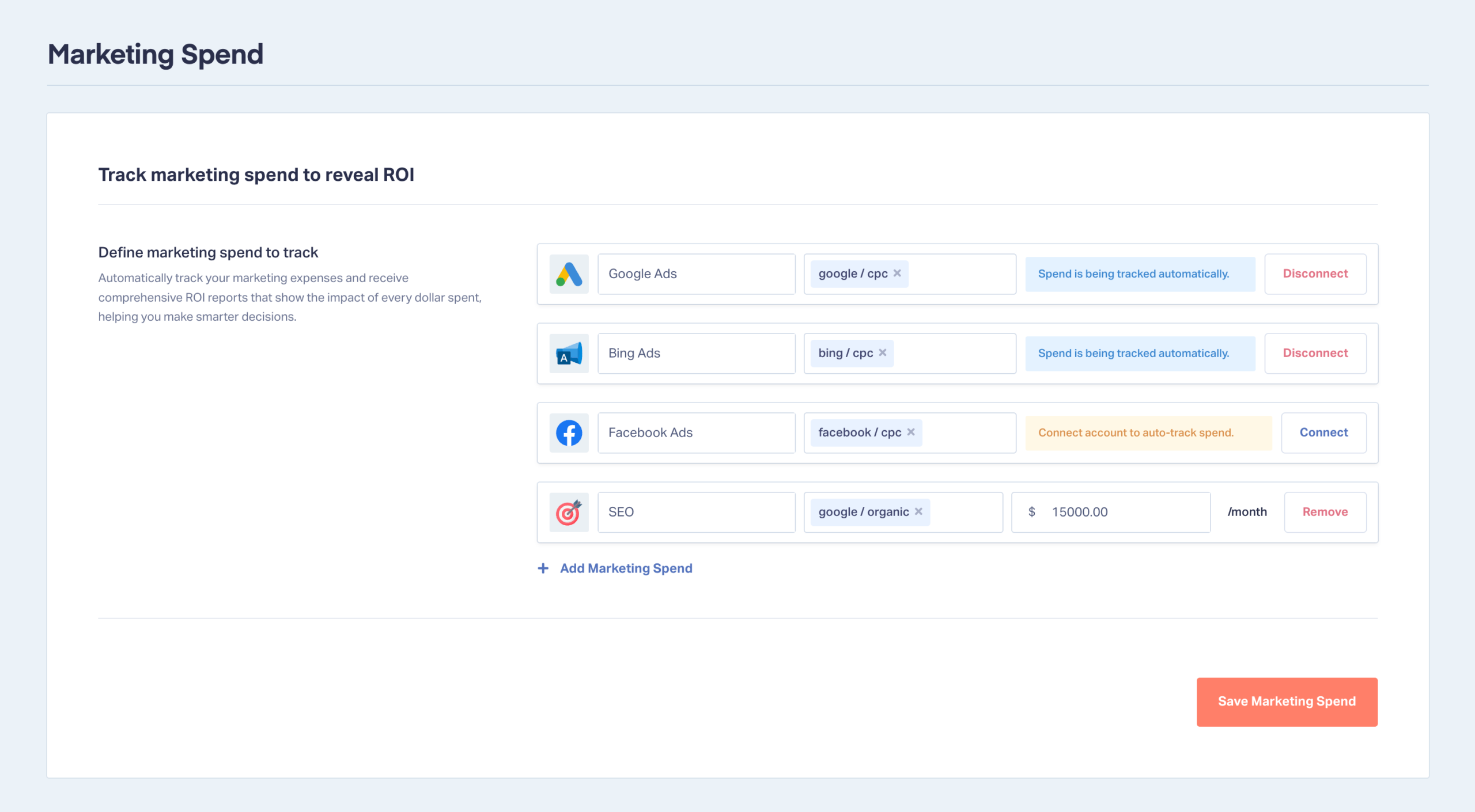
Now it’s:
- Available on Pro and Elite. Marketing Spend used to be an Elite feature. Accounts already on Pro have it now, with nothing extra to turn on.
- Integrated by default for Google Ads, Meta Ads, and Bing Ads (once connected).
- Streamlined into a single spend group per channel, keeping data clean and reports easy to read.
- More accurate thanks to direct pulls from your ad platforms.
- Report-ready with dedicated spend and cost-per-lead sections in your Summary Report.
Why This Matters
Marketing spend gives you cost per lead. Sales value on those same leads gives you revenue, and the two together produce a return figure you can put in front of a client or a finance team.
You can enter sales value on a lead by hand, or let a CRM send it. Salesforce, HubSpot, JobNimbus, and Jobber all pass quote and sales value back to the matching lead in WhatConverts, so the revenue side of your reporting fills in as deals close.
That changes what a monthly report can say. Revenue gets attributed down to the campaign, keyword, and landing page level, which is the number clients ask about first. It is also the number to use when you are deciding where to move budget.
Integration Spotlight: CRMs
How to Set It Up
- Go to Reports → Marketing Spend in your WhatConverts account.
- Connect your ad platforms. Google Ads, Meta Ads, and Bing Ads can be connected during onboarding or from your integrations settings.
- If connected, spend data flows in automatically.
- Add manual spend for non-integrated channels (e.g., SEO, events, mailers):
- Enter your monthly budget.
- Assign the correct Source and Medium (e.g., “google / organic” for SEO).
- Save and you’re done.
- Add sales value to your leads, either manually or through a CRM integration, so your reports show return alongside cost.
Need Help?
Note: For more on Marketing Spend, please see the Help Center documentation.
Our support team is here to ensure your marketing spend is set up correctly. Contact us to review your account and start getting clearer, more valuable ROI insights.
Ready for clearer reporting on your marketing’s ROI?
See It In Action: Book a Free Demo
Get a FREE presentation of WhatConverts
One of our marketing experts will give you a full presentation of how WhatConverts can help you grow your business.
Schedule a DemoGrow your business with WhatConverts







