


 Alex Thompson
Your Jobber account knows which customers paid you. Your ad account doesn't. That gap is why most home services reporting stops at lead volume, and why the answer to "which campaign made us money" arrives months late.
The native Jobber integration solves that problem by connecting your Jobber jobs and revenue back to the marketing that drove them, powered by WhatConverts. And now, that connection just got stronger.
The upgraded Jobber integration captures four touchpoints against the lead that produced them: the request, the quote, the job, and every invoice paid against it. Quote Value, Sold Revenue, and Sales Value fill in on their own. For marketers, that means earlier revenue data to drive decisions and faster feedback to ad platforms for even better optimization.
Available on Pro Plans or Higher
What's New
- Four lead types instead of two: appointment, estimate, job, and transaction
- Quote Value fills in from your Jobber quote total
- Sold Revenue lands the day you win the job
- Sales Value comes from each paid invoice, and several invoices on one job add up on their own
- Every record carries its Jobber status, job type, address, and full attribution
Why This Changes Your Bidding
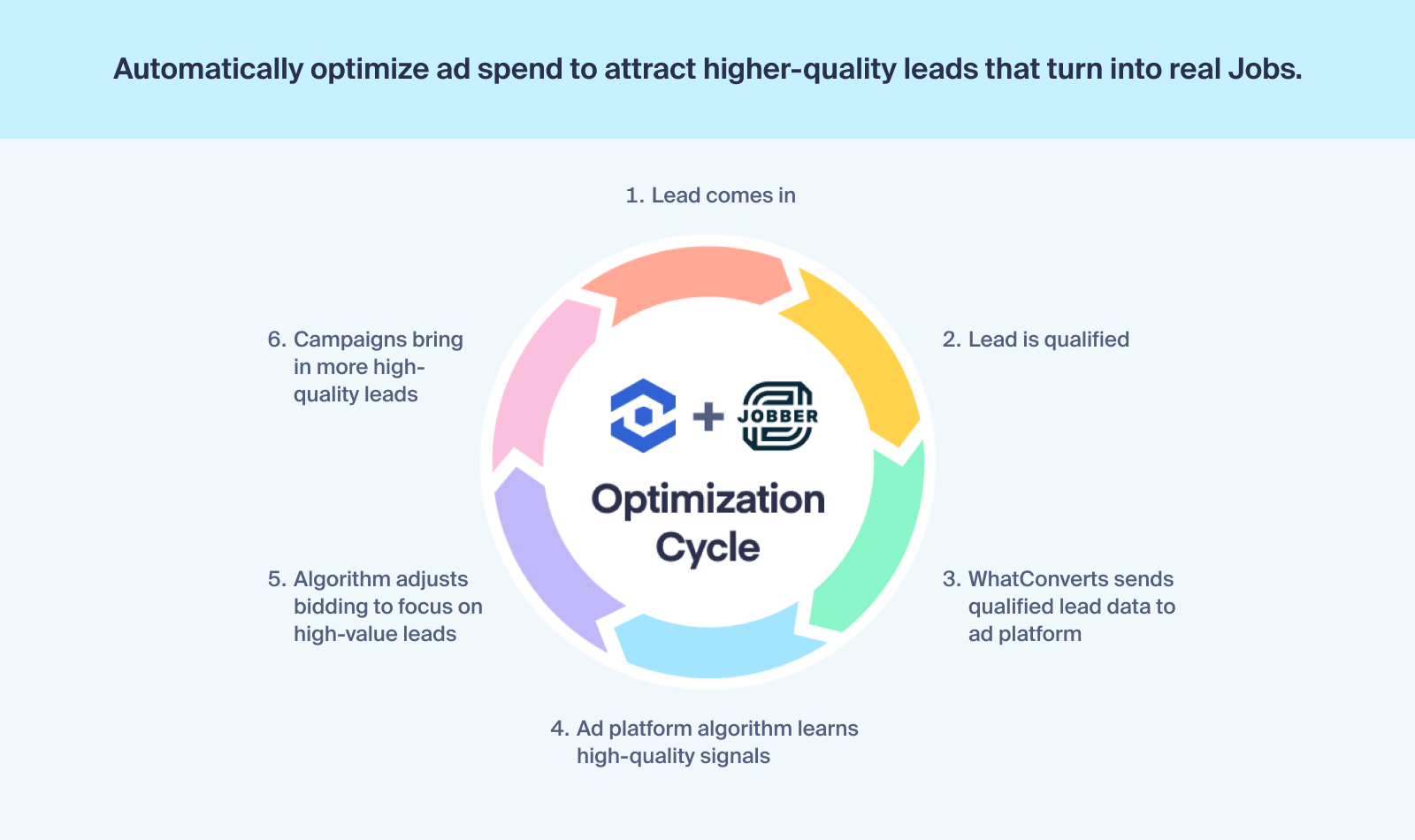
The trouble with revenue is timing. You might quote a roofing job in March and not invoice it until June. If closed revenue is your only signal to Google Ads, Smart Bidding spends those three months treating a $400 gutter cleaning and a $22,000 re-roof as the same event.
Quote Value fixes that timing problem. The moment your team sends an estimate in Jobber, the quote value lands on the lead in WhatConverts with the GCLID, the keyword, and the campaign behind it. Push that value into Google Ads as a conversion value. Smart Bidding then weights toward the searches that produce big quotes, days after the estimate rather than a quarter after the invoice.
Sold Revenue arrives next, the day you win the job. You collect Sales Value after that, as each invoice gets paid. You get three revenue signals at three points in the deal instead of one at the end.
What Each Touchpoint Gives You
| Jobber record | WhatConverts lead | What lands on the lead |
| Request | Appointment | Full address, appointment status, request type. No revenue yet |
| Quote | Estimate | Quote Value, quote ID, status, source request |
| Job | Job | Sold Revenue, job type, job status, full attribution |
| Invoice | Transaction | Sales Value, plus the job ID linking invoices to one job |
Every estimate carries a quote ID, so any number in a report traces back to a record in Jobber. Reject that quote and its Quote Value drops to $0. Win the job at a different price and the estimate reconciles to the final total.
Transactions carry the job ID, so progress billing stops fragmenting your reporting. A job invoiced in three payments reports as one job worth the sum of those payments, attributed to the campaign that started it.
A Roofing Example
Say a roofing company runs Google Ads on storm damage, roof repair, and full replacement. The monthly report shows 140 leads at $61 each, and repair terms look like the winner because they're cheapest.
Then you connect Jobber. Repair keywords produce plenty of requests, but those estimates come back at $600 to $1,200. Replacement keywords produce a third as many leads at four times the cost, and their quotes run $18,000 to $30,000.
The team moves budget to replacement and switches that campaign to target ROAS. Their report to the owner stops saying "140 leads" and starts saying "$214,000 in signed jobs."
Integration Spotlight: Jobber Integration
How to Get Started
The Jobber integration is available on Pro plans and above. Existing Jobber customers on other plans keep their access.
- Log in and open the profile you want to connect.
- Go to Tracking → Integrations. Under CRMs, click View Details on Jobber.
- Click Add Connection.
- Sign in to Jobber and click Allow Access.
- Leave all four lead types selected, then click Finish.
Jobber connects at the profile level, so repeat this for each profile that needs it.
One thing to check first. Your Jobber client records need the phone number and email your leads come in on, because that first match happens there. Everything after it follows Jobber's client ID, so a bad first match breaks the whole chain. 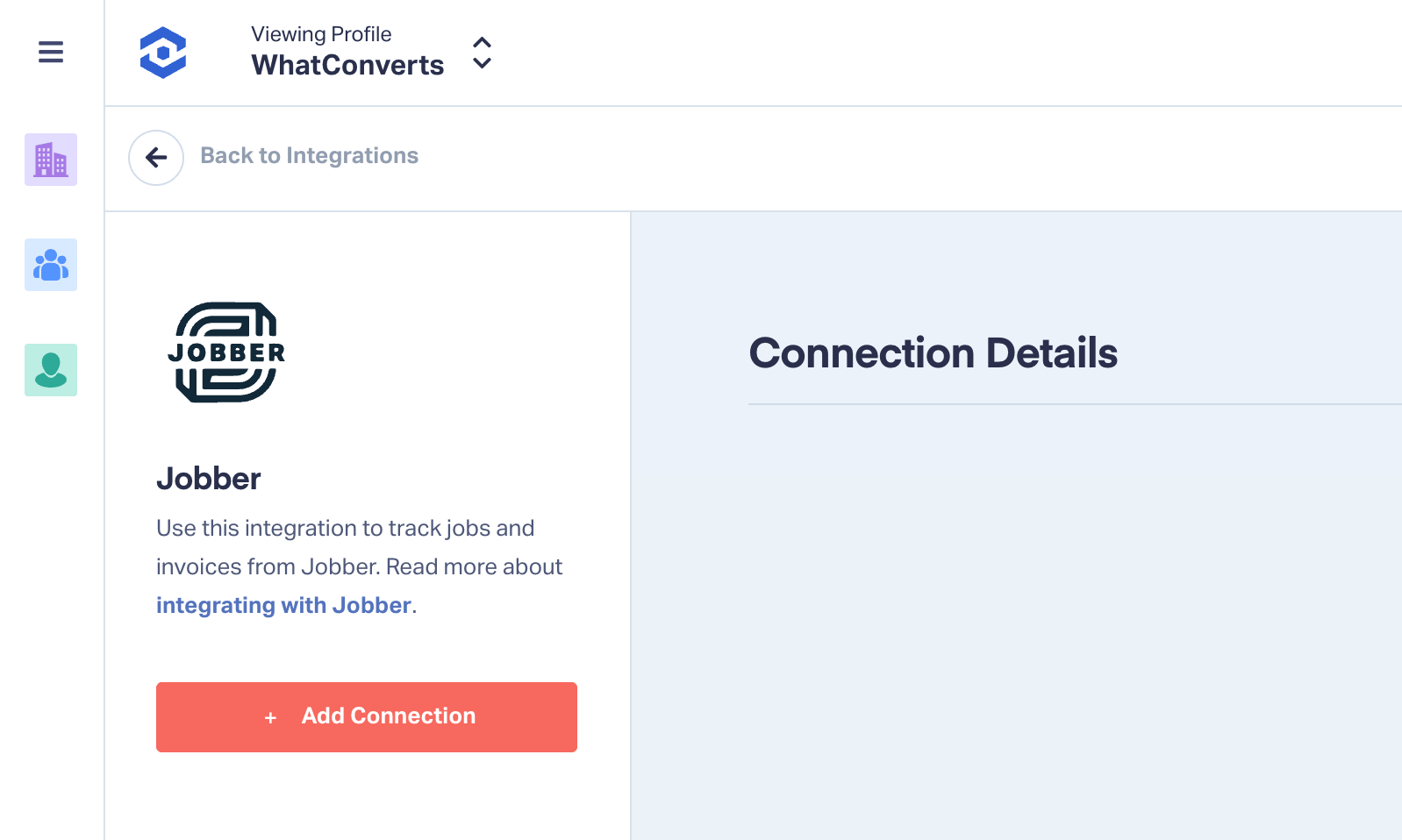
Don't Have Jobber?
Jobber is one of the most powerful field service management platforms in the industry. And when you combine it with WhatConverts, you can see what marketing is driving real jobs and real revenue.
Connect Jobber and Report on Revenue
The upgraded integration puts quotes, jobs, and invoices on the same record as the keyword that produced them. You can move budget while the campaign is still running instead of reading about it a quarter later.
Already a customer? You can log in and connect Jobber today.
New to WhatConverts?
Start your free 14-day trial of WhatConverts today or book a demo with a product expert to see how we help prove and grow your ROI.
Get a FREE presentation of WhatConverts
One of our marketing experts will give you a full presentation of how WhatConverts can help you grow your business.
Schedule a DemoGrow your business with WhatConverts







