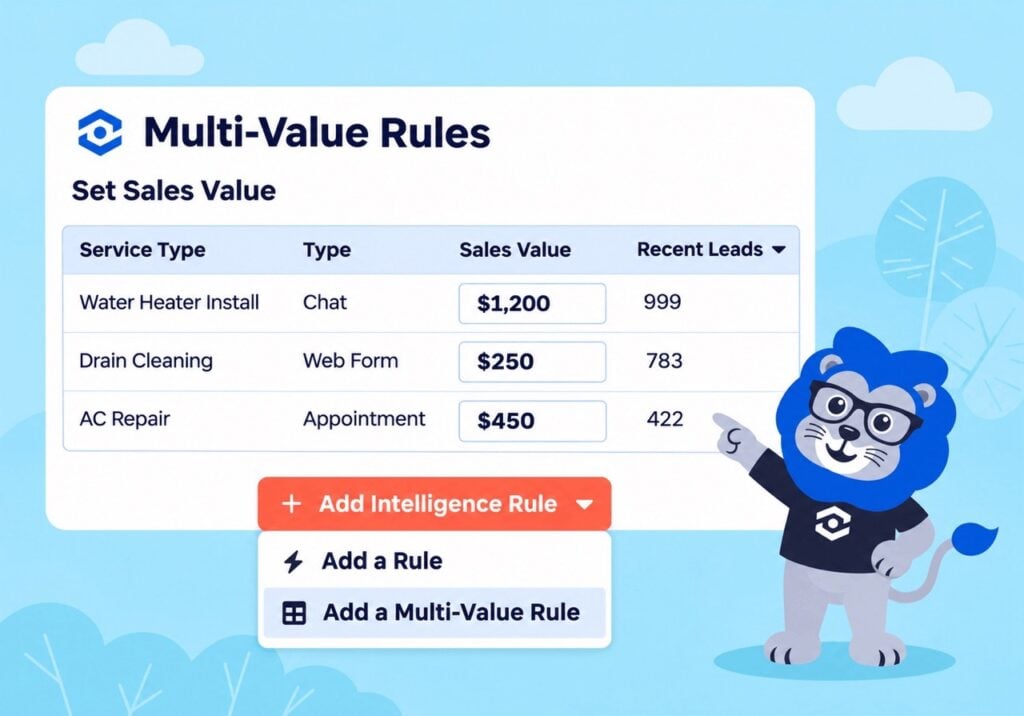
Introducing Multi-Value Rules: Value Every Service Type in One Rule
Sales value is what turns a lead report into a revenue report. For most service businesses, that value depends on what the customer asked for.
Until now, setting it automatically meant one Lead Intelligence rule per service type. Same field, same action, a different dollar amount each time. Some accounts built hundreds of these rules by hand.
Multi-value rules put all of those values in one rule. Pick the value you want to set and the fields it depends on, and WhatConverts builds a table of every combination it has tracked, with your most common leads at the top. Fill in the values or import them from a CSV, and save.
TL;DR: What's New
- Multi-value rules: Set Sales Value or Quote Value for many field combinations, like every service type, in a single Lead Intelligence rule
- Value table: Every combination you've tracked appears in one table, sorted by last month's lead volume, so you value your most common leads first
- Custom rows and CSV import: Add services you haven't tracked yet, or fill in a template and upload all your values at once
- Main benefit: Agencies set lead values for every service in one pass, so client reports show revenue sooner
Why This Matters
Lead value is how you show a client which marketing pays off. Quote Value and Sales Value put a dollar amount on each lead, so your reports can show revenue by campaign, source, and keyword.
For most service businesses, that amount depends on the service. A water heater install is worth more than a drain cleaning. So agencies set values by service type, usually from a mapped field or a custom field.
Before this update, every service type needed its own Lead Intelligence rule. A client with 15 services and two lead types could need 30 rules, and every new service meant building more.
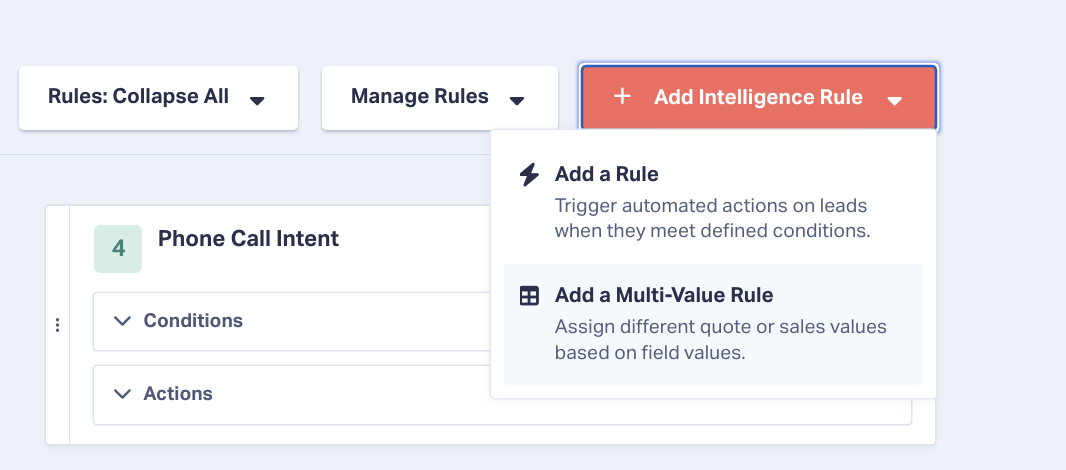
Multi-value rules put every value in one table. For your agency, that means:
- Faster setup. Set values for every tracked service in one pass
- Your biggest leads first. The table sorts by lead volume, so the values that affect your reports most get set first
- Bulk updates. Download a CSV, change values in a spreadsheet, and upload them back
- A shorter rule list. One multi-value rule can do the work of dozens of individual rules
What's New (Feature Breakdown)
Pick a Value and Up to Two Fields
What it does
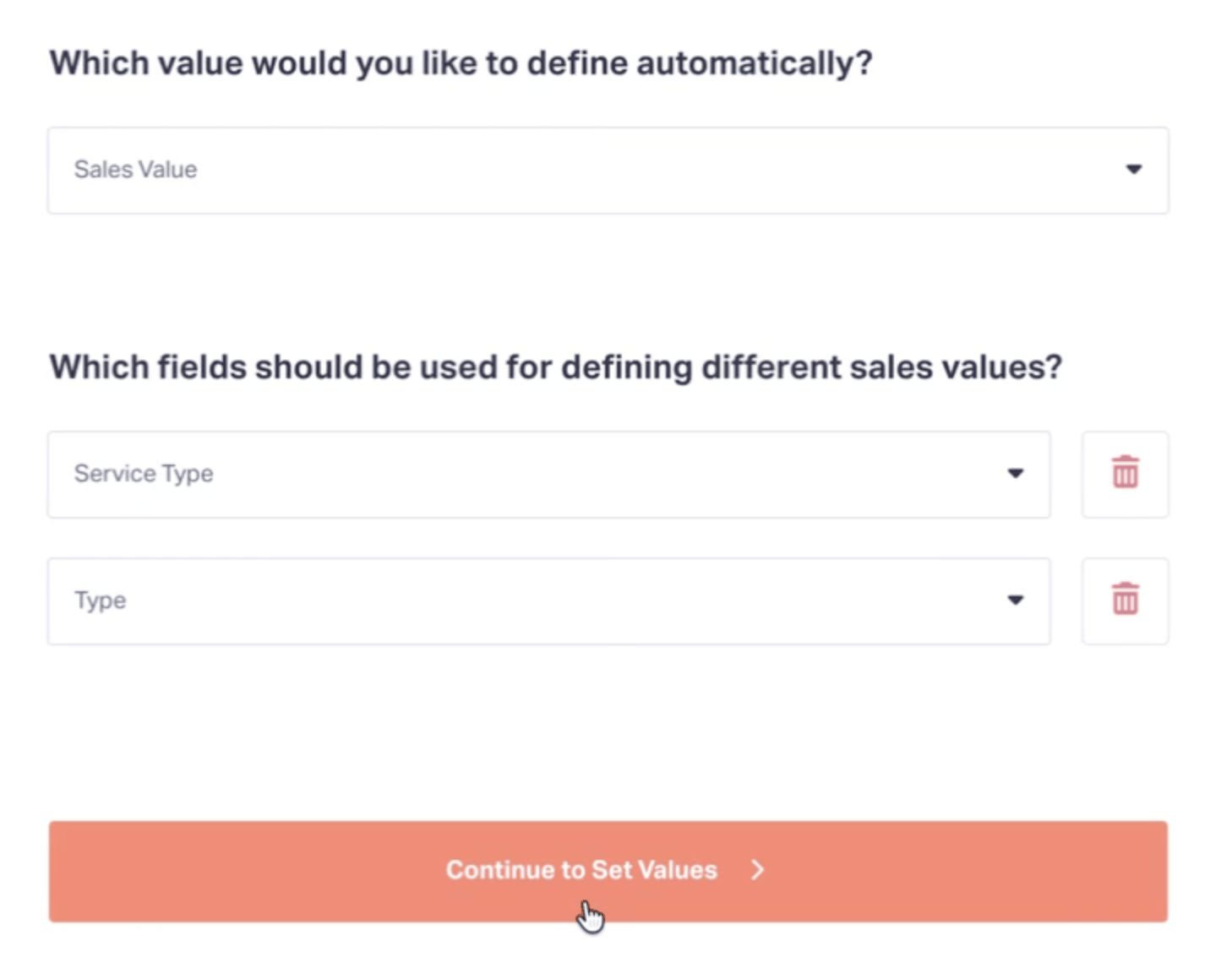
Sets up the whole rule with two choices: the value you want to set and the fields it depends on.
How it works
- In Lead Intelligence, click + Add Intelligence Rule, then Add a Multi-Value Rule
- Choose Sales Value or Quote Value.
- Choose up to two fields. Mapped fields and custom fields appear first in the list, since they usually hold details like Service Type.
- Add a rule works exactly like Add Individual Rule did before. Add a group of rules has moved to Manage Rules, where it's now called Import Rules.
Key benefit
No conditions or actions to build one rule at a time.
A Table Built From Your Tracked Leads
What it does
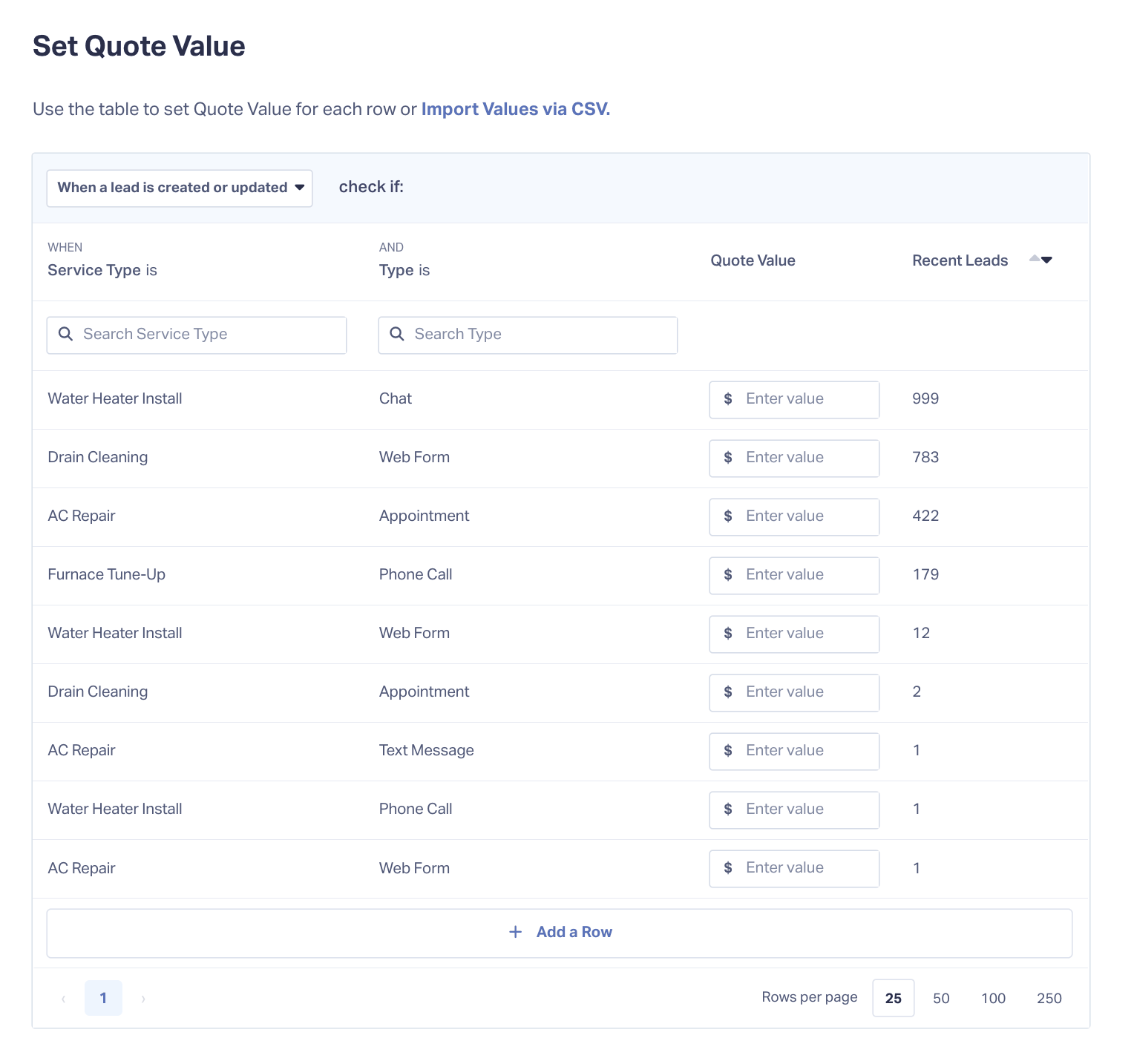
Lists every combination of your chosen fields that WhatConverts has tracked, with a place to enter a value for each.
How it works
- Each row is a combination WhatConverts has tracked, like Water Heater Install and Web Form
- Rows are sorted by Recent Leads, the number of leads each combination brought in last month. Your most common leads sit at the top.
- Enter a value on each row
Key benefit
Value the leads you get most often first, in one pass. If you've run a Quick Report with two dimensions, the layout will look familiar.
Custom Rows for Services You Haven't Tracked Yet
What it does
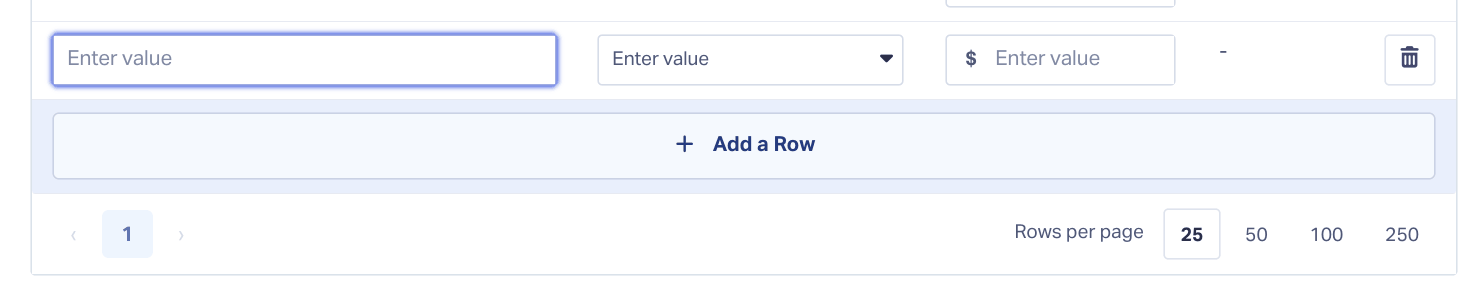
Lets you add combinations that haven't come in yet.
How it works
- Add a custom row, enter the field values, and set its value
- Custom rows are most useful when you set up a new account before leads arrive, or when a client adds a new service
- Only custom rows can be edited or deleted
Key benefit
A new service has a value from its very first lead.
Import Values From a CSV
What it does
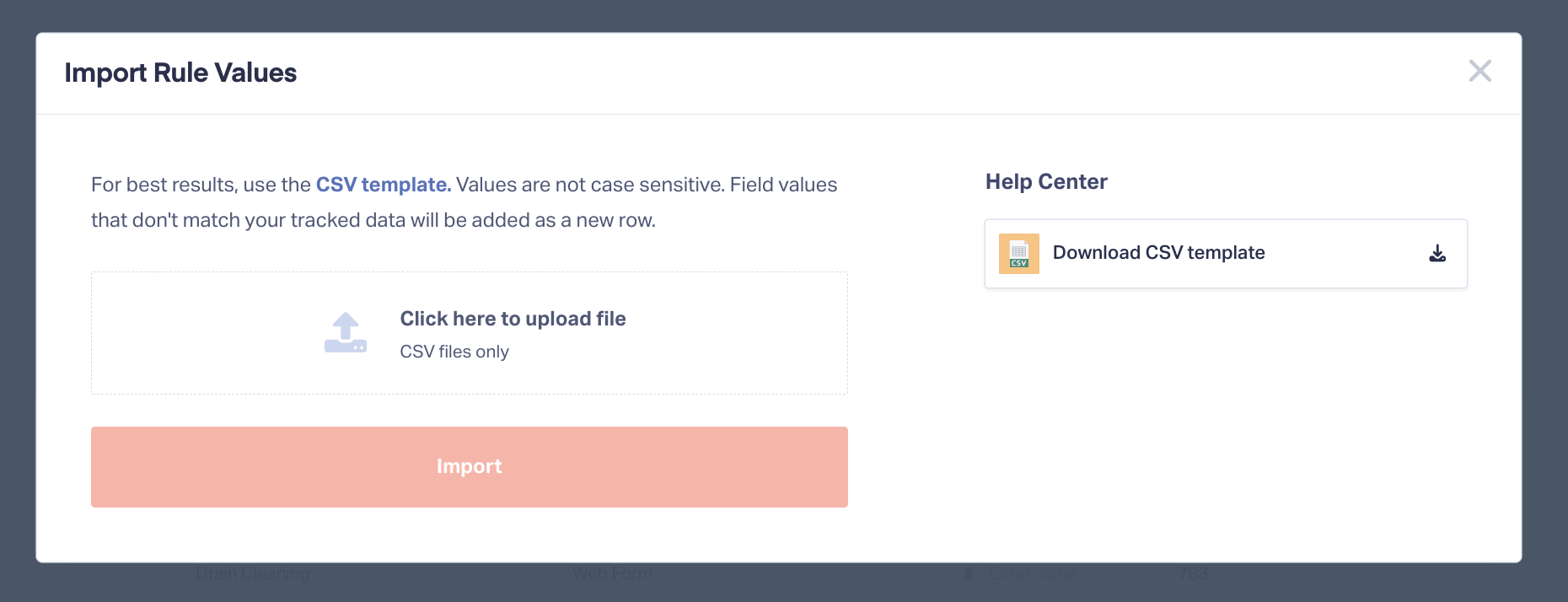
Adds or updates values in bulk from a spreadsheet.
How it works
- Download the CSV template. It has a column for each field you chose plus a value column, filled in with your tracked rows. If nothing has been tracked yet, you get the columns with no rows.
- Fill in values and add new rows
- Upload the file. Your table updates with the new values and rows.
The column headers need to match the template. If they don't, you'll see an error, and nothing imports until you fix the file.
Key benefit
Set dozens of values in a spreadsheet and load them in one upload.
Works Like Any Lead Intelligence Rule
What it does
Runs with the same triggers, options, and priority order as your other Lead Intelligence rules.
How it works
- Triggers: Choose when the rule runs, such as when a lead is created or updated, the same way you do for any Lead Intelligence rule
- Past leads: To apply values to existing leads, click Manage Rules, then Apply Rules to Existing Leads
- Priority: Rules run in the order they appear in your list. New multi-value rules are added at the bottom, so drag yours up if it should run before your other rules.
- Name: WhatConverts names the rule for you based on your choices. Click the name to change it.
- Save: Save Rule saves without turning the rule on. Save and Activate saves it and turns it on.
Key benefit
Nothing new to learn about how your rules run.
Real-World Example
Dana manages Google Ads for a plumbing company. Each lead's service type lands in a custom field, and her client wants a monthly report that shows revenue by campaign.
Before the update, she built a Lead Intelligence rule for every service and lead type: Water Heater Install from a call, Water Heater Install from a form, Drain Cleaning from a call, and so on. Fourteen services across two lead types meant 28 rules. When the client added hydro jetting, she built two more.
Now she creates one multi-value rule. She picks Sales Value, then Service Type and Type. The table lists every combination she's tracked, with Water Heater Install from web forms at the top.
She downloads the CSV, sends it to the client to fill in average job values, and uploads what comes back. For a new trenchless sewer repair service that hasn't brought in a lead yet, she adds a custom row.
She clicks Save and Activate, drags the new rule to the top of her list, and turns off the 28 old rules. Next month's report shows sales value for every service, and the rule list fits on one screen.
How to Get Started
- Log in to WhatConverts and open Lead Intelligence in your Organization or profile settings
- Click + Add Intelligence Rule, then Add a Multi-Value Rule
- Choose Sales Value or Quote Value, then up to two fields
- Enter values in the table, add custom rows, or import a CSV
- Click Save and Activate, then drag the rule up your list if it should run before your other rules
Multi-value rules are available on Elite plans, like the rest of Lead Intelligence.
Tips & Best Practices
- Start with the top rows. They're your most common leads, so their values move your reports the most.
- Turn off the individual rules a multi-value rule replaces. Two rules setting a value on the same lead make it hard to tell which number came from where.
- Use the CSV to get values from your client. Send them the template, ask for average job values, and import what they send back.
- Add custom rows when you onboard a new client, so values are in place before the first leads come in.
- Check where your rule sits after you save it. New rules land at the bottom of the list.
What's Next
Multi-value rules start with Sales Value and Quote Value. Depending on how customers use them, we may add more actions.
Resources & Links
- Create a Multi-Value Lead Intelligence Rule
- Understand Lead Intelligence
- Manage Your Lead Intelligence Rules
- Build Lead Intelligence Rules with Custom Fields
- Build Lead Intelligence Rules with Mapped Fields
Conclusion
Setting lead values shouldn't take a rule for every service.
With multi-value rules, you set a value for every service in one table, add new services before their first lead, and update everything from a spreadsheet. Your reports show revenue sooner, and your rule list stays short.
Try WhatConverts free today and start proving and growing your marketing ROI.
Log in now to build out your first multi-value rule.
See It In Action: Book a Free Demo
Get a FREE presentation of WhatConverts
One of our marketing experts will give you a full presentation of how WhatConverts can help you grow your business.
Schedule a DemoGrow your business with WhatConverts