Create a Multi-Value Lead Intelligence Rule
Multi-Value Rules allow you to define different scenarios for assigning a Sales Value or Quote Value within a single Lead Intelligence rule. Instead of building dozens of separate rules for every field value or condition, you can configure one table-based rule that assigns the appropriate dollar amount based on a lead's field values.
Create a Multi-Value Rule
To create a Multi-Value Rule:
- Access the Organization or Profiles settings depending on where you want to apply rules.
- Click "Lead Intelligence" from the menu.
- Click the dropdown arrow next to "+ Add Intelligence Rule" and select "Add a Multi-Value Rule".
- Under "Which value would you like to define automatically?", select "Quote Value" or "Sales Value" from the dropdown.
- Click "Continue".
- Under "Which fields should be used for defining different quote/sales values?", select your first field from the dropdown.
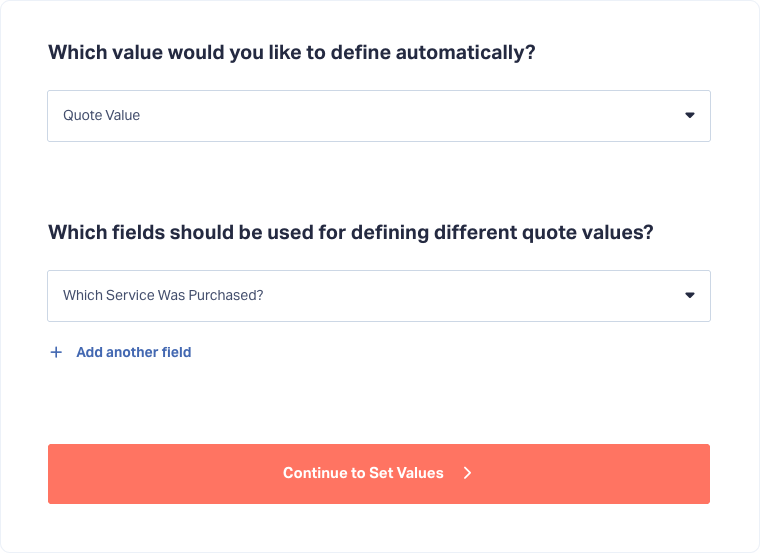
- (Optional) Click "+ Add another field" to select a second field.
- Click "Continue to Set Values".
- In the table, enter a dollar amount in the Quote Value (or Sales Value) column next to each tracked field value.
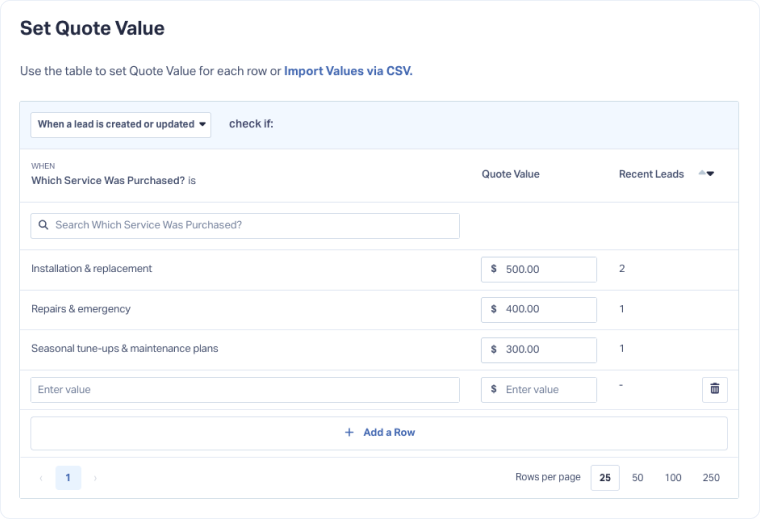
- (Optional) Click "+ Add a Row" to enter additional field values and assign dollar amounts for values that haven't been tracked yet.
- Click "Save and Activate" to activate the rule immediately, or "Save Rule" to save it without activating.
Import Values via CSV
If you have a large number of field combinations, you can enter your values in a spreadsheet and import them in bulk:
- From the Set Quote Value (or Set Sales Value) page, click "Import Values via CSV".
- In the Import Rule Values modal, click "Download CSV template".
- The template includes your selected field column(s) and any pre-populated values tracked in your account.
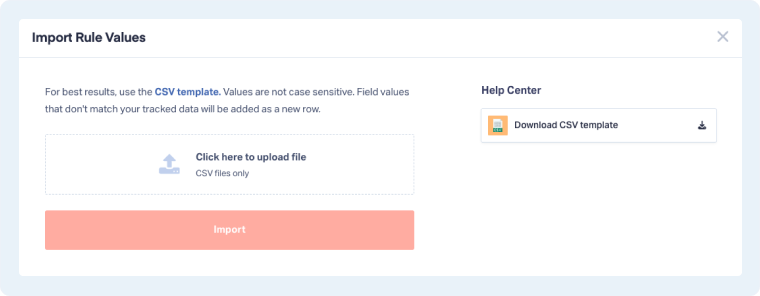
- Open the CSV file, enter your dollar amounts in the Quote Value (or Sales Value) column, and add any new rows for field values that haven't been tracked yet.
- Save the file as a CSV.
- Return to the Import Rule Values modal, click "Click here to upload file", select your CSV, and click "Import".
- Review your imported values in the table, then click "Save and Activate" or "Save Rule".
Related Topics
Was this page helpful?
Get a FREE presentation of WhatConverts
One of our marketing experts will give you a full presentation of how WhatConverts can help you grow your business.
Schedule a Demo