


 Alex Thompson
A new client signs, and someone has to set up their WhatConverts account. Ask the client to do it, and it stalls. Do it yourself, and the bill has to land on your agency's card.
Not anymore.
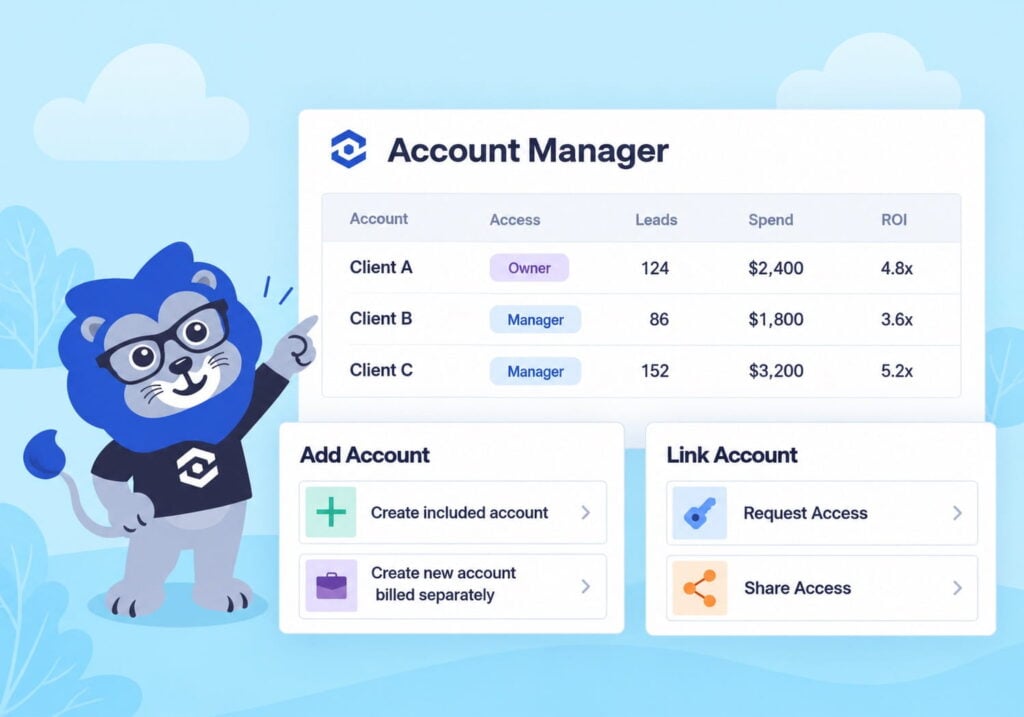
The new and improved Account Manager includes a handful of fixes that make managing client accounts even easier. Create accounts your clients own and pay for, connect to accounts you don't own, and see spend, leads, and ROI for every account on one page.
TL;DR: What's New
- Billing links for client accounts: Create a client's account and send them a link to add their own payment details, so it bills to them instead of you
- Link Account: Request access to an account someone else owns, or share access to yours, for a single account or a whole master account
- Access tab: One place to approve, decline, and revoke access between accounts
- Redesigned Accounts page: Every account you own or manage in one table, with industry, location, and performance metrics
Why This Matters
Until now, whoever created a WhatConverts account paid for it. If your agency created it, your agency paid. If the client created it, getting your team in meant a back-and-forth over users and logins.
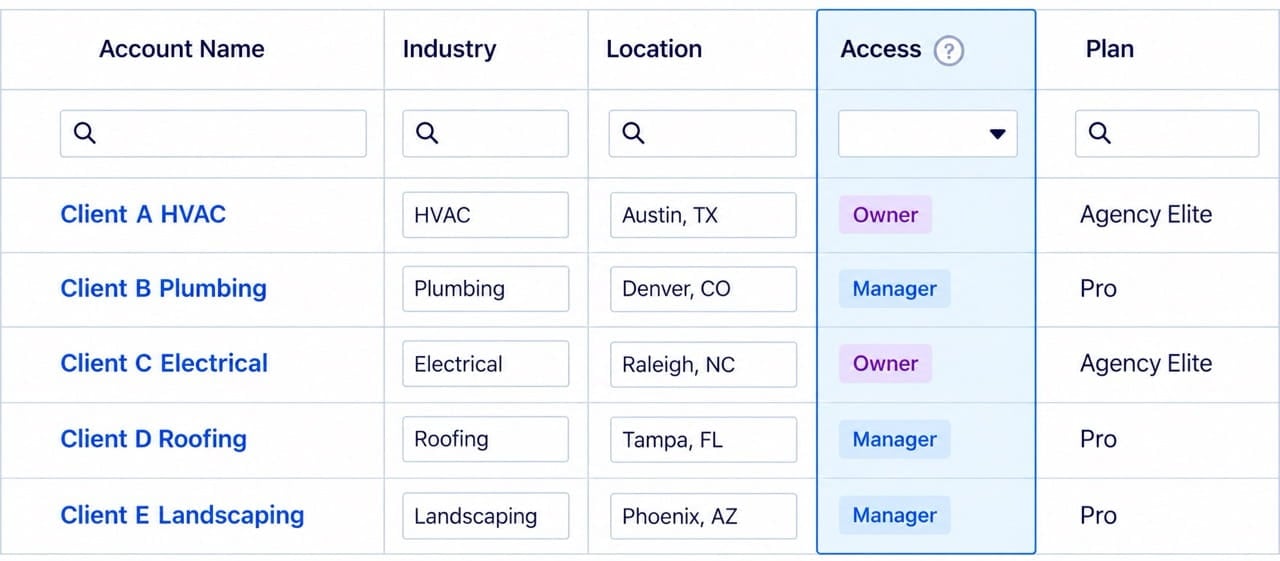
The Account Manager separates who pays from who does the work. The client owns the account and the bill. Your agency gets access to manage it. Both sides can see the connection, and either side can end it.
With that in place, you can:
- Onboard new clients without leaving them alone on a signup page
- Take client subscriptions off your agency card
- Connect to a client's existing WhatConverts account when they switch to your agency
- Spot accounts that track ad spend but no leads before the client does
What's New (Feature Breakdown)
Redesigned Accounts Page
What it does
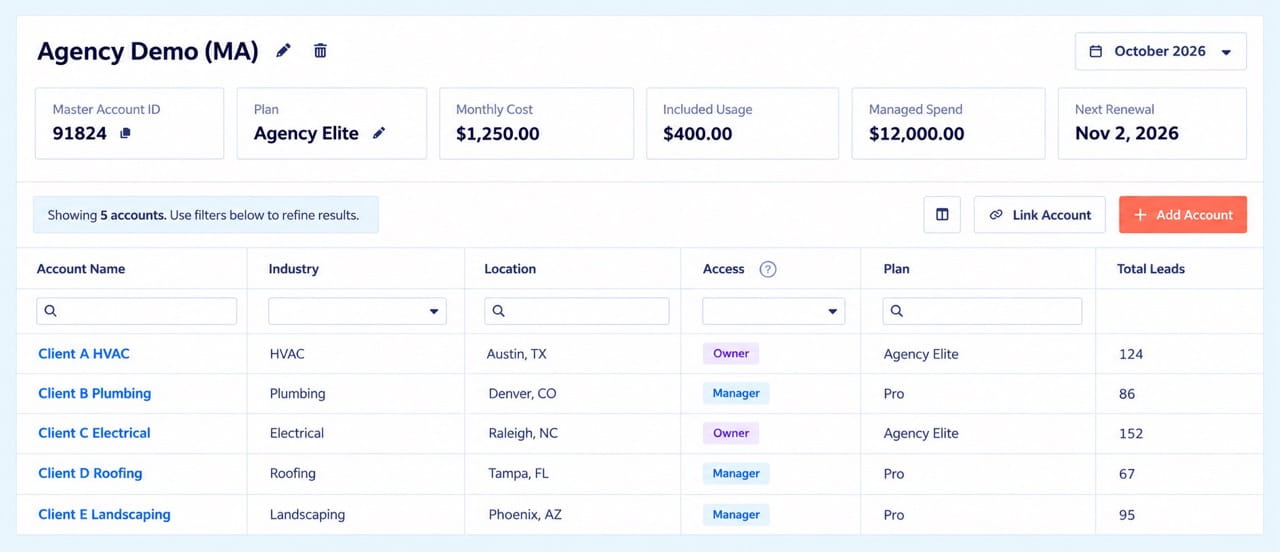
Gives you one view of every account you own or manage, with your master account details at the top.
How it works
- Cards at the top show your Master Account ID, Plan, Monthly Cost, Included Usage, Managed Spend (the ad spend tracked across all your accounts), and Next Renewal date
- A reporting month dropdown in the upper right lets you look back at past months
- The table lists every account under your master account, plus any account another master account has shared with you
- New Industry and Location fields: start typing and pick from the suggestions
- A new Access column labels each account Owner (belongs to your master account and bills to you) or Manager (an external account you've been given access to manage)
- Click the Choose Columns icon to pick which columns show
Key benefit
See your whole client list in one place, no matter who pays for each account.
Performance Metrics by Account
What it does
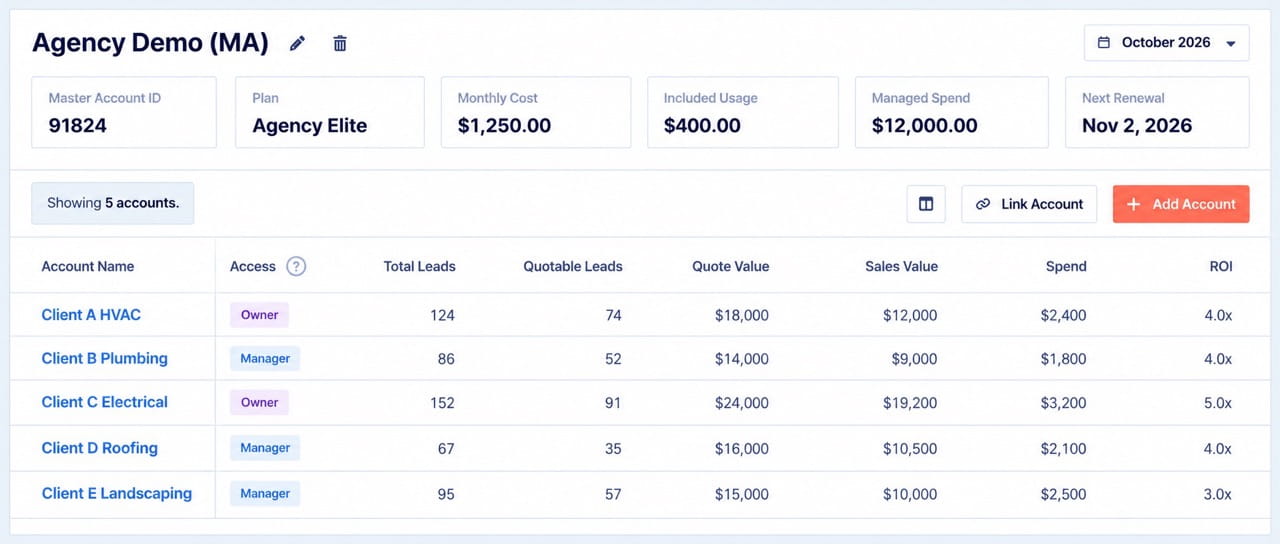
Adds marketing performance columns to the accounts table, so you can compare accounts without opening each one.
How it works
- Open Choose Columns and turn on the performance columns, or click Enable All
- Columns include Total Leads, Quotable Leads, Quote Value, Sales Value, Spend, and ROI
- Change the reporting month to compare past months
Key benefit
Find the accounts that need attention: tracking spend but no leads, not marking leads as quotable, or not recording sales value.
Client Accounts With Billing Links
What it does
Lets you set up a WhatConverts account that your client owns and pays for, while your agency keeps Manager access.
How it works
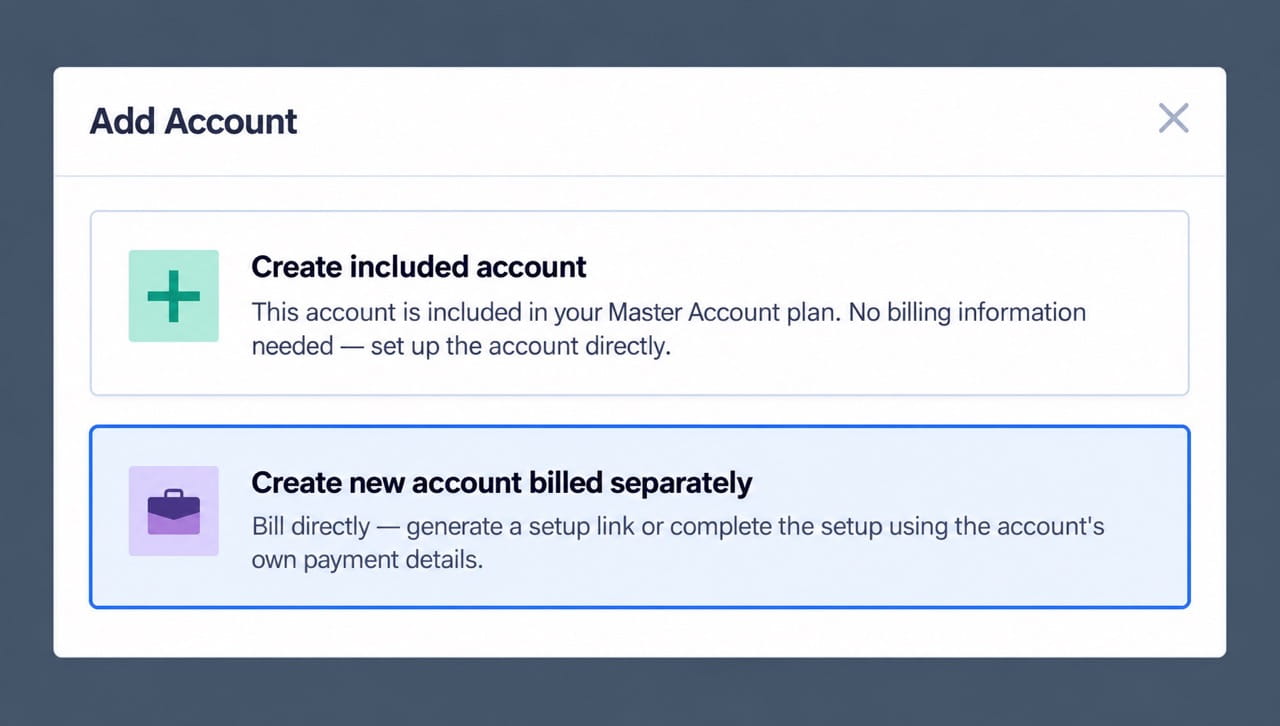
Click + Add Account and choose one of two options:
- Create included account. Enter the company name, website, and industry. The account sits under your master account as an Owner account and bills to your payment method, same as before.
- Create new account billed separately. Enter the company name, choose a plan, and click Continue. WhatConverts creates a new master account that your client owns.
For an account billed separately, choose how billing gets set up:
- Email Billing Link to Account Owner. Your client gets a link, creates their login, and enters their card. Once they finish, the account links back to your master account with Manager access automatically.
- Enter Payment Details. If your client has given you their card, enter it yourself and finish the setup for them.
Key benefit
Client accounts bill to the client from day one, and you stop invoicing clients for software.
Request or Share Access With Link Account
What it does
Connects your master account to accounts someone else owns, or gives another master account access to yours, with no shared logins.
How it works
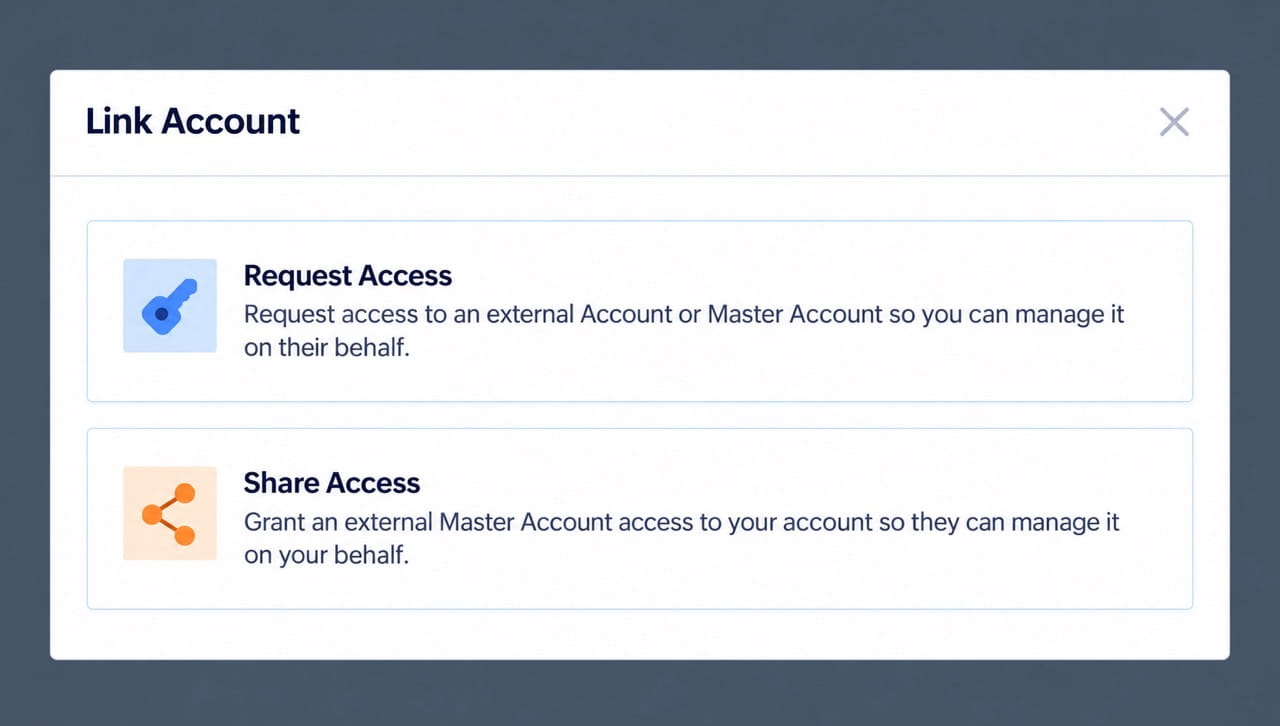
Click Link Account next to + Add Account, then choose:
- Request Access. Pick Account for one account or Master Account for all current and future accounts under it, enter the ID, and click Request Access. The request shows as Pending until the owner approves it. Once approved, the account appears in your table with Manager access.
- Share Access. Pick the accounts to share, choose an access level (such as Administrator or Standard), enter the other master account's ID, and click Share Access.
Whoever needs to approve a request or accept a share gets an email.
Key benefit
When a business that already uses WhatConverts hires you, you can connect to their account without starting over. When a client brings in an agency, they decide how much it can do.
Access Tab
What it does
Shows every access connection, incoming and outgoing, in one place.
How it works
- Open the menu (☰), go to Users & Access, choose Master Account Users & Access or Account Users & Access, then select the Access tab
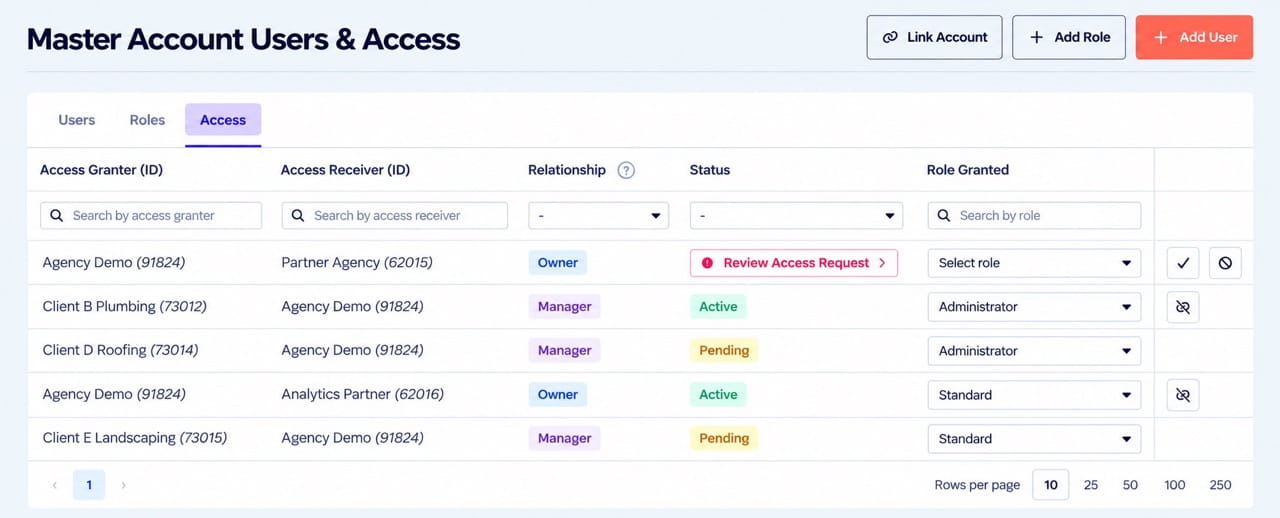
- Each row shows the Access Granter, Access Receiver, Relationship (Owner or Manager), Status, and Role Granted
- Statuses include Active, Pending (waiting on the other side), and Review Access Request (waiting on you)
- Use the icons on the right to approve, decline, or revoke access
- Managers can work in an account they manage but can't delete it. Only the owner can.
Key benefit
A clear record of who can see each account and how they got access.
Real-World Example
A PPC agency manages 40 home services clients. Some accounts sit on the agency's card. Others belong to clients who added the agency as users, and nobody is sure which logins still work.
On Monday, a new HVAC client signs. Instead of building the account under the agency's plan, the account manager creates it for the client and sends a billing link. The client enters their card in a couple of minutes, and the bill never touches the agency.
That same week, a plumbing company that already used WhatConverts hires the agency. The agency requests access with the company's account ID, the owner approves it, and the account appears in the agency's accounts table labeled Manager.
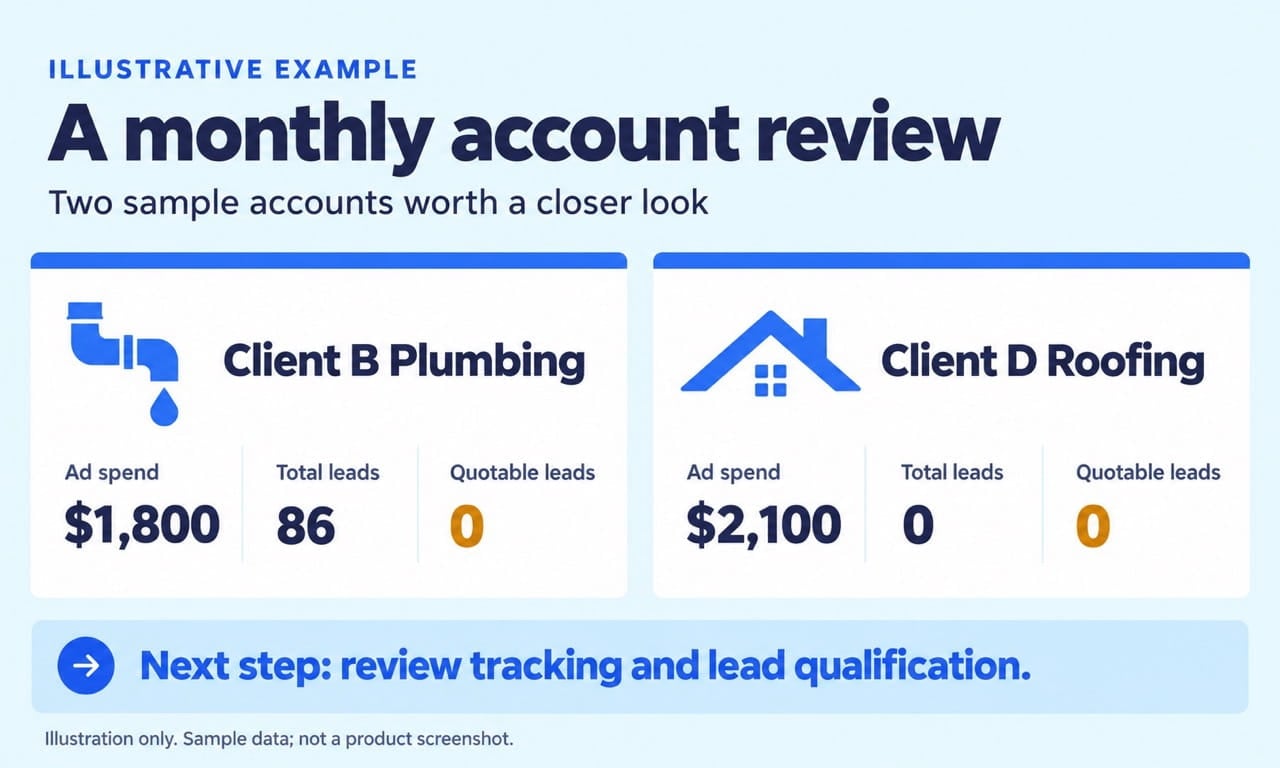
At the end of the month, the agency turns on the performance columns. Two accounts show spend but zero quotable leads. The team checks the tracking setup and talks to both clients about lead qualification before their next review, instead of during it.
How to Get Started
- Log in to WhatConverts at the master account level
- Click the menu icon (☰) and, under Master Account Settings, click Manage Accounts
- Click + Add Account to create an account for a client, or Link Account to request or share access
- Click Choose Columns to turn on the performance metrics
- Review access requests under Users & Access in the Access tab
The Account Manager is available on all plans. Only Master Account Users can create accounts and manage access, and Agency plans include unlimited accounts.
Tips & Best Practices
- Send a billing link when you don't have your client's card. It keeps payment details off your side entirely.
- Request Master Account access when you'll manage everything a client has, including accounts they add later. Request single-account access when you only run one part of their marketing.
- When you share access, give the lowest access level that gets the job done
- Fill in industry and location for every account so you can compare performance across similar businesses and regions
- Check performance metrics each month. An account with spend and no leads usually means a tracking problem.
What's Next
The industry and location you add to each account will support cross-account performance benchmarks, so you can see how a client stacks up against similar businesses.
Resources & Links
- What is the Account Manager?
- Manage Your Accounts and Performance Metrics
- Set Up Client Accounts and Billing
- Request and Manage Account Access
Conclusion
Agencies shouldn't have to choose between slow onboarding and paying for their clients' software.
With the Account Manager, your client owns the account and the bill, your agency gets the access it needs, and every account's performance sits in one table.
Try WhatConverts free today and start proving and growing your marketing ROI.
Log in now to create your first client account.
See It In Action: Book a Free Demo
Get a FREE presentation of WhatConverts
One of our marketing experts will give you a full presentation of how WhatConverts can help you grow your business.
Schedule a DemoGrow your business with WhatConverts


