


Request and Manage Account Access
The Link Account feature allows agencies and businesses to request or share management access between WhatConverts accounts.
This allows your team to manage client tracking, configure integrations, and review reporting without sharing login credentials or taking on client billing liabilities.
Why Link Accounts?
Linking accounts simplifies cross-account management:
- Eliminate Shared Credentials: Access and manage external accounts directly from your own WhatConverts dashboard.
- Independent Billing: Manage client accounts while ensuring clients maintain their own Master Account and pay for their own usage.
- Flexible Access Levels: Request access to a single account or across an entire Master Account.
Access the Link Account Menu
- Log in to WhatConverts at the Master Account level.
- Click the menu icon (☰) in the top-left corner to open the Control Center.
- Under Master Account Settings, click "Manage Accounts".
- Click the "Link Account" button located in the top-right corner next to "+ Add Account".
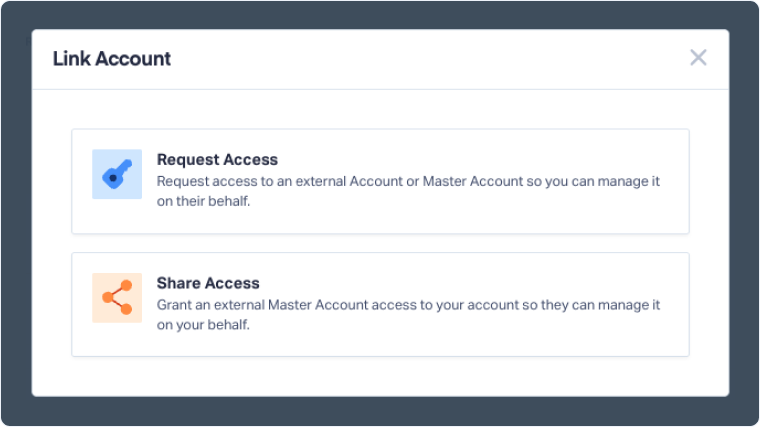
Option 1: Request Access
Use this option to request access to manage a Master Account or individual Account:
- In the Link Account window, select "Request Access".
- In the dropdown menu, choose what type of access you need:
- Account: Request access to a single specific account.
- Master Account: Request access to all current and future accounts under that Master Account.
- Enter the Account ID or Master Account ID into the input field.
- Click "Request Access".
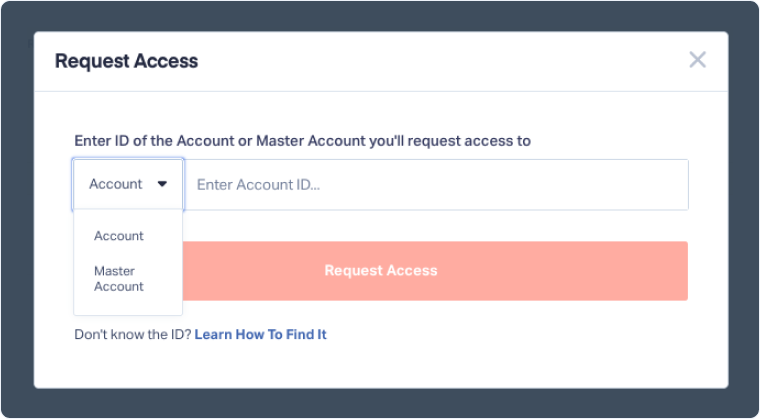
Once submitted, the status will show as Pending until the account owner reviews and approves the request. When approved, the status changes to Active, and the account appears in your accounts table with Manager access.
Option 2: Share Access
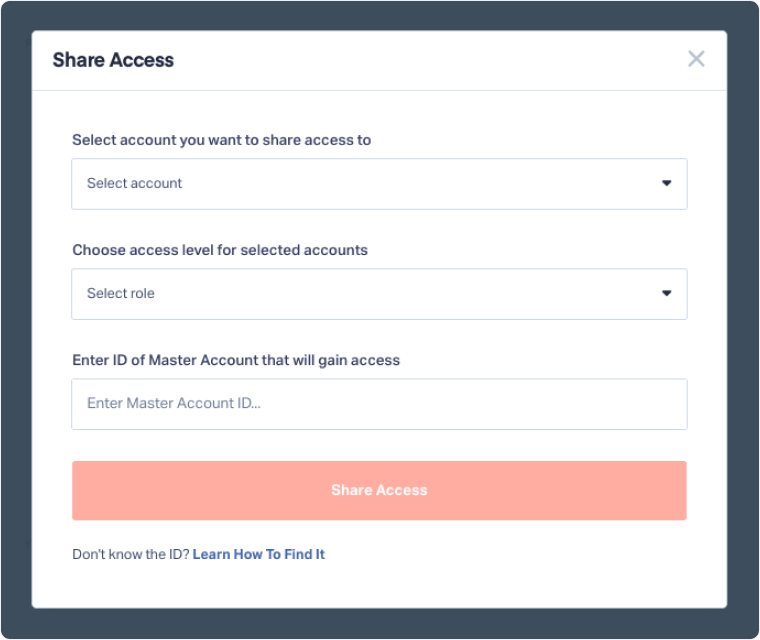
Use this option to give an external Master Account (agency) access to manage one or all of your accounts on your behalf:
- In the Link Account window, select "Share Access".
- Under Select account you want to share access to, click the dropdown and choose the account(s) you want to share.
- Under Choose access level for selected accounts, click the dropdown and select the access level to grant (e.g., Administrator or Standard).
- Under Enter ID of Master Account that will gain access, enter their Master Account ID.
- Click "Share Access".
Review and Manage Access Requests
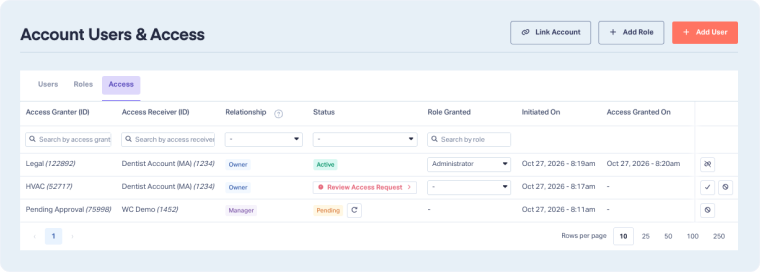
Master Account Users can review incoming and outgoing requests, inspect connection statuses, and approve, reject, or revoke access directly from the Users & Access page:
- Click the menu icon (☰) in the top-left corner to open the Control Center.
- Under Users & Access, select "Master Account Users & Access" or "Account Users & Access".
- Select the "Access" tab.
- Review the details in the table:
- Access Granter (ID) & Access Receiver (ID): Identifies the accounts sharing and receiving access.
- Relationship: Displays whether your account is the Owner or Manager.
- Status: Displays the current state of the request:
- Active: The connection is approved and active.
- Review Access Request: An incoming request that requires your review and approval.
- Pending: An outgoing request that has been sent and is awaiting approval by the other account owner.
- Role Granted: Displays the access level assigned to the connection (e.g., Administrator).
- Use the icons in the far-right column to update access:
- Click the checkmark icon to approve access.
- Click the cancel icon to decline access.
- Click the unlink icon to revoke access.
Related Topics
- What is the Account Manager?
- Manage Your Accounts and Performance Metrics
- Set Up Client Accounts & Billing
Get a FREE presentation of WhatConverts
One of our marketing experts will give you a full presentation of how WhatConverts can help you grow your business.
Schedule a Demo






