


Set Up Client Accounts and Billing
Creating and setting up accounts allows agencies and businesses to organize client profiles, track lead data independently, and manage billing responsibilities.
With the Account Manager, you can choose whether your agency pays for a client account directly as part of your Master Account plan or delegates billing directly to the client.
Why Use Billing Options?
Setting up client accounts with the appropriate billing option solves common onboarding challenges:
- Prevent Agency Financial Liability: Avoid bearing billing responsibility or credit usage for client accounts.
- Streamline Onboarding: Allow clients to securely enter their own payment details and credentials.
- Flexible Management Access: Retain administrative or manager access regardless of who pays for the account.
Add a New Account
- Log in to WhatConverts and ensure you are at the Master Account level.
- Click the menu icon (☰) in the top-left corner to open the Control Center.
- Under Master Account Settings, click "Manage Accounts".
- Click the "+ Add Account" button in the top-right corner.
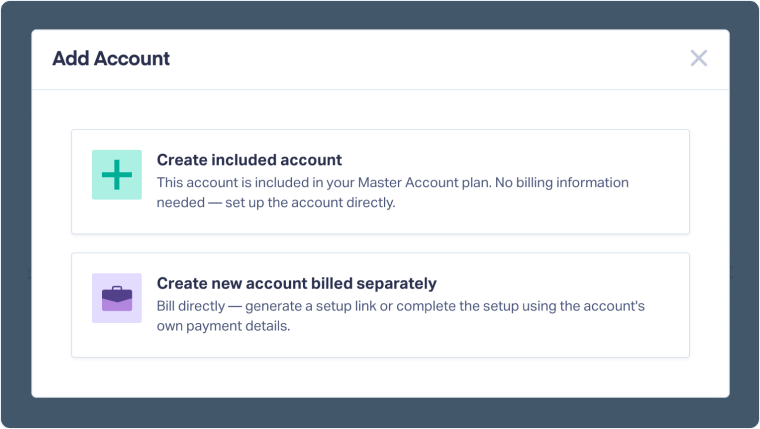
Option 1: Create Included Account
Use this option if the account is included in your Master Account’s plan or if your agency covers and pays for the account directly.
- From the Add Account modal, select "Create included account".
- Enter the Company Name, Website, and Industry.
- Click "Create Account".
Accounts created directly under your Master Account are labeled as Owner accounts in your account list and billed to your primary payment method.
Option 2: Create New Account Billed Separately
Use this option when clients should pay for their own WhatConverts Master Account while granting your agency administrative access.
- From the Add Account modal, select "Create new account billed separately".
- In Step 1 of 2 (Company Details):
- Enter Company Name: Type the client's business or company name.
- Select Plan for Shared Setup: Select the WhatConverts plan for this account from the dropdown menu.
- Click "Continue".
- In Step 2 of 2 (Billing), select your setup method:
- Email Billing Link to Account Owner: Send a billing setup link to the account owner so they can enter their credit card details and complete their Master Account setup.
- Enter Payment Details: Enter billing information on behalf of the account owner and complete their Master Account setup.
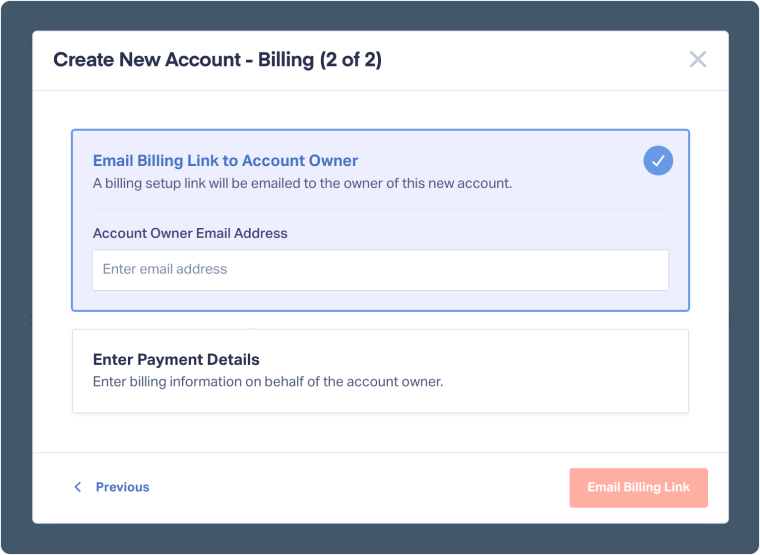
What Happens When Using a Billing Link?
- Client Setup: The client opens the billing link, creates their login credentials, and enters their credit card details.
- Manager Access Granted: Once completed, the account automatically links back to your Master Account with Manager access, allowing your team to manage the account.
Note: Only Master Account Users can create new accounts. When you create a new account, a Profile is automatically created within it.
Tip: Agency Plans include unlimited accounts. Individual Business Plans include only one account by default, but you can add more for an additional cost. See Understand WhatConverts Plans for details.
Related Topics
Get a FREE presentation of WhatConverts
One of our marketing experts will give you a full presentation of how WhatConverts can help you grow your business.
Schedule a Demo






