


Manage Your Accounts and Performance Metrics
The Accounts page gives agencies and business managers a central workspace to review Master Account plan details, customize visible table columns, track client performance metrics, and manage account access relationships.
Why Manage Accounts and Performance Metrics?
Managing accounts and tracking metrics from a single view provides several benefits:
- Centralized Visibility: Review subscription details, renewal dates, and billing relationships across all client accounts in one place.
- Benchmarking Preparation: Categorize businesses by industry and location to support cross-account performance benchmarks.
- Cross-Account ROI Insights: Evaluate high-level lead volume, quote values, sales value, and ad spend without needing to switch between individual accounts.
Access the Accounts Page
- Log in to WhatConverts at the Master Account level.
- Click the menu icon (☰) in the top-left corner to open the Control Center.
- Under Master Account Settings, click "Manage Accounts".
Master Account Overview
The cards at the top of the Accounts page display a high-level summary of your Master Account subscription and billing status:
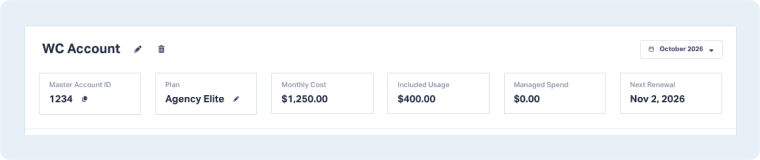
- Account Name: The name of your Master Account.
- Reporting Month: Use the date dropdown (e.g., October 2026) in the upper-right corner to review metrics for past months.
- Master Account ID: The Master Account’s unique ID.
- Plan: Your active subscription tier (e.g., Agency Elite).
- Monthly Cost: The monthly recurring subscription cost for your Master Account.
- Included Usage: The credit amount included with your plan to cover monthly usage fees.
- Managed Spend: Total spend tracked across accounts.
- Next Renewal: The upcoming billing and renewal date for your Master Account.
Customize Columns in the Account Table
To choose which data columns display in your table:
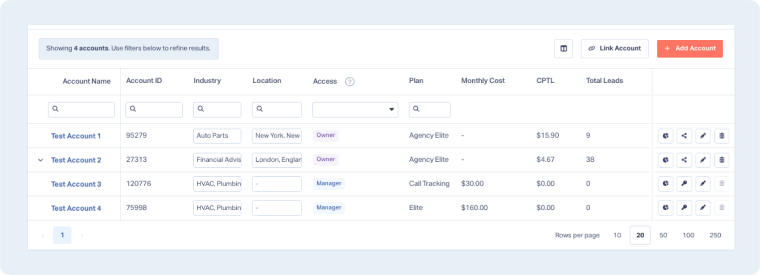
- Click the Choose Columns icon (located to the left of "Link Account" and "+ Add Account").
- In the Choose Columns modal, use Enable All or Disable All, or toggle individual fields on or off.
General Columns
- Account ID: Unique numerical identifier for the account.
- Industry: Business category assigned to the client.
- Location: Address used for comparisons.
- Access: Distinguishes account ownership relationships:
- Owner: Accounts belonging to this Master Account.
- Manager: External accounts you are given access to manage.
- Plan: Active subscription tier for the account.
- Monthly Cost: Recurring subscription cost for that account.
- Renewal Date: The upcoming renewal or billing date.
- Creation Date: The date the account was created.
Performance Columns
- Total Leads: Total number of leads captured across the account’s profiles.
- Quotable Leads: Number of captured leads marked as quotable opportunities.
- Quote Value: Total value of all quotes delivered.
- Sales Value: Total revenue attributed to captured leads.
- Spend: Total ad spend associated with the account.
- ROI: Return on investment.
Add a New Account
Click the orange "+ Add Account" button in the top-right corner to create an included account or create a new account billed separately. For detailed setup instructions, see Set Up Client Accounts & Billing.
Delete an Account
In the Accounts table, find the account you want to remove, click the trashcan icon in the far-right column, and follow the on-screen prompts to confirm deletion.
Note: If you are on an Individual Plan, you can Update or Upgrade your plan from this screen.
Related Topics
Get a FREE presentation of WhatConverts
One of our marketing experts will give you a full presentation of how WhatConverts can help you grow your business.
Schedule a Demo






