















































Add a Custom Field
Custom Fields let you capture additional lead details, such as service type or sales rep, to categorize leads consistently based on your business needs. This makes reporting more accurate and ad optimization easier, helping you prove and grow revenue.
Create a Custom Field
To create a new Custom Field on a profile:
- Go to the Profile Settings and click “Custom Fields”.
- Click ”+ Add Custom Field”.
- Enter a “Custom Field Name” (e.g. “Service Type”).
- Select a “Field Type” (text or dropdown).
- Text: Free text entry. Optionally add a Default Value.
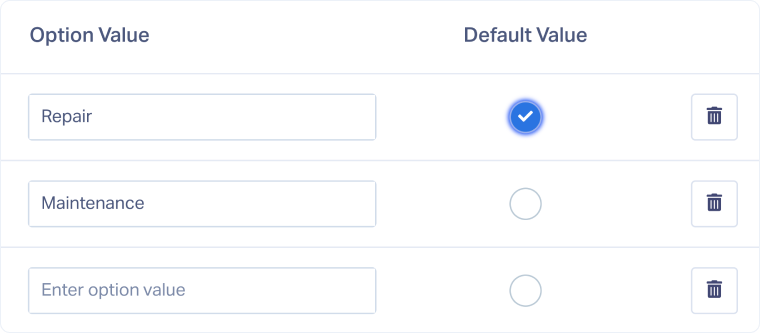
- Dropdown: Preset option. Add your Option Values (e.g. Install, Repair, Maintenance) and select a Default Value.
- Click ”Next Step”.
- Select the Lead Types to which you want to add the new Custom Field.
- Click “Finish”.
Tip: Use dropdowns instead of free text to improve consistency, reduce typos, and make reporting more accurate.
Edit a Custom Field
To update a Custom Field:
- Go to “Custom Fields”.
- Find the field you want to change and click “Edit Custom Field”.
- Make your changes (e.g., rename the field, update the field type, adjust default values).
- Click “Update Custom Field” to save your changes.
Delete a Custom Field
To permanently delete a Custom Field:
- Go to “Custom Fields”.
- Click “Delete Custom Field” next to the field you want to remove.
- Review the confirmation prompt to ensure you're deleting the correct field.
- Click “Delete Custom Field” again to confirm.
Related Topics
Was this page helpful?
Get a FREE presentation of WhatConverts
One of our marketing experts will give you a full presentation of how WhatConverts can help you grow your business.
Schedule a Demo






