


Track Typeform Web Forms
Typeform is an interactive form and survey builder that creates conversational, user-friendly forms. WhatConverts can track Typeform submissions through a Zapier integration, which captures form responses along with complete marketing attribution data including UTM parameters, click IDs, and landing pages.
Note: To integrate Typeform with WhatConverts, you will first need to set up the Zapier integration. You'll also need to set up your WhatConverts tracking code on your website.
Set Up Typeform Integration
To track Typeform submissions with WhatConverts, you'll need to configure your Typeform settings, embed the form with custom tracking code, and set up a Zapier automation.
Step 1: Configure Typeform Settings
- Log in to Typeform and open the form you want to track in WhatConverts.
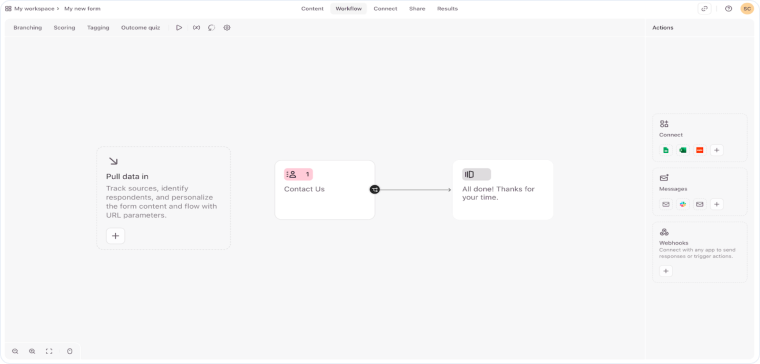
- On the top header, click "Workflow". Select the plus sign "+" on the "Pull data in" panel.
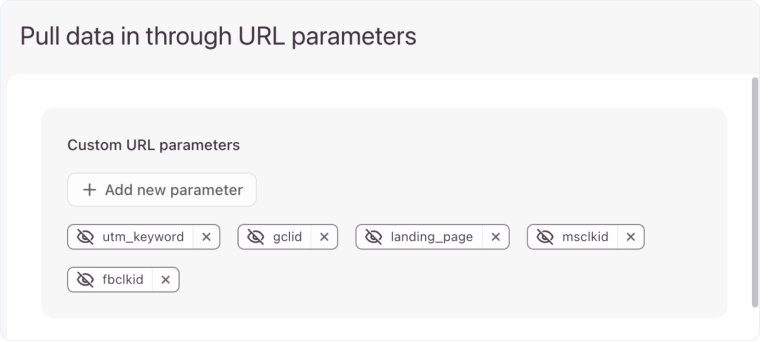
- In the "Custom URL parameters" section, click "+ Add new parameter" and add the following:
- utm_keyword
- gclid
- landing_page
- msclkid
- fbclkid
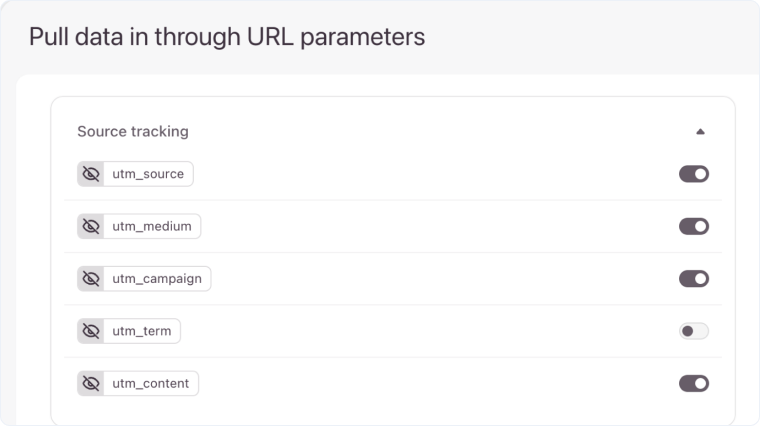
- On the "Source tracking" section, enable the following:
- utm_source
- utm_medium
- utm_campaign
- utm_content
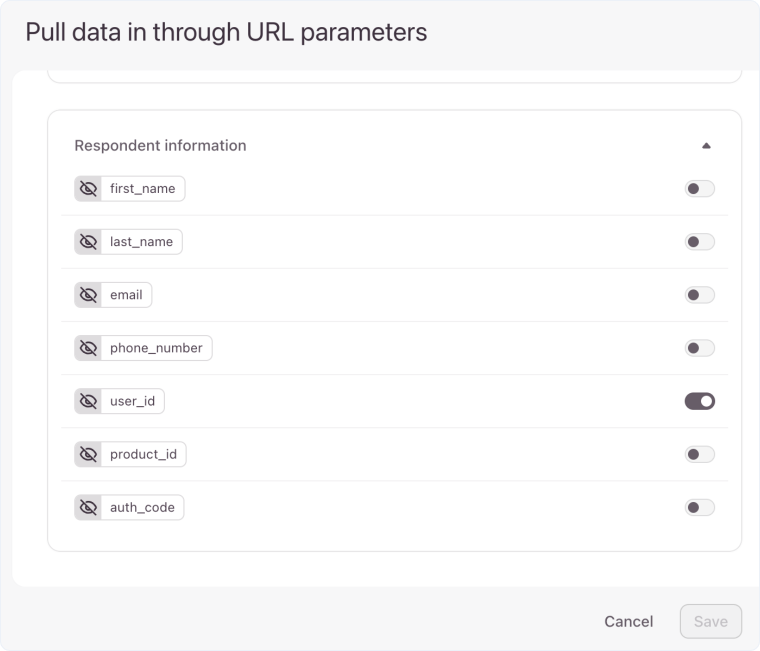
- On the "Respondent information" section, enable user_id.
- Click "Save". Then, at the top-right of the page, click "Publish edits".
Step 2: Embed Typeform with Tracking Code
- Click "Share" at the top of the Typeform screen. Select "Embed form on your website".
- Choose your embed preferences and click "Start embedding" or the view code icon "</>".
- Copy the live embed ID provided, as shown below.
- Open your website and navigate to your embedded Typeform.
- Paste your copied Typeform live embed ID into the indicated section below (between the quote marks), then copy and paste the whole code segment into your site in place of your embedded Typeform:
html
- Update/republish your Typeform page and submit a sample form response.
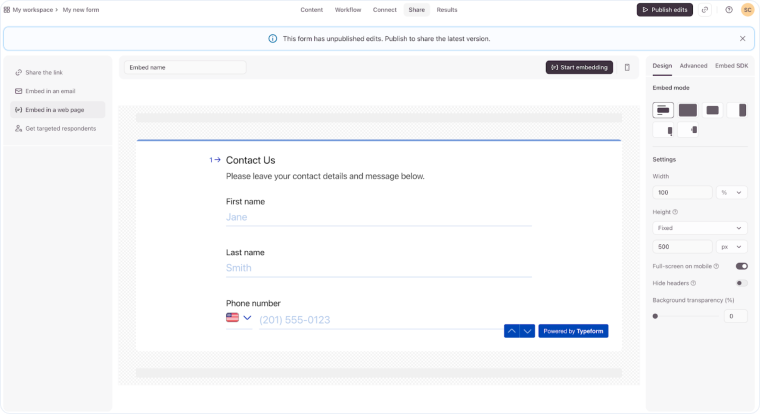
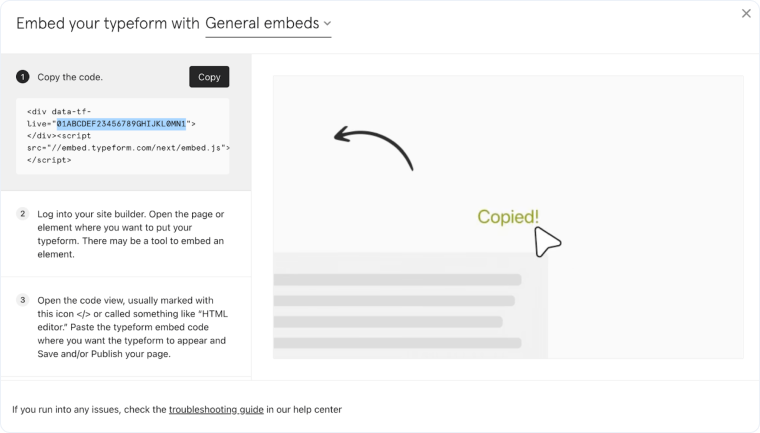
The embed code in Typeform, it will look something like this:
html
<div data-tf-live="01ABCDEF23456789GHIJKL0MN1"></div>
<script src="//embed.typeform.com/next/embed.js"></script>
The value inside the data-tf-live attribute (in this example: 01ABCDEF23456789GHIJKL0MN1) is your Live Embed ID.
<div id="tf" data-tf-live="ENTER TYPEFORM LIVE EMBED ID HERE"></div>
<script src="https://ajax.googleapis.com/ajax/libs/jquery/1.12.4/jquery.min.js"></script>

<script>
    jQuery(document).ready(function() {
        var el = document.getElementById("tf");
        var cookie = (typeof oqhaqzwnbjgcpycneryg === "function") ?
            oqhaqzwnbjgcpycneryg("wc_client") :
            "";
        if (cookie) {
            var cookie_parts = cookie.split("+..+");
            var hidden = "";
            if (cookie_parts[0]) hidden += ",utm_source=" + encodeURIComponent(cookie_parts[0]);
            if (cookie_parts[1]) hidden += ",utm_medium=" + encodeURIComponent(cookie_parts[1]);
            if (cookie_parts[2]) hidden += ",utm_campaign=" + encodeURIComponent(cookie_parts[2]);
            if (cookie_parts[3]) hidden += ",utm_content=" + encodeURIComponent(cookie_parts[3]);
            if (cookie_parts[4]) hidden += ",utm_keyword=" + encodeURIComponent(cookie_parts[4]);
            if (cookie_parts[5]) hidden += ",gclid=" + encodeURIComponent(cookie_parts[5]);
            if (cookie_parts[6]) hidden += ",landing_page=" + decodeURIComponent(cookie_parts[6]);
            if (cookie_parts[7]) hidden += ",user_id=" + encodeURIComponent(cookie_parts[7]);
            if (cookie_parts[8]) hidden += ",msclkid=" + encodeURIComponent(cookie_parts[8]);
            if (cookie_parts[9]) hidden += ",fbclkid=" + encodeURIComponent(cookie_parts[9]);
            if (hidden.charAt(0) === ",") hidden = hidden.substring(1);
            el.setAttribute("data-tf-hidden", hidden);
        }
        var s = document.createElement("script");
        s.src = "//embed.typeform.com/next/embed.js";
        document.body.appendChild(s);
    });
</script>
Step 3: Set Up Zapier Integration
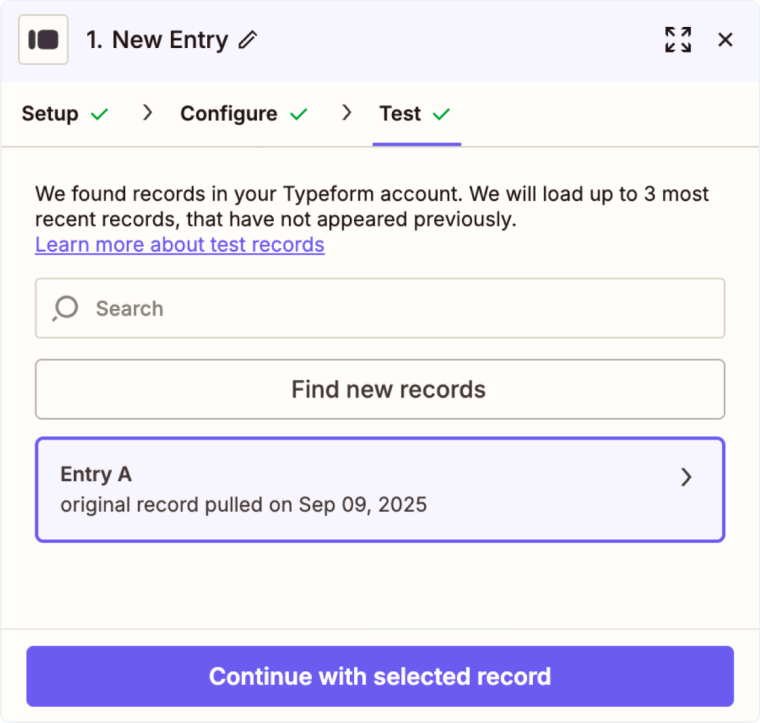
- Open Zapier and click "Create Zap". Select "Typeform" as your trigger app and "New Entry" as your trigger event. Follow the prompts to connect your Typeform account and click "Continue".
- On the "Configure" page, select the form you would like to integrate from the dropdown menu. Click "Continue".
- On the "Test" page, click "Test trigger". Click "Find new records" and review the details of the selected entry to ensure this is the sample answer you sent through your form in Step 6 above. Click "Continue with selected record".
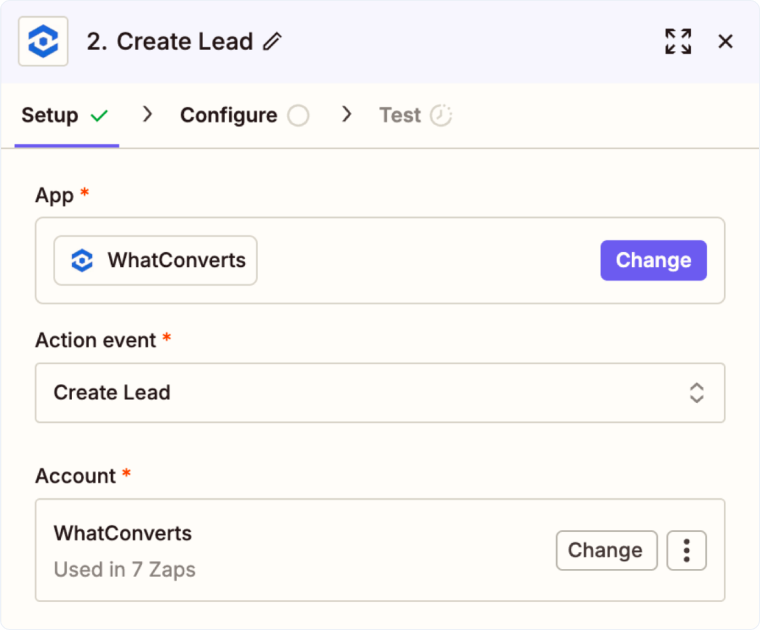
- Select WhatConverts from the Action App pop-up menu. On the "Action event" menu, select "Create Lead" as your action event. Select your WhatConverts account and click "Continue."
- On the "Configure" page, make the following selections:
- Lead Type: "Web Form"
- Profile: [Your WhatConverts profile]
- Referrer Source: "Utm_source (hidden field)"
- Referrer Medium: "Utm_medium (hidden field)"
- Referrer Campaign: "Utm_campaign (hidden field)"
- Referrer Content: "Utm_content (hidden field)"
- Referrer Keyword: "Utm_keyword (hidden field)"
- User ID: "User_id (hidden field)"
- Gclid: "Gclid (hidden field)"
- Msclkid: "Msclkid (hidden field)"
- Landing Page: "Landing_page (hidden field)"
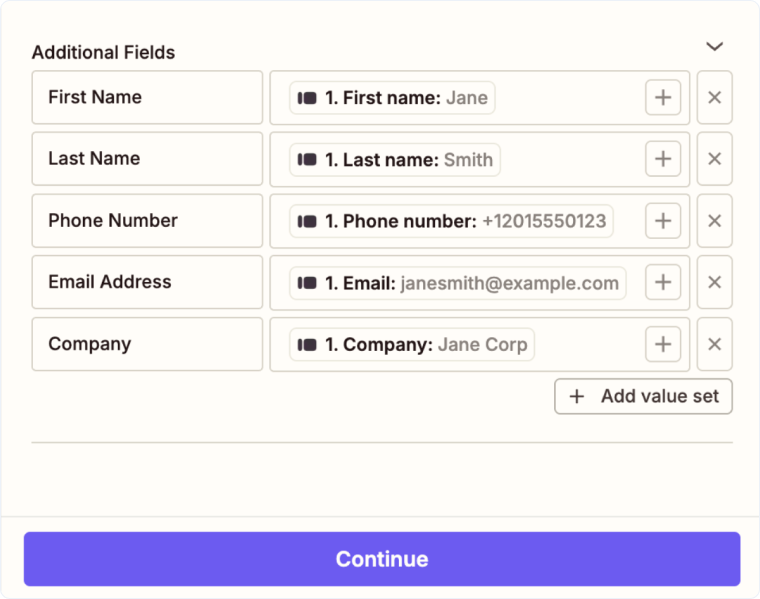
- Add your standard form fields as additional fields, for example:
- First Name
- Last Name
- Phone Number
- Email Address
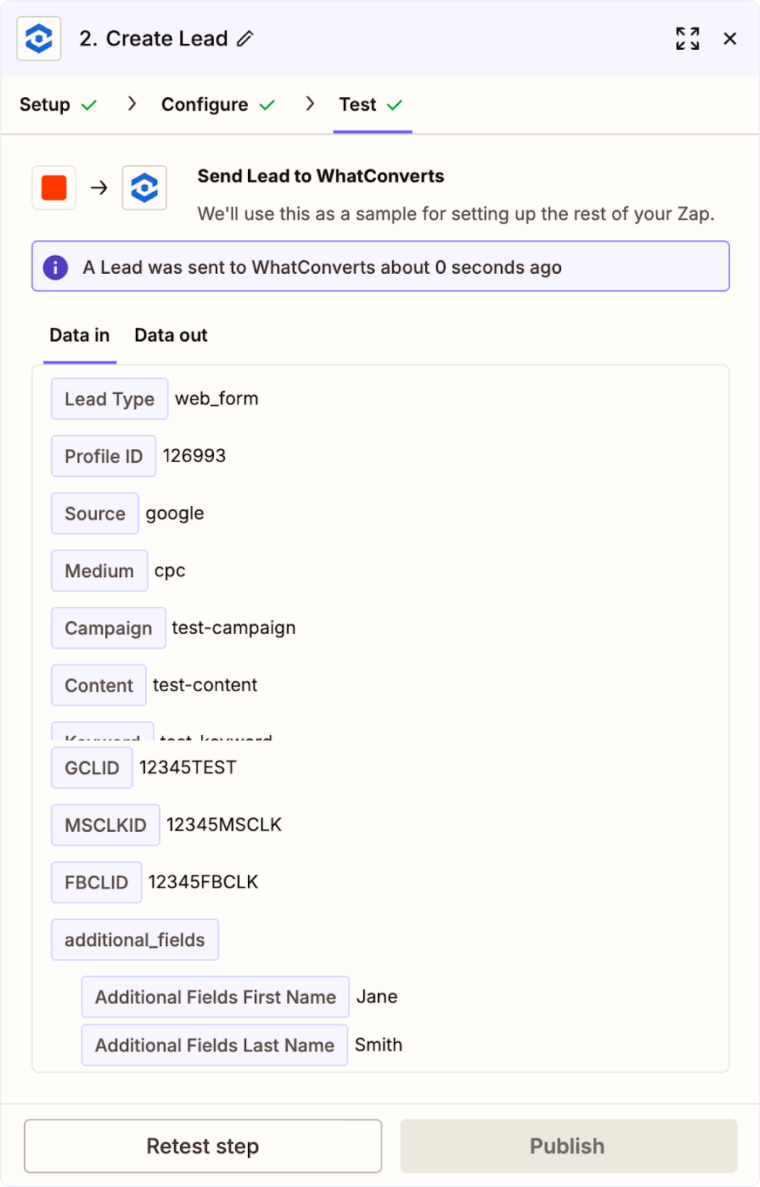
- Click "Continue". Review your information and click "Test step". If the test was successful, click "Publish" to turn the Zap on and give it a name.
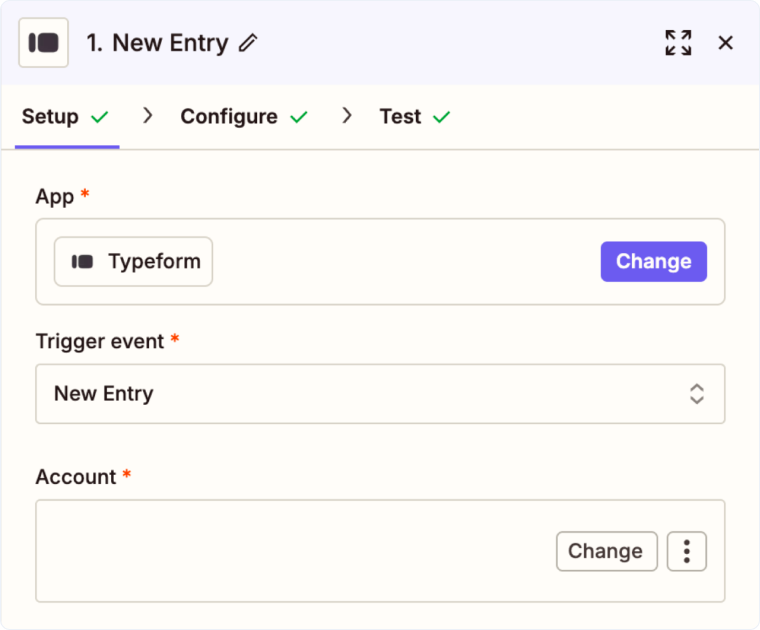
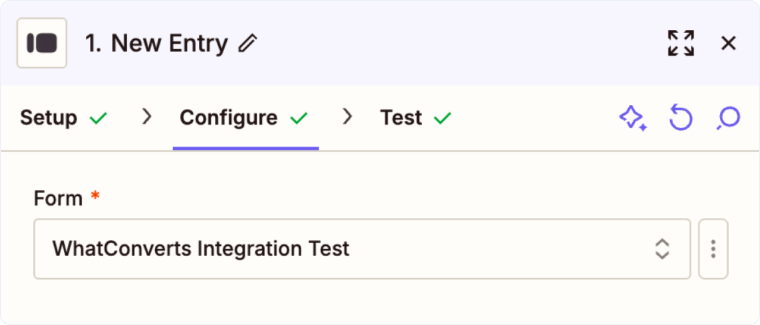
Your Typeform integration is now complete. WhatConverts will capture all submissions from this form through Zapier and create leads with full attribution data.
Test Your Typeform Integration
After setting up the Zapier integration, verify that form submissions are being captured correctly:
- Go to your website and submit a new Typeform response.
- Return to your WhatConverts profile and view your form leads.
- Find the test form submission and check its data.
If your test lead appears correctly with complete attribution data, your Typeform integration is working properly.
Related Topics
Get a FREE presentation of WhatConverts
One of our marketing experts will give you a full presentation of how WhatConverts can help you grow your business.
Schedule a Demo






