


Track JustUno Web Forms
JustUno is a conversion optimization platform that lets you create pop-ups, exit intent forms, and promotional banners to capture leads. WhatConverts can track JustUno form submissions by configuring manual tracking with a custom event script, which captures lead data and attributes each submission to the marketing source that drove it.
Set Up JustUno Form Tracking
To track JustUno submissions in your WhatConverts profile:
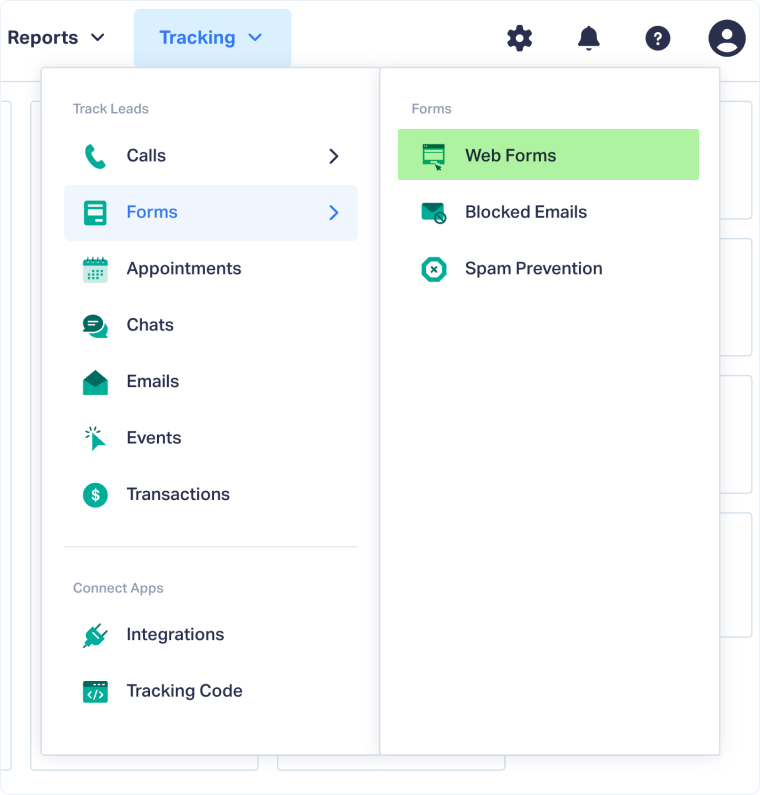
- From the top menu, select "Tracking", then "Forms". Click "Web Forms".
- Click "Add Web Form".
- Select "Manual Setup".
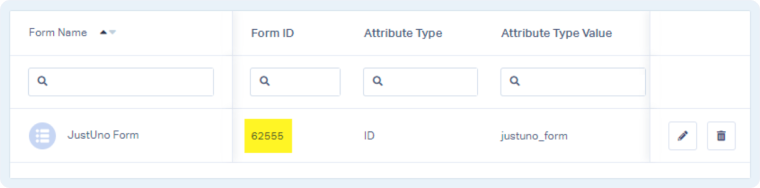
- Give your form a name and choose "ID" for Form Attribute, and then enter justuno_form as the Attribute Type Value.
- Click "Finish".
- Copy the Form ID from your list of forms.
- In the same location you have implemented your JustUno code, add the following script:
html
<script> window.ju_custom_event = function(email, eventname, promotitle, step, cmid, options, data){ if (step==2 && email!=''){ wc_form_ypbib(#####,{ 'Email': email }); } } </script> - Replace "#####" with your copied Form ID.
Your JustUno form is now being tracked. WhatConverts will capture all submissions from this form and create leads with full attribution data.
Test Your JustUno Form Tracking
After setting up tracking, verify that form submissions are being captured correctly:
- Go to your website where the JustUno form has been implemented.
- Fill out the form with test information and submit it.
- Return to your WhatConverts profile and view your form leads.
- Find the test form submission and check its data.
If your test lead appears correctly, your JustUno form tracking is working properly.
Related Topics
- What is Web Form Tracking?
- Track Web Forms Automatically with the Form Finder
- Track Contact Form 7 Web Forms
- Track HubSpot Web Forms
Get a FREE presentation of WhatConverts
One of our marketing experts will give you a full presentation of how WhatConverts can help you grow your business.
Schedule a Demo






