


Track Formsite Web Forms
Formsite is a cloud-based form builder that lets you create surveys, registration forms, event forms, and payment forms. WhatConverts can track Formsite submissions by adding the tracking script directly to your form and configuring the embedded form code, which captures lead data and attributes each submission to the marketing source that drove it.
Set Up Formsite Form Tracking
To track Formsite submissions with WhatConverts, you'll need to complete three steps: add the tracking script to your form, edit the embed code, and configure tracking in WhatConverts.
Step 1: Add Your WhatConverts Tracking Script to the Formsite Form
- Go to Formsite and "edit" the form you wish to track in WhatConverts.
- In the Form Editor, select "Formatting Items" and add a "Custom Code" block to your form.
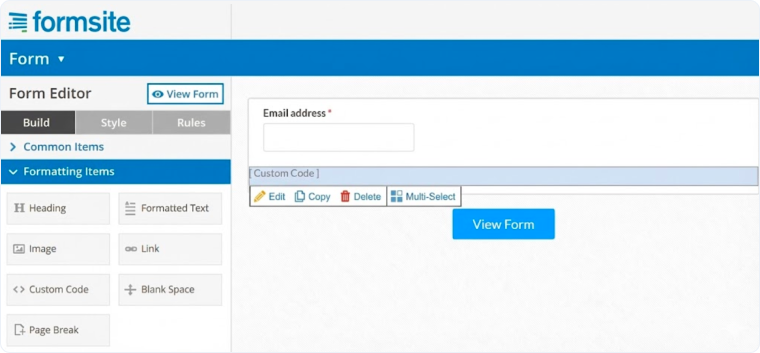
- Click "Edit" and paste your WhatConverts Tracking Code under Settings. Click "Save".
Step 2: Edit the Formsite Form Embed Code
- Go to the page where your Formsite form is embedded, right click the form and click "Inspect".
- Find the <iframe> tag. Copy the ID and the Src. Paste the values into a Notepad or blank document.
Note: In the image below, the ID is highlighted in yellow, while the src is highlighted in blue.
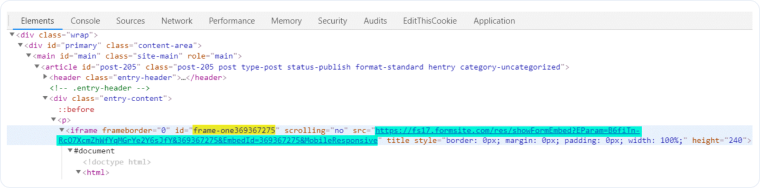
- Replace the Formsite embed code on your page with the following (make sure to replace the ID and Src with the data copied from Step 1):
- Save the changes to your page.
html
<iframe id="CopiedID" width="100%" height="800" frameborder="0"></iframe>

<script type="text/javascript">
  wc_iframe_ypbib("Copied Src URL", "CopiedID");
</script>
Step 3: Set Up the Form in WhatConverts
- Log in to the WhatConverts profile you want to track the form in.
- Click "Tracking" in the top menu. Select "Forms" and click "Web Forms".
- Click "Add Web Form". Select "Manual Setup".
- Name your form, then select "ID" for Attribute Type and type in "FSForm" for Attribute Type Value as shown below.
- Click "Finish".
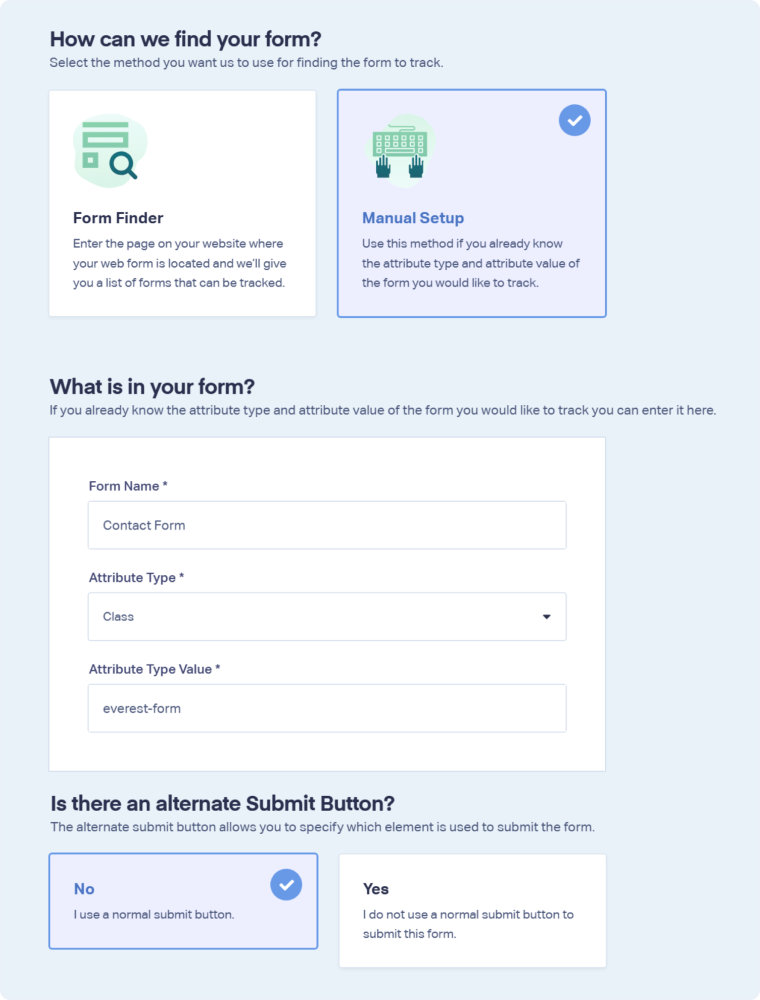
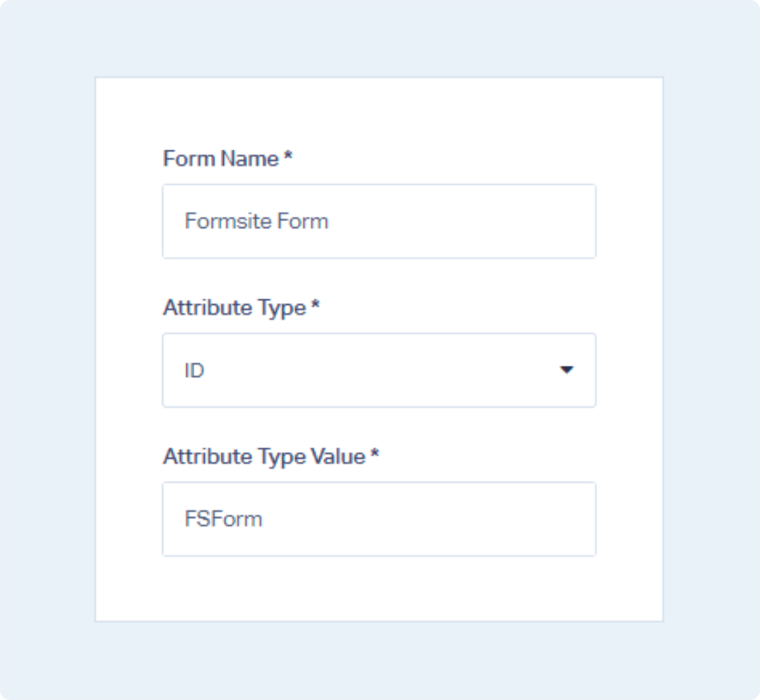
Your Formsite form is now being tracked. WhatConverts will capture all submissions from this form and create leads with full attribution data.
Test Your Formsite Form Tracking
After setting up tracking, verify that form submissions are being captured correctly:
- Go to the page your Formsite form is located on.
- Fully refresh the page.
- Fill out the form with test information and submit it.
- Return to your WhatConverts profile and view your form leads.
- Find the test form submission and check its data.
If your test lead appears correctly, your Formsite tracking is working properly.
Related Topics
- What is Web Form Tracking?
- Track Web Forms Automatically with the Form Finder
- Track Contact Form 7 Web Forms
- Track Formstack Web Forms
Get a FREE presentation of WhatConverts
One of our marketing experts will give you a full presentation of how WhatConverts can help you grow your business.
Schedule a Demo






