


Track Elementor Web Forms
Elementor forms are widely used on WordPress sites. By tracking these forms in WhatConverts, you can see exactly which marketing source, like a specific Google Ad or organic search, drove each form submission.
Before you start, see What is Web Form Tracking? for an overview.
Set Up Elementor Form Tracking
Follow these steps to set up tracking for your Elementor forms using the Manual Setup method:
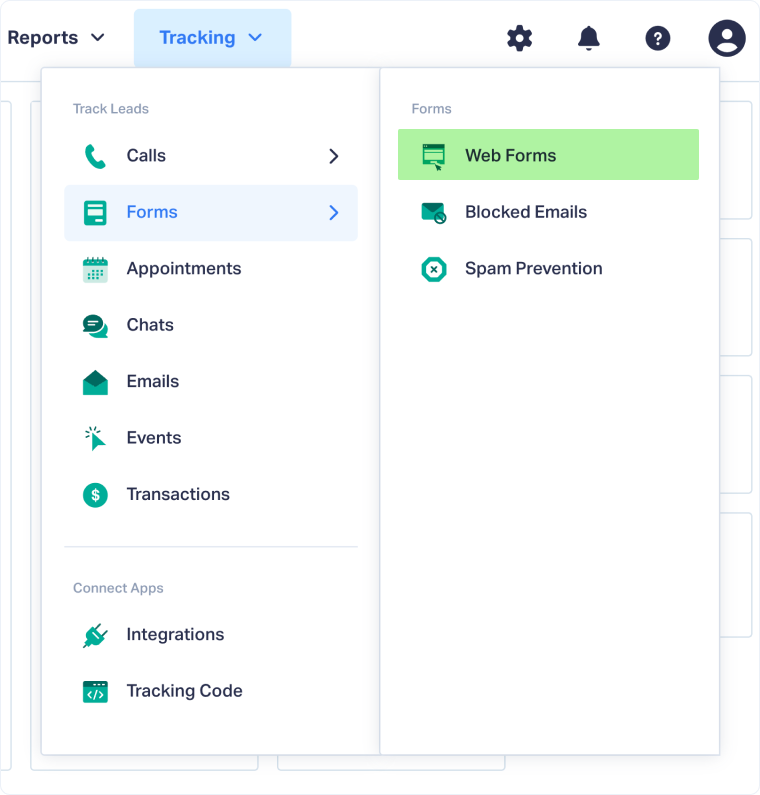
- Log into the WhatConverts profile you want to track your JustUno form in. From the top menu, select "Tracking", then "Forms". Click "Web Forms".
- Click "Add Web Form".
- Select "Manual Setup".
- Enter a descriptive "Form Name" (e.g., Contact Us - Elementor).
- Set the "Attribute Type" to "Class".
- For the "Attribute Value", enter: elementor-form
- Click "Finish".
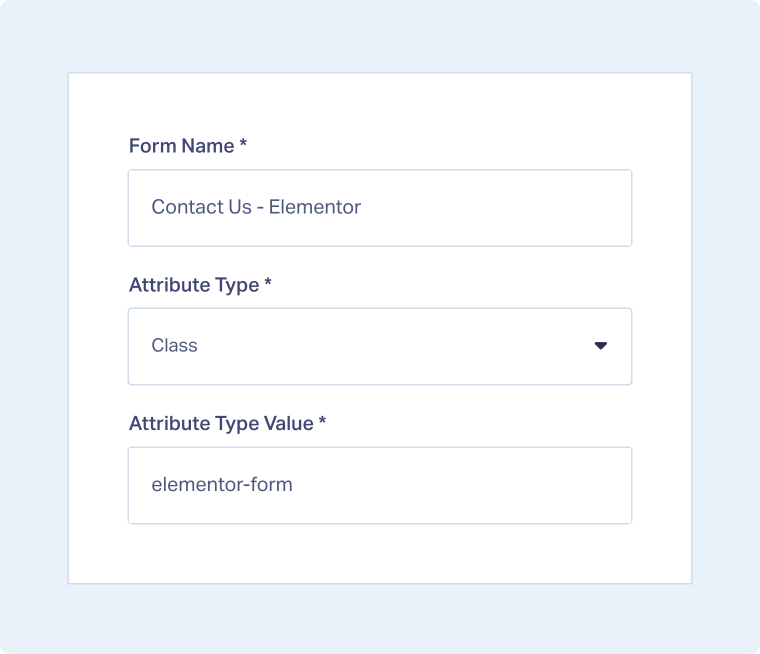
Note: Using the elementor-form class allows WhatConverts to identify and capture submissions from any Elementor form on your site that uses this default class.
Test Your Elementor Form Tracking
After setting up tracking, verify that form submissions are being captured correctly:
- Go to your website where the Elementor form has been implemented.
- Fill out the form with test information and submit it.
- Return to your WhatConverts profile.
- Click "Leads" in the top menu.
- Scroll down to the Lead Manager and review your test form submission.
- Click "View Lead" to review the full lead details.

Related Topics
Was this page helpful?
Get a FREE presentation of WhatConverts
One of our marketing experts will give you a full presentation of how WhatConverts can help you grow your business.
Schedule a Demo






