


Update Leads in WhatConverts with Zapier
Update existing leads in WhatConverts using Zapier. This workflow is useful when another system, such as your CRM, updates lead information after the lead has already been created in WhatConverts. Once set up, your Zap will automatically push those updates into WhatConverts, keeping your lead data accurate and up to date.
Before continuing, we recommend reading Send Leads to Your CRM with Zapier, as this workflow relies on having the WhatConverts Lead ID stored in your CRM.
Step 1: Create Your Zap
To detect updates from another platform and send them to WhatConverts:
- Log in to your Zapier account and click “Create” to start a new Zap.
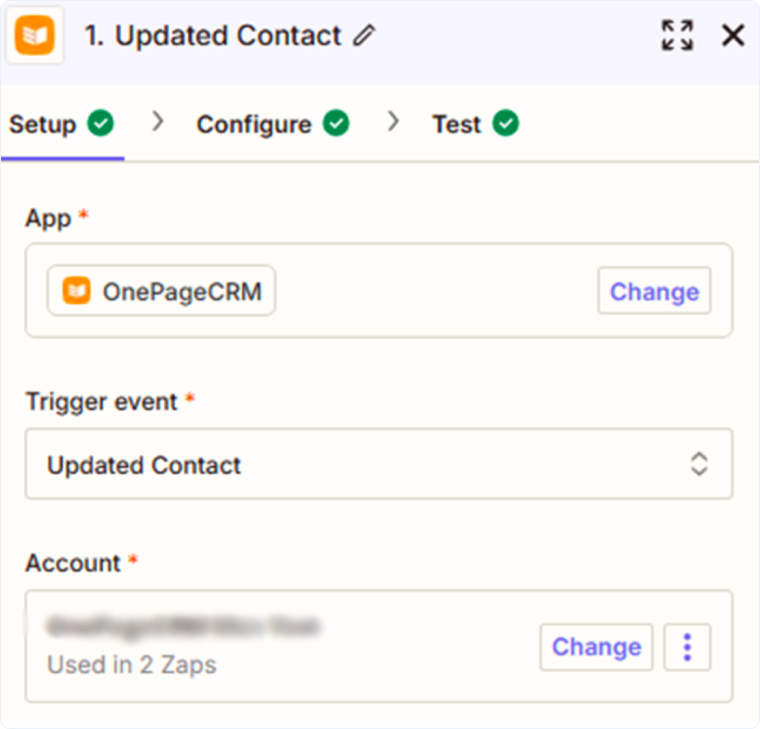
- For the Trigger App, select your “CRM” (e.g., HubSpot, Salesforce, Zoho).
- For the Trigger Event, select an update-based event, such as “Updated Contact” (event names vary by platform).
- Connect your CRM account.
- Click “Continue”.
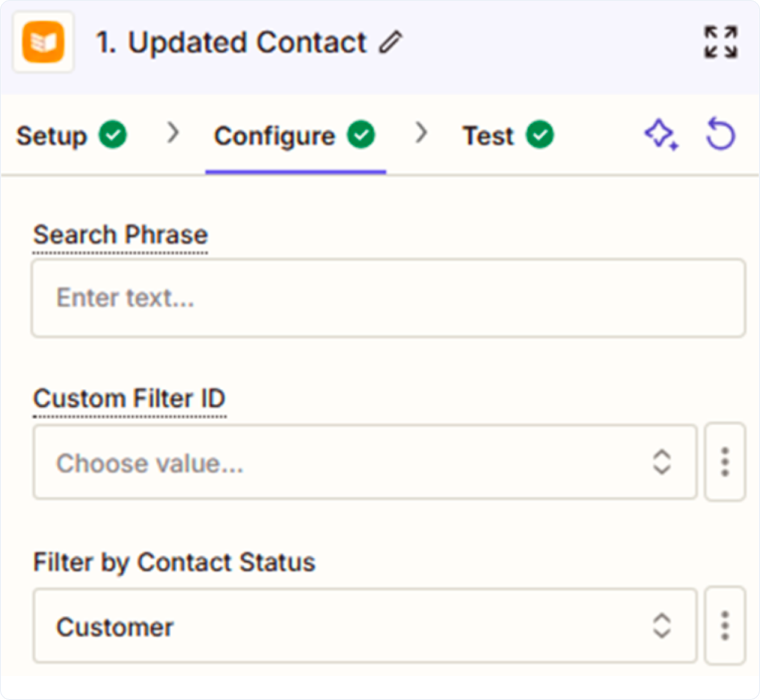
- On the Configure page:
- Select the condition that should trigger the update (for example, a specific contact status or lifecycle stage).
- Click “Continue”.
- On the Test page, click “Test Trigger” to pull in sample data.
- Click “Continue with selected record”.
Step 2: Find the Lead in WhatConverts
Before a lead can be updated, Zapier must locate the correct record in WhatConverts.
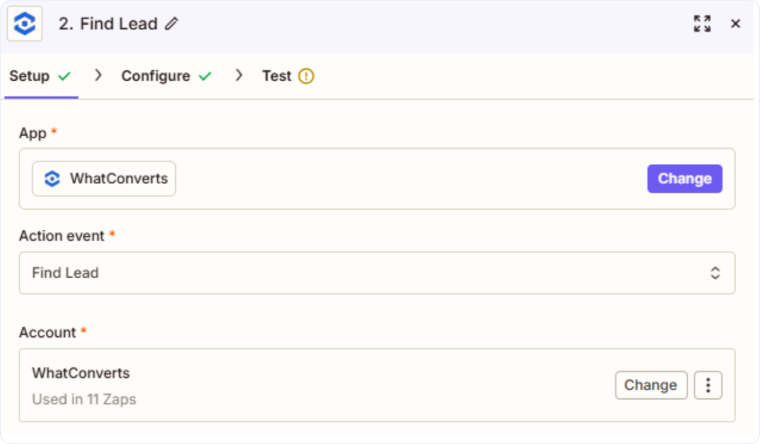
- For the Action App, select “WhatConverts”.
- For the Action Event, select “Find Lead”.
- Connect your WhatConverts account.
- Click “Continue”.
- On the Configure page:
- Profile: Select the WhatConverts profile where the lead was created.
- Lead ID: Map the WhatConverts Lead ID stored in your CRM.
- Click “Continue”
- On the Test page, click “Test Step” to confirm the correct lead is found.
If a Lead ID is not available, you can use an alternative lookup field, such as Email or Phone Number, though matches may be less precise.
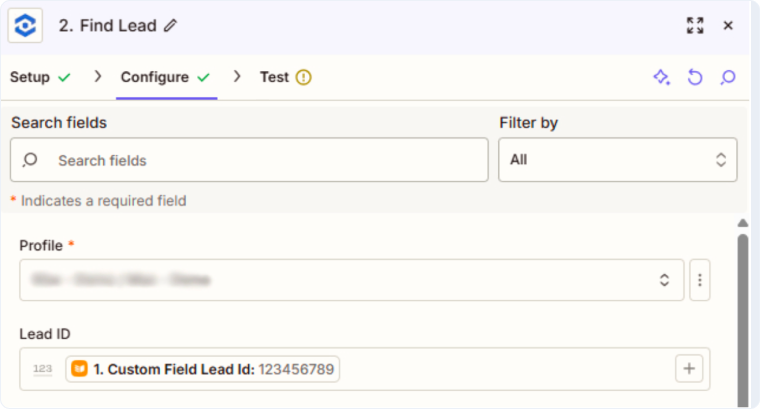
Note: If you followed the Send Leads to Your CRM with Zapier guide, the WhatConverts Lead ID should already be stored in your CRM. Using the Lead ID provides the most reliable way to match leads.
Step 3: Update the Lead in WhatConverts
Once the lead is located, you can update its fields.
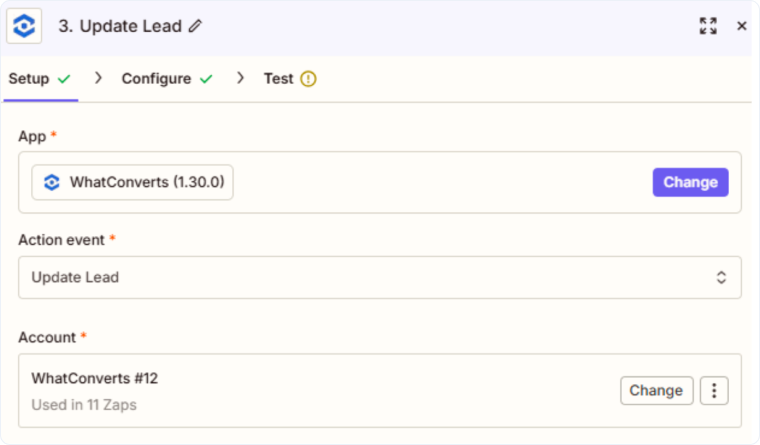
- For the Action App, select “WhatConverts”.
- For the Action Event, select “Update Lead”.
- Connect your WhatConverts account.
- Click “Continue”.
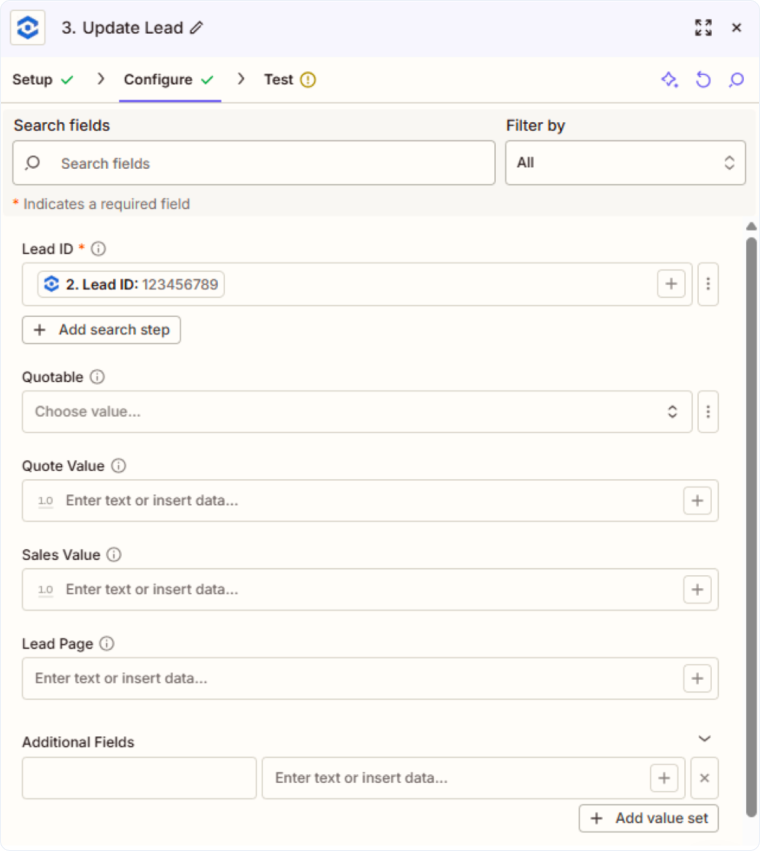
- On the Configure page:
- Lead ID: Map the Lead ID from the Find Lead
- Quotable / Quote Value / Sales Value: Map any updated information from your CRM.
- Additional Fields: Map any additional information you want to send to WhatConverts.
- Click “Continue”
- On the Test page, click “Test step” to send the updated information to WhatConverts.
- Click Publish to activate your Zap.
- Log in to WhatConverts and confirm the lead was updated successfully.
Related Topics
Get a FREE presentation of WhatConverts
One of our marketing experts will give you a full presentation of how WhatConverts can help you grow your business.
Schedule a Demo






