


Track ClickFunnels Web Forms
ClickFunnels is a landing page and sales funnel builder that lets you create high-converting pages with built-in forms. Because ClickFunnels forms use a unique structure, WhatConverts requires manual setup with custom JavaScript code to track form submissions. This ensures all ClickFunnels form data is captured with complete attribution.
Note: The WhatConverts tracking script must be installed on your website before you can track ClickFunnels Forms.
Set Up ClickFunnels Form Tracking
ClickFunnels form tracking requires three steps: finding your form ID, adding custom code to your page, and configuring manual tracking in WhatConverts.
Step 1: Find Your ClickFunnels Form ID
- Go to your ClickFunnels landing page in your browser.
- Right-click on the form and click "Inspect".
- In the browser's developer tools, look through the HTML to find the form's ID attribute.
- The ID will begin with "col-" (e.g., col-full-391).
- Copy this ID and paste it into a notepad for use in the next step.
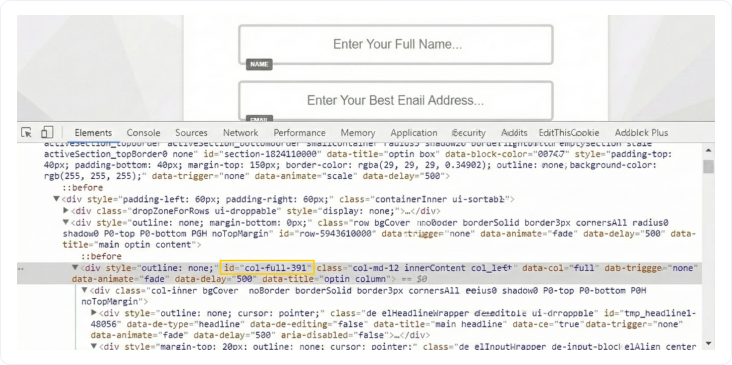
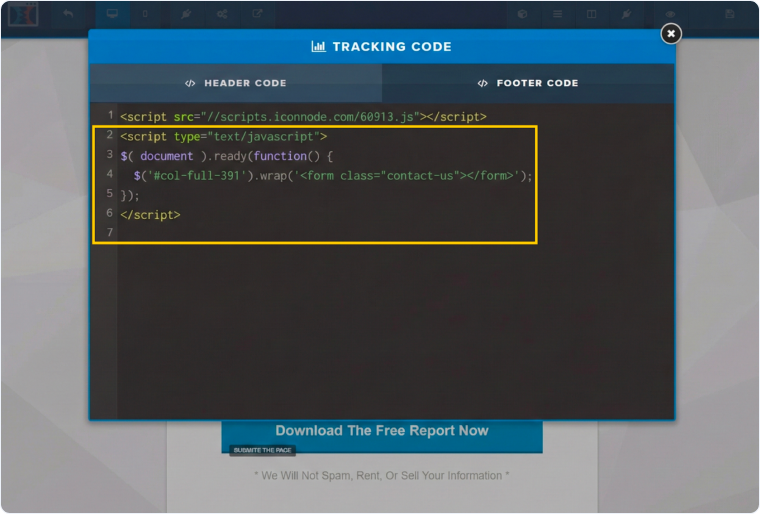
Step 2: Add Custom Code to Your ClickFunnels Page
- Open your ClickFunnels page editor.
- At the top of the editor, click "Settings".
- Click "Tracking Code".
- In the "Footer Code" section, first paste your WhatConverts tracking script (if it's not already on the page).
- Below the WhatConverts tracking script, paste the following code:
javascript<script type="text/javascript"> $( document ).ready(function() { $('#COPIEDFORMIDHERE').wrap('<form class="contact-us"></form>'); }); </script> - Replace COPIEDFORMIDHERE with the form ID you copied in Step 1 (e.g., #col-full-391).
- Click "Save" to save your ClickFunnels page settings.
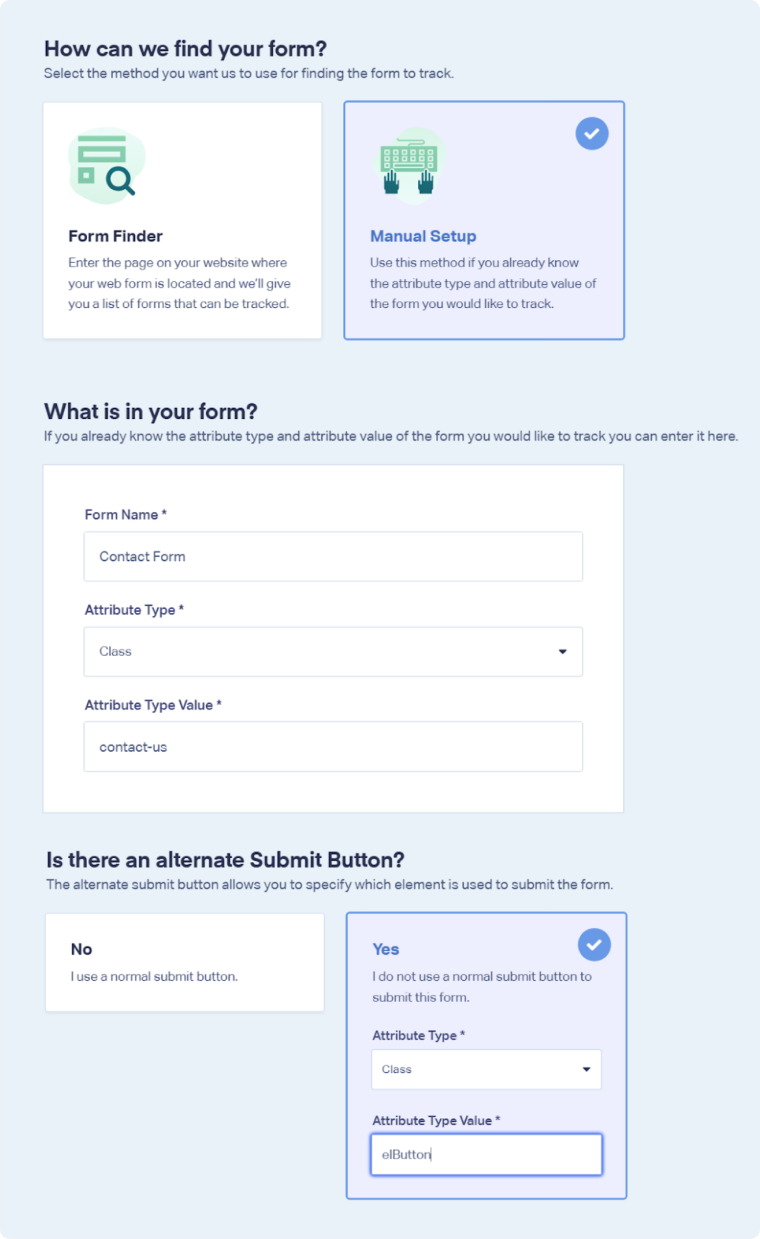
Step 3: Configure Manual Tracking in WhatConverts
- Go to your WhatConverts dashboard.
- Click "Tracking" in the top menu.
- Select "Forms" then click "Web Forms".
- Click "+ Add a Form".
- Choose "Manual Setup".
- In the "Form Name" field, enter a descriptive name (e.g., ClickFunnels Contact Form).
- For "Attribute Type", select "Class" from the dropdown.
- For "Attribute Type Value", enter contact-us.
- Scroll down to "Is there an alternate Submit Button?" and select "Yes".
- For the alternate submit button "Attribute Type", select "Class".
- For the alternate submit button "Attribute Type Value", enter elButton.
- Click "Finish".
Your ClickFunnels form is now configured for tracking. WhatConverts will capture all submissions from this form with full attribution data.
Note: ClickFunnels uses elButton as the class for form submit buttons. Specifying this as an alternate submit button ensures that WhatConverts properly detects when the form is submitted.
Test Your ClickFunnels Form Tracking
After setting up tracking, verify that form submissions are being captured correctly:
- Go to the page where your ClickFunnels form is located.
- Fill out the form with test information and submit it.
- Return to your WhatConverts profile and view your form leads.
- Find the test form submission and check its data.
If your test lead appears correctly, your ClickFunnels form tracking is working properly.
Related Topics
- What is Web Form Tracking?
- Track Web Forms Manually
- Track Unbounce Web Forms
- Track OptinMonster Web Forms
- View Your Web Form Leads
Get a FREE presentation of WhatConverts
One of our marketing experts will give you a full presentation of how WhatConverts can help you grow your business.
Schedule a Demo






