


Track Gravity Web Forms
Gravity Forms is one of the most popular WordPress form plugins, used by thousands of websites to create contact forms, registration forms, surveys, and payment forms. WhatConverts can automatically track Gravity Forms submissions using the Form Finder tool, which detects forms on your website and captures lead data without requiring manual configuration.
Set Up Gravity Form Tracking
To track Gravity Forms submissions in your WhatConverts profile:
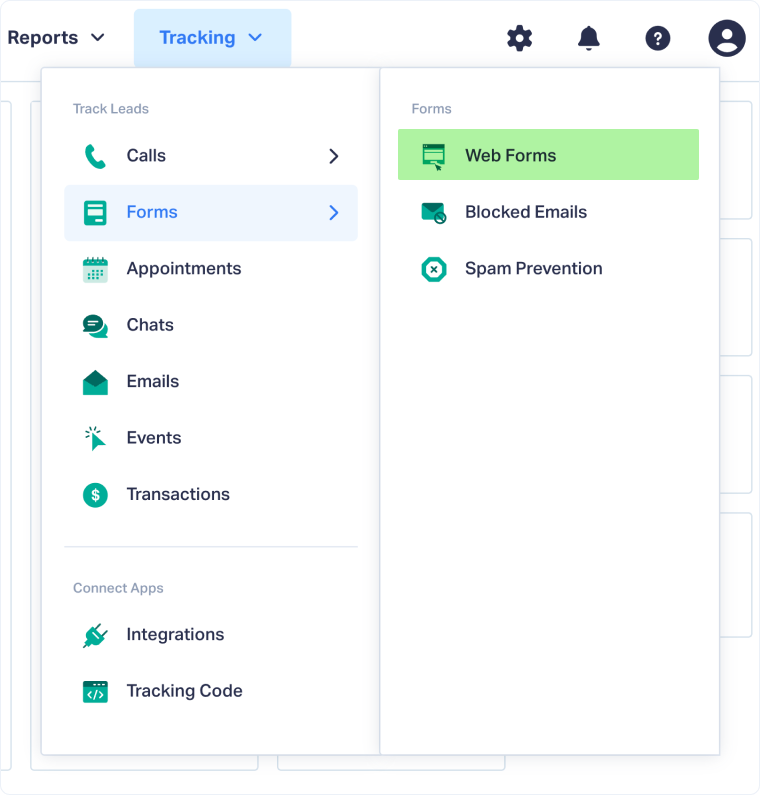
- Go to "Tracking" from the top menu then select "Forms".
- Click "Web Forms".
- Click "Add Web Form".
- Select "Form Finder".
- In the "Form Finder" tool, enter the URL where your Gravity Form is located (e.g., https://www.yourwebsite.com/contact).
- Click "Find Form".
- From the list of forms, select the one with gform_ in the form identifier.
- Click "Finish".
Your Gravity Form is now being tracked. WhatConverts will capture all submissions from this form and create leads with full attribution data.
Test Your Gravity Form Tracking
After setting up tracking, verify that form submissions are being captured correctly:
- Go to the URL where your Gravity Form is located.
- Fill out the form with test information and submit it.
- Return to your WhatConverts profile and view your form leads.
- Find the test form submission and check its data.
If your test lead appears correctly, your Gravity Form tracking is working properly.
Related Topics
Get a FREE presentation of WhatConverts
One of our marketing experts will give you a full presentation of how WhatConverts can help you grow your business.
Schedule a Demo






