


Set Up Email Tracking
Email Tracking allows you to capture incoming customer emails as leads in WhatConverts. Each profile has a unique forwarding address that automatically converts forwarded messages into leads, including the sender’s name, email, and phone number.
Track Email Leads
To track incoming customer emails as leads:
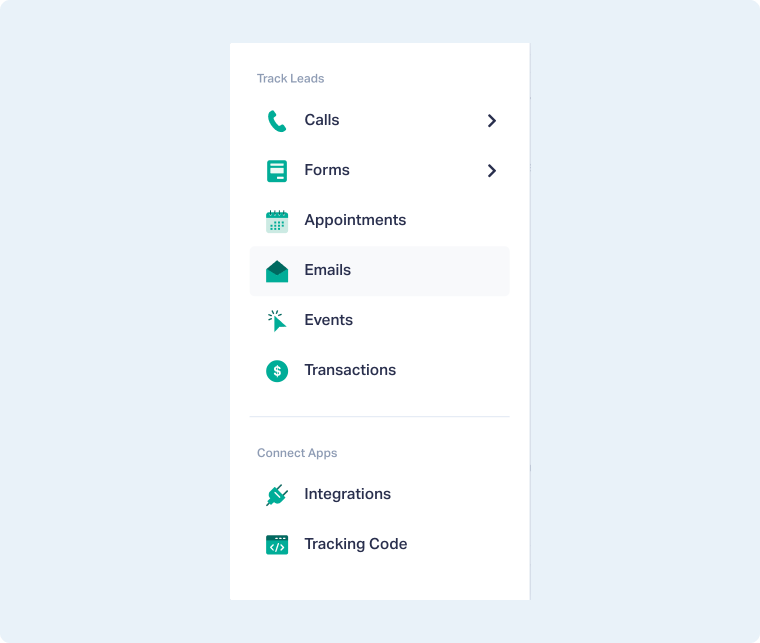
- In your WhatConverts Profile, select “Tracking” from the top menu.
- Select “Emails”.
- Copy your unique forwarding email address (e.g., leads+86821.52257f28@iconnode.com).
- Forward your emails to the above address following these forwarding guidelines:
- Forward only the customer’s message.
- Do not add comments to the forwarded email.
- Remove your email signature before sending.
- The message will be scanned automatically, and WhatConverts will create a lead from the email.
The forwarded message should appear similar to this example:
---------- Forwarded Message ----------
From: Tom Smith <tomsmith@email.com>
Sent: Thursday, October 16, 2025 5:11 PM
To: <sales@mycompany.com>
Subject: Widget Products

Hi, I was looking at your website and would like to know more about your widget product line.

You can email me back or call me at (855) 555-1234.

Thanks,
Tom
Once received, the lead will appear in your WhatConverts dashboard.
Related Topics
Was this page helpful?
Get a FREE presentation of WhatConverts
One of our marketing experts will give you a full presentation of how WhatConverts can help you grow your business.
Schedule a Demo






