


Filter Leads in the Lead Manager
The Lead Manager gives you flexible filtering options so you can quickly narrow down to the leads that matter most. You can filter by date, apply filters directly from the Lead Overview Chart, or use column filters for precise conditions.
Note: Filters applied in the Lead Manager also apply to the Lead Overview Chart, Quick Reports, and Lead Groups, ensuring that all views and reports reflect the same filtered data.
Filter by Date
To filter leads by date:
- Open the Lead Manager.
- Use the date picker at the top right of the Lead Manager.
- Select a pre-set range (e.g., Today, Last 7 Days, This Month) or set a custom date range.
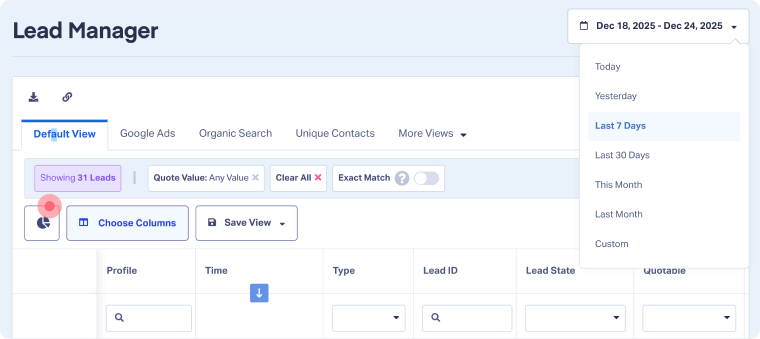
- The Lead Manager will update automatically to show only leads within the chosen dates.
Filter From the Lead Overview Chart
To filter leads from the Lead Overview chart:
- Open the Lead Manager.
- From the Lead Overview Chart at the top of the Lead Manager, click on a lead type, status, or data point in the time chart.
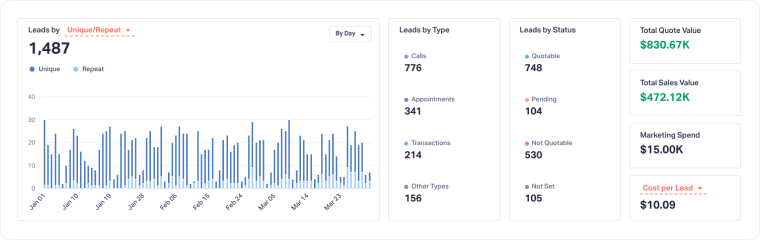
- The Lead Manager will instantly filter the table to show only those leads.
Use Column Filters
Column filters give you granular control over your lead data.
- Open the Lead Manager.
- Enter values in the filter boxes beneath each column header.
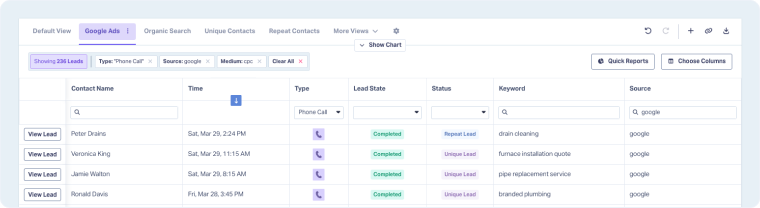
- Options include:
- Multi-select dropdowns: You can select multiple options within a dropdown filter, making it easier to include or exclude several values at once.
- Match types per filter: Match type is configured directly within each individual filter instead of having one global Exact Match setting. This gives you more flexibility to combine different matching rules in the same search.
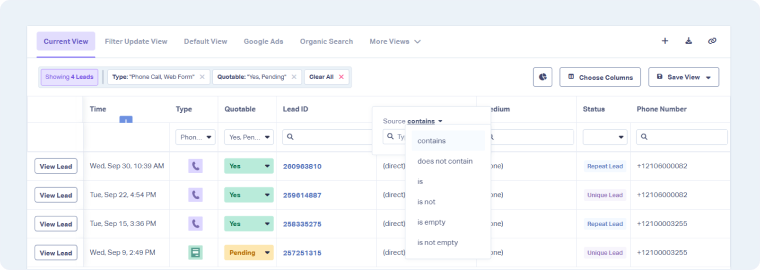
- Text filtering options: Text fields support Contains, Does Not Contain, Is, Is Not, Is Empty, and Is Not Empty, giving you more control over exactly how each field is filtered. For example, if you click on the Source filter, you'll have the option to specify the source and control exactly how you want it filtered.
Note: You can use other regular expressions (regex) to filter leads.
Manage Filters
Filters applied in the Lead Manager appear in the filter bar at the top of the table. From here, you can easily review, adjust, or remove filters.
- Filter bar: Shows all active filters you’ve applied (date, table, or column filters).
- Removing filters: Click the “x” next to an individual filter to remove it, or select “Clear All” in the filter bar to reset your view.

Related Topics
Get a FREE presentation of WhatConverts
One of our marketing experts will give you a full presentation of how WhatConverts can help you grow your business.
Schedule a Demo


