


Track Formstack Web Forms
Formstack is a cloud-based form builder that lets you create forms, surveys, and workflows. WhatConverts can track Formstack submissions using two methods depending on how you deploy your form: the Javascript Embed method for forms embedded on your website, or a custom setup for non-embedded forms shared via direct links.
Method 1: Track Formstack Using the Javascript Embed Method
Use this method when embedding your Formstack form directly on your website.
Set Up Javascript Embed Formstack Tracking
To track embedded Formstack forms with WhatConverts:
- If you haven't added your WhatConverts tracking script to your website, add your tracking script.
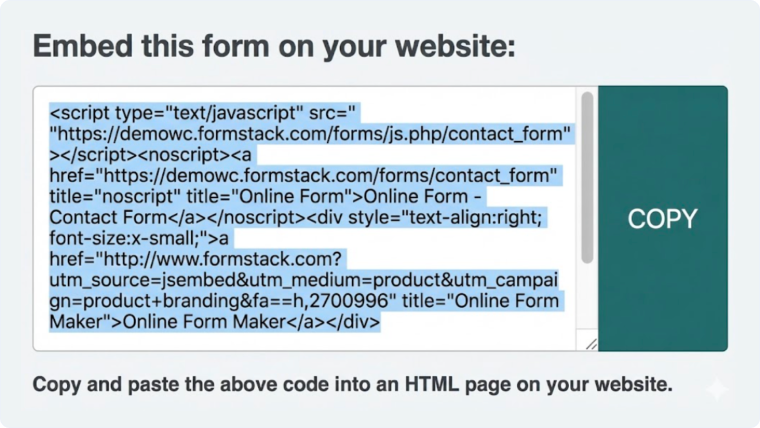
- Use the Javascript Embed method to install your form on your website. Click the "Publish" button and copy the code from the Embed this Form on your Website window.
- Copy and paste the code into an HTML page on your website.
- Log in to the WhatConverts profile you want to track your form in.
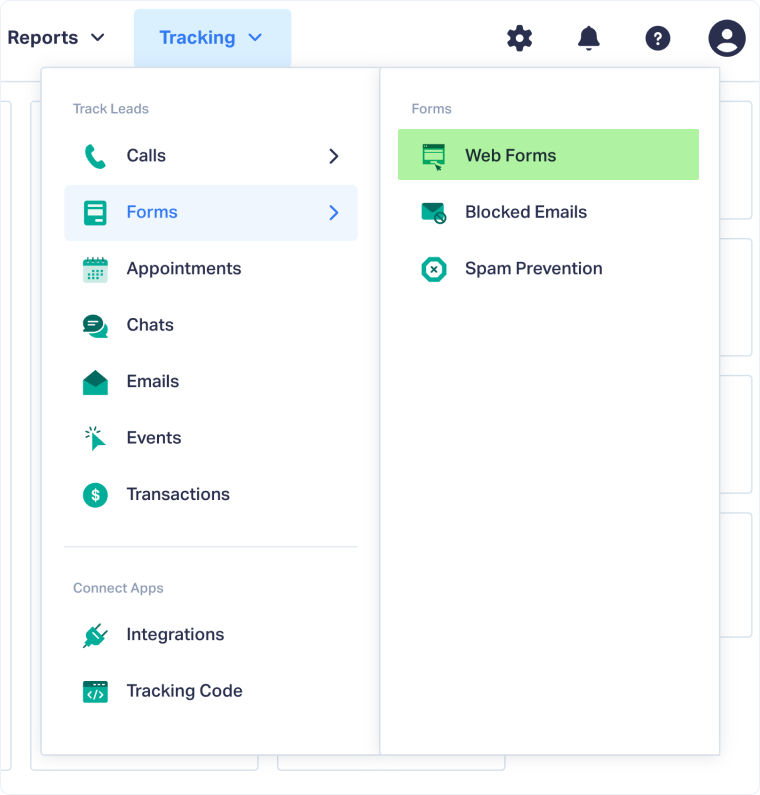
- Select "Tracking" from the top menu. Select "Forms" and click "Web Forms".
- Click the "Add Web Form" button, and select "Manual Setup".
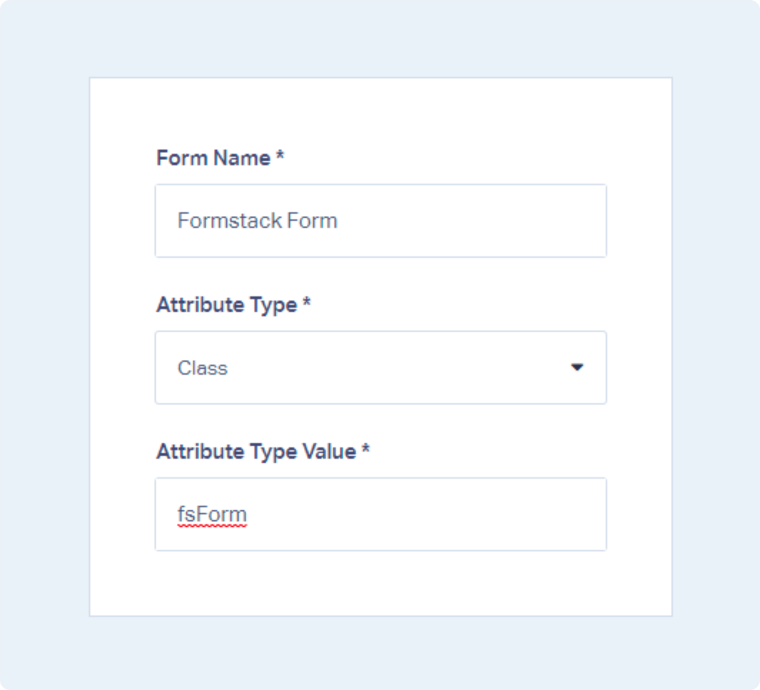
- Name your form, select Attribute Type "Class" and enter Attribute Value as "fsForm". Click the "Finish" button.
Your embedded Formstack form is now being tracked. WhatConverts will capture all submissions from this form and create leads with full attribution data.
Test Your Javascript Embed Formstack Tracking
After setting up tracking, verify that form submissions are being captured correctly:
- Go to the page where your Formstack form is embedded.
- Fill out the form with test information and submit it.
- Return to your WhatConverts profile and view your form leads.
- Find the test form submission and check its data.
If your test lead appears correctly, your Formstack tracking is working properly.
Method 2: Track Non-embedded Formstack Forms
Use this method when sharing a direct link to your Formstack form (not embedded on your website).
Note: If you are sharing a link to your Formstack form, we recommend appending UTM parameters to any links you share. This ensures proper attribution in your WhatConverts lead tracking.
Set Up Non-embedded Formstack Tracking
To track standalone Formstack forms with WhatConverts:
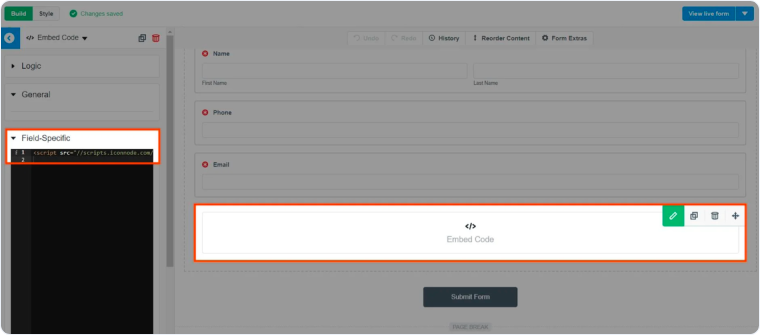
- In your Formstack form, drag and drop an Embed section.
- Add the WhatConverts tracking script to the Field Specific box as shown on the left side of the image above. See: Where to find your WhatConverts Tracking Code
- Log in to the WhatConverts profile you want to track your form in. Select "Tracking" from the top menu.
- Select "Forms" and click "Web Forms".
- Click the "Add Web Form" button, and select "Manual Setup".
- Name your form, select Attribute Type "Class" and enter Attribute Value as "fsForm". Click the "Finish" button.
Your non-embedded Formstack form is now being tracked. WhatConverts will capture all submissions from this form and create leads with attribution data.
Test Your Non-embedded Formstack Tracking
After setting up tracking, verify that form submissions are being captured correctly:
- Go to your Formstack form URL.
- Fill out the form with test information and submit it.
- Return to your WhatConverts profile and view your form leads.
- Find the test form submission and check its data.
If your test lead appears correctly, your non-embedded Formstack tracking is working properly.
Related Topics
- What is Web Form Tracking?
- Track Web Forms Automatically with the Form Finder
- Track Contact Form 7 Web Forms
- Track Gravity Web Forms
Get a FREE presentation of WhatConverts
One of our marketing experts will give you a full presentation of how WhatConverts can help you grow your business.
Schedule a Demo






