


Track Zoho Web Forms
Zoho Forms is a cloud-based form builder that lets you create surveys, contact forms, registration forms, and order forms. WhatConverts can track Zoho Forms submissions by embedding the form using the HTML/CSS download method and configuring manual tracking, which captures lead data and attributes each submission to the marketing source that drove it.
Set Up Zoho Form Tracking
To track Zoho Forms submissions with WhatConverts:
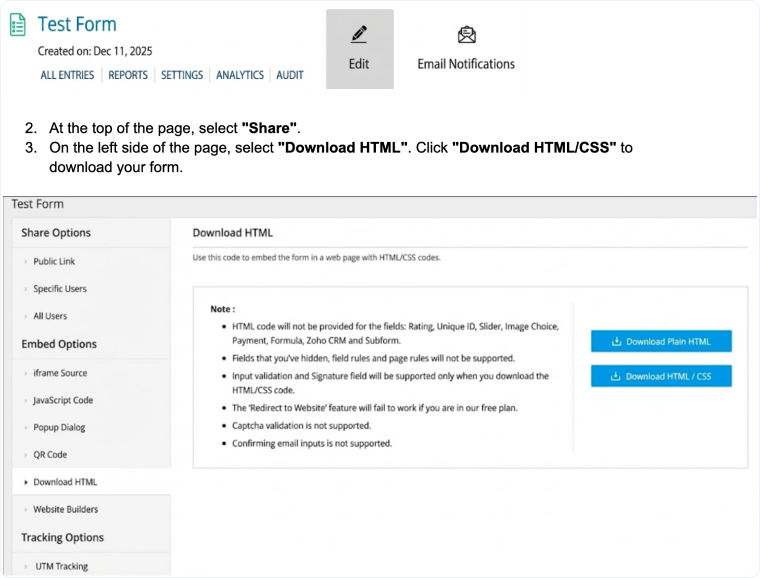
- Log in to your Zoho Forms account. Locate the form you would like to track and click "Edit".
- At the top of the page, select "Share".
- On the left side of the page, select "Download HTML". Click "Download HTML/CSS" to download your form.
- Extract the folder and open the "index.html" file in that folder into a text editor, copy the HTML and paste it into the HTML page on your website.
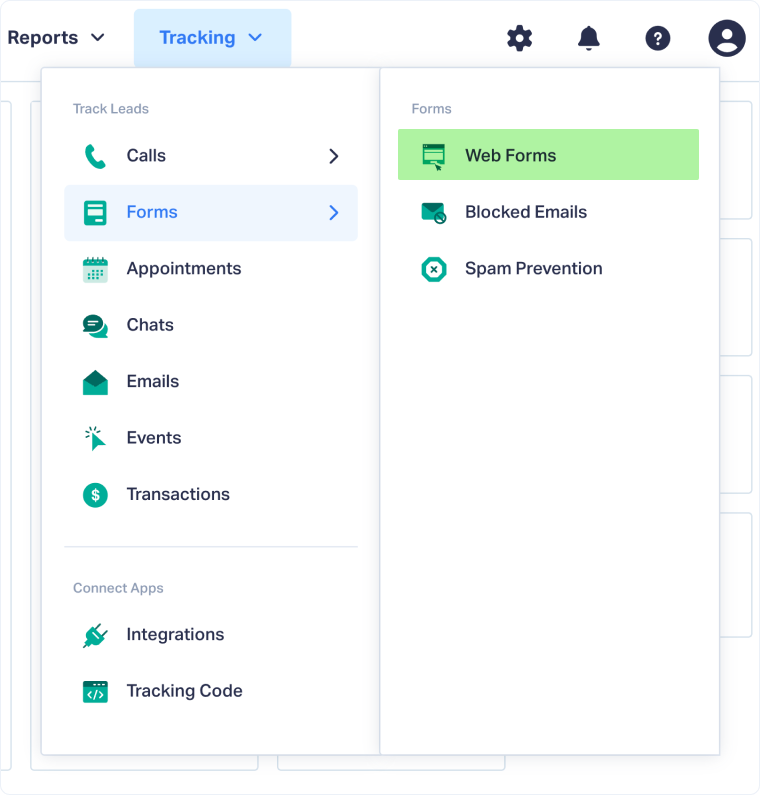
- Log into the WhatConverts profile you want to track your Zoho Form in. Select "Tracking" from the top menu.
- Select "Forms" and click "Web Forms".
- Click the "Add Web Form" button, and select "Manual Setup".
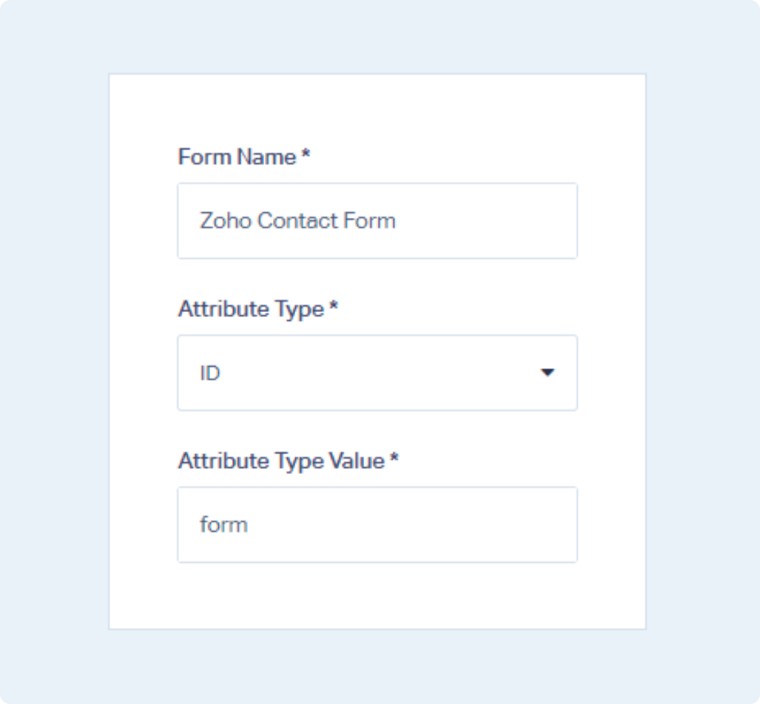
- Name your form, select Attribute Type "ID" and enter Attribute Value as form. Click the "Finish" button.
Your Zoho Form is now being tracked. WhatConverts will capture all submissions from this form and create leads with full attribution data.
Test Your Zoho Form Tracking
After setting up tracking, verify that form submissions are being captured correctly:
- Go to the page where your Zoho Form is embedded.
- Fill out the form with test information and submit it.
- Return to your WhatConverts profile and view your form leads.
- Find the test form submission and check its data.
If your test lead appears correctly, your Zoho Form tracking is working properly.
Related Topics
Get a FREE presentation of WhatConverts
One of our marketing experts will give you a full presentation of how WhatConverts can help you grow your business.
Schedule a Demo






