















































Combine Fields Into One Column with Field Mappings
If your forms collect values like “First Name” and “Last Name” separately, you can use to combine them into a single column (e.g. “Full Name”) for easier reporting and cleaner data in the Lead Manager.
Combine Fields into One Mapped Field
To create a single field from multiple inputs:
- Go to the Profile Settings and click “Field Mapping”.
- Click ”+ Add Field Mapping”.
- Enter a “Field Mapping Name” (e.g. “Fol class=""l Name”). This is the name the new field with the combined inputs will show.
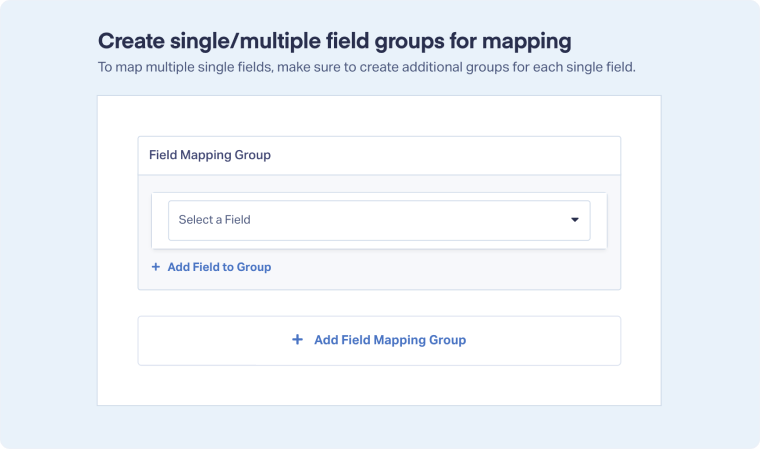
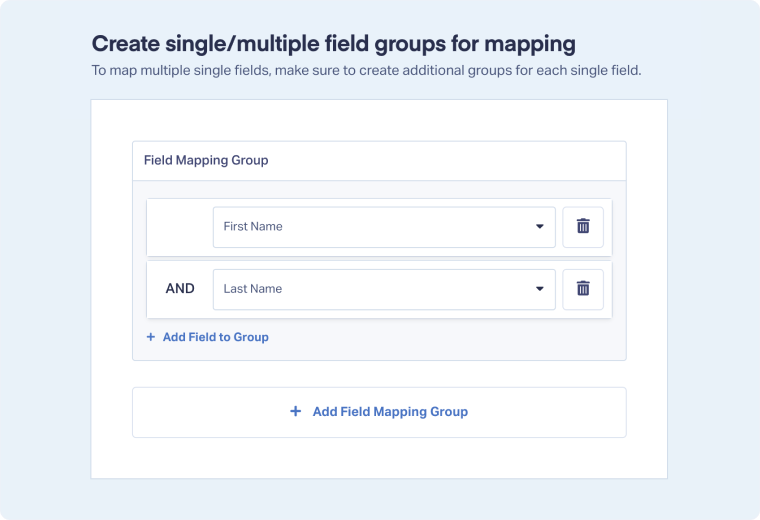
- Under Field Mapping Group, select the first field to combine (e.g. “First Name”).
- Click “+ Add Field to Group”.
- Select the second field (e.g., “Last Name”).
- Click “Finish”.
Note Creating a Field Mapping with two or more fields doesn’t remove the original fields. It adds a new Mapped Field alongside the source fields, all of which remain visible in the Lead Details page.
Tip: For more information on where and how Field Mappings appear in your account, see Find Your Mapped Fields.
Related Topics
Was this page helpful?
Get a FREE presentation of WhatConverts
One of our marketing experts will give you a full presentation of how WhatConverts can help you grow your business.
Schedule a Demo






