















































Find Your Mapped Fields
Once you create a Field Mapping, it becomes visible across key areas in WhatConverts, so you can easily view, edit, and use the mapped data across your profile in the Lead Details, Profile Settings, and Lead Manager.
View Mapped Fields in the Profile Settings
Your Field Mapping is added to “Profile Settings” under “Field Mapping”, with all connected source fields shown under the Mapped Fields column.
From here, you can view, edit, or delete any mapping 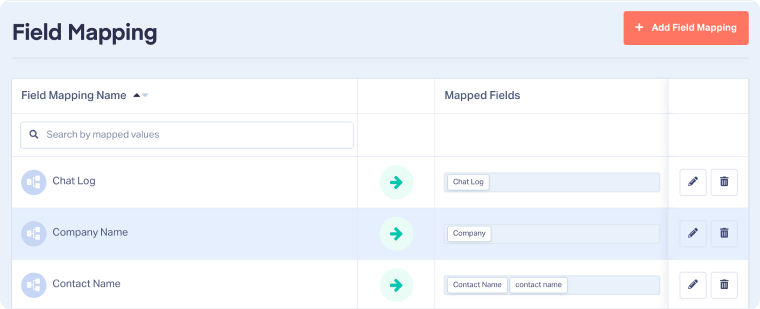 .
.
View Mapped Fields in the Lead Details Page
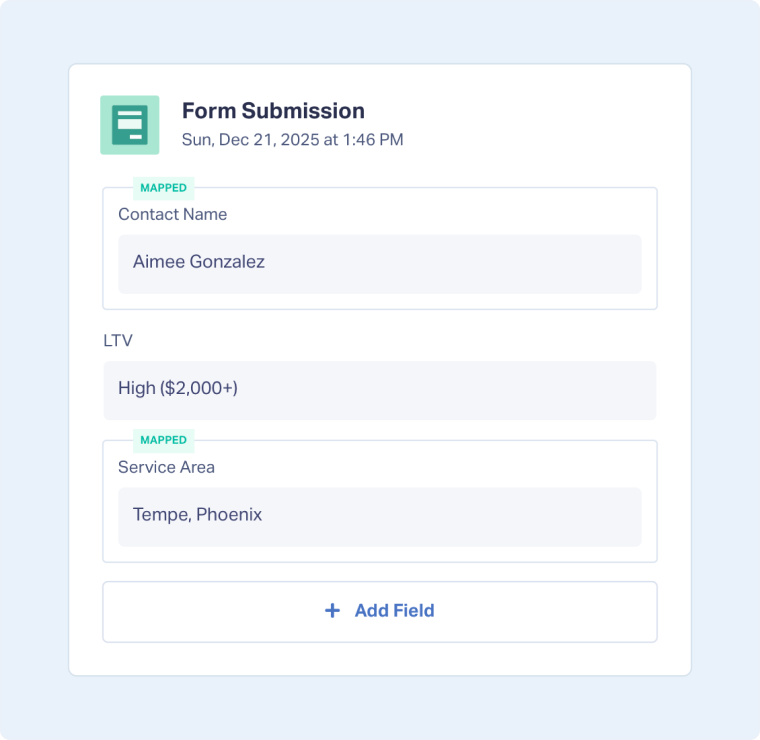
In the Lead Details page, the original field now displays with the Field Mapping name you assigned (e.g. “Service Area”) and a green Mapped label. This indicates that the field has been successfully mapped.
The mapping is automatically applied to any lead that includes the original source field, no manual updates needed.
View Mapped Fields in the Lead Manager
Mapped fields automatically appear as columns in the Lead Manager, tagged with "MF" (Mapped Field) in the column header. This helps you quickly identify, filter, and report on Mapped Fields across all your leads.
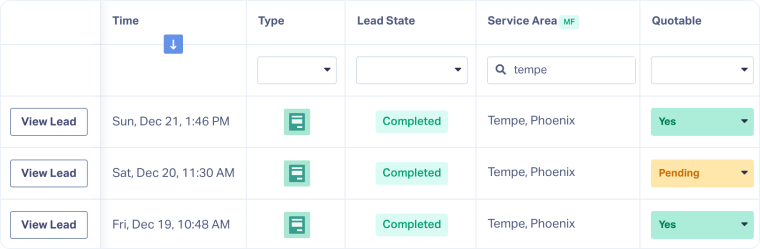
Tip: Mapped Fields automatically appear as columns in the Lead Manager. To enable or disable them, go to “Choose Columns”.
Related Topics
Get a FREE presentation of WhatConverts
One of our marketing experts will give you a full presentation of how WhatConverts can help you grow your business.
Schedule a Demo






