















































Generate a Quick Report From the Lead Manager
Quick Reports let you instantly evaluate your leads by one or two dimensions without leaving the Lead Manager. They’re designed for quick insights, giving you the ability to analyze lead performance in context, directly from the table view.
You can generate Quick Reports in two ways: from column headers or from the Quick Reports menu.
Generate a Quick Report From a Column
To generate a Quick Report directly from a column:
- Access the Lead Manager.
- Ensure the column you want to analyze is visible, and add it if needed.
- Hover over the column header and click Quick Report by [Dimension].
- Your Quick Report will appear on the right-hand side, showing a breakdown of leads by the selected column.
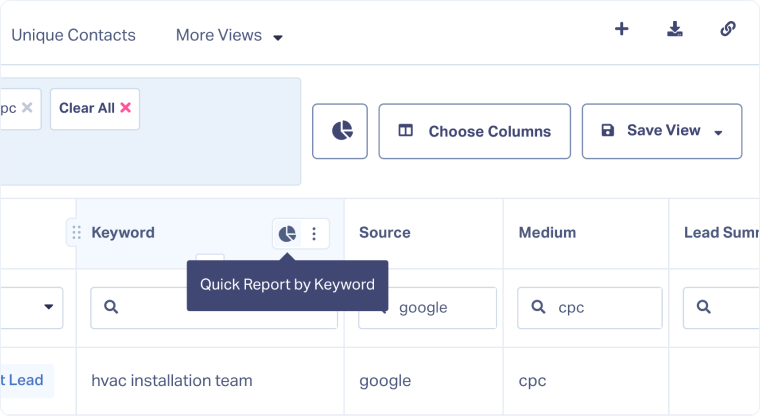
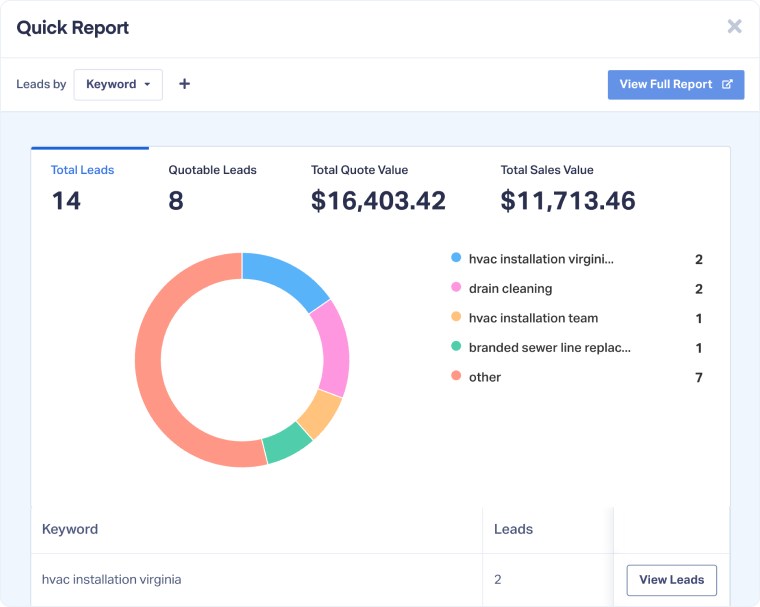
Note: In Quick Reports, you can switch the view from lead volume to Quotable, Quote Value, or Sales Value by clicking on the dimension you want to report on
Note: To expand your analysis, click “View Full Report” in the top-right corner of a Quick Report to open the full report in the Report Builder.
Generate a Quick Report From the Quick Reports Menu
To generate a Quick Report using the menu:
- Access the Lead Manager.
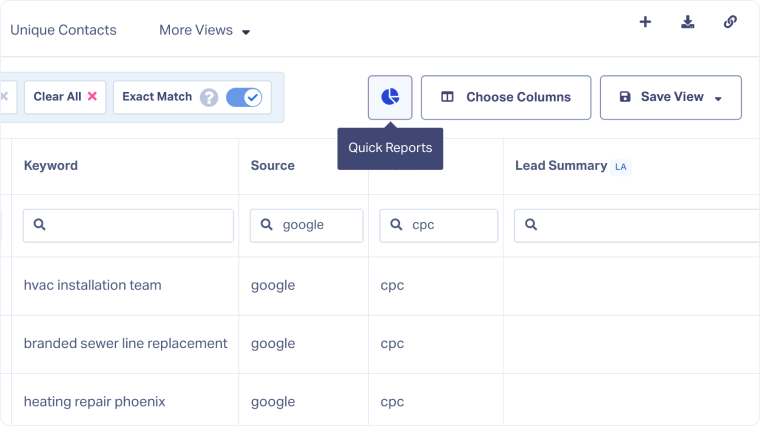
- Click the Quick Reports button at the top right of the table.
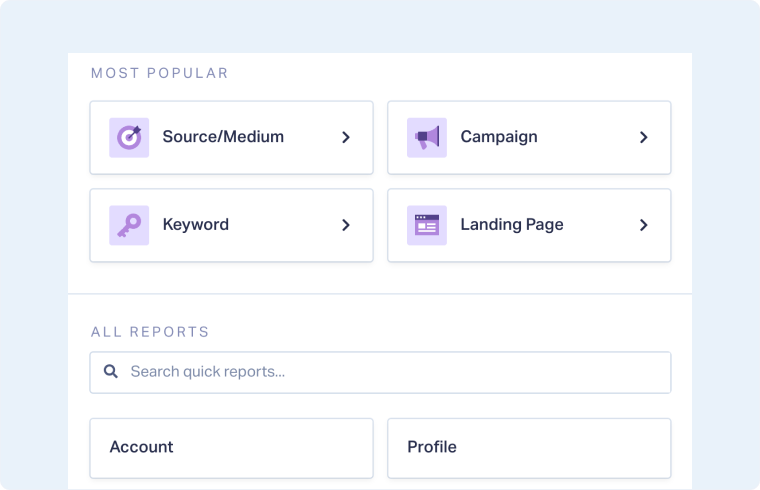
- Browse the available Quick Reports or search under All Reports.
- Select the report you want to generate. Your Quick Report will load on the right-hand side.
Add a Dimension to a Quick Report
To expand your Quick Report with a second dimension:
- Inside the Quick Report, click “+” next to the main dimension to add one.
- Use the dropdown or type to search for the dimension you want to add, and select it.
- The Quick Report will now show results across both dimensions.
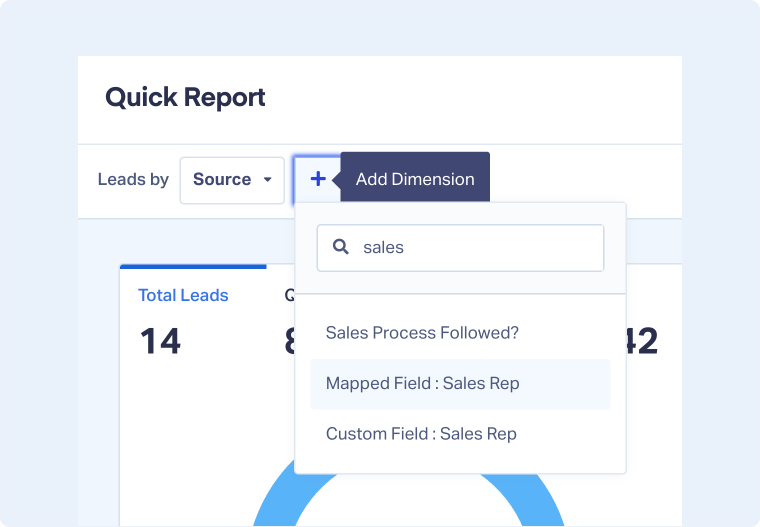
Note: Quick Reports are limited to two dimensions. For more complex reporting with three or more dimensions, use the Report Library or Report Builder.
Related Topics
Get a FREE presentation of WhatConverts
One of our marketing experts will give you a full presentation of how WhatConverts can help you grow your business.
Schedule a Demo






