















































Update Existing Leads with the Lead Import Tool
The Lead Import Tool lets you update existing leads in bulk by importing a CSV file. You can use it to sync data from your CRM, add or adjust quote and sales values, or update categorization and lead details. This helps you save time while keeping your account accurate and up to date.
Start with the article Use the Lead Import Tool for an overview of how the process works.
Step 1: Access the Lead Import Tool
The Lead Import Tool is available at the profile level.
- Go to the Profile Settings and click “Lead Import / Update”.
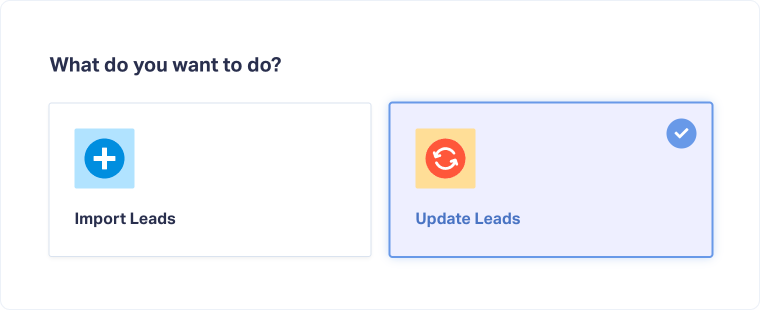
- Click “Import / Update Leads”.
- Select “Update Leads”.
Step 2: Prepare and Upload Your CSV File
Before updating leads, prepare your CSV file and upload it to WhatConverts.
- Prepare your file.
- Start from an export of your existing leads whenever possible.
- Include at least one identifier column to match records (Lead ID, Email Address, or Phone Number).
- Use the Help Center sidebar to:
- Access a detailed guide to prepare your file: Prepare Your Lead Import CSV File
- Download the CSV template, which includes all standard columns (delete unused ones).
- Save your file in CSV format.
- Upload the file.
- Optionally, customize how leads should be updated:
- Import unmatched file records as new leads: Enable this if you want WhatConverts to create a new lead when the identifier (Lead ID, Email, or Phone Number) doesn’t match any existing record.
- Combine existing Sales Value with uploaded one: Enable this if you want WhatConverts to add the imported Sales Value to the existing Sales Value, instead of replacing it.
- Click “Continue”.
Note: The limit is 500 leads per CSV file. If you need to update more than 500 leads, split them into multiple files.
Note: If you’re exporting data from your CRM, you can usually use that file as a starting point, and just make sure it includes one of the required identifiers for matching leads (Lead ID, Email, or Phone Number), and the data you want to update.
Step 3: Map Your Columns
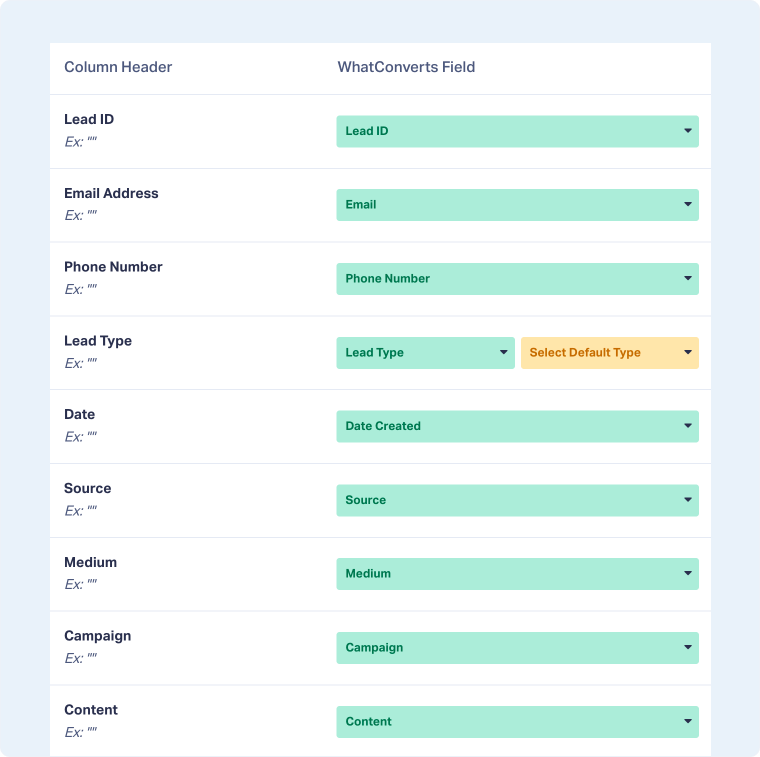
During import, the system maps each CSV column to the correct WhatConverts standard field.
- Review the field mappings:
- Green fields: Mapped automatically by the system. Review them to ensure accuracy.
- Yellow fields: Need to be mapped manually. Fields left unmapped will be skipped.
- Confirm your identifiers: At least one of the following must be mapped for the update to work
- Lead ID (recommended)
- Email Address
- Phone Number
- Choose the correct mapping for Custom Fields and Additional Fields (if importing any):
- Select “Custom Field” if you want data to appear in the Custom Fields section.
- Select “Additional Field” if you want data to appear in the Conversion Details section.
- Click Continue.
Tip: The Help Center sidebar shows which fields are required/suggested before you can proceed.
Note: If you map a column to a Custom Field or Additional Field, the system will automatically update the existing field for that lead. If the field doesn’t already exist, WhatConverts will create a new Custom or Additional Field to store the imported data.
Step 4: Review and Confirm
Once all fields are mapped:
- Review the Lead Import Overview, which shows:
- Total number of leads found in your file.
- Any leads with errors (these will be skipped).
- Billing confirmation to ensure your account has sufficient funds.
- Review Matching Records: If WhatConverts detects multiple matching leads, a dropdown list will appear for each match. Use the information shown in the dropdown (such as Date, Source, or Type) to select the correct lead to update. Leads are listed from most recent to oldest, with the most recent typically being the correct one.
- Approve additional costs for updating leads.
- Click “Update Leads” to begin the process.
- Wait for the success message, then click “Finish”.
Tip: Keep the import window open while it runs to ensure all leads are successfully processed.
Note: Records without a selected matching lead won’t be updated.
Related Topics
Get a FREE presentation of WhatConverts
One of our marketing experts will give you a full presentation of how WhatConverts can help you grow your business.
Schedule a Demo






