















































Import Additional Fields With the Lead Import Tool
You can use the Lead Import tool to bulk upload and enrich your leads with Additional Fields. This data adds extra context about each lead and typically comes from your CRM or other external systems.
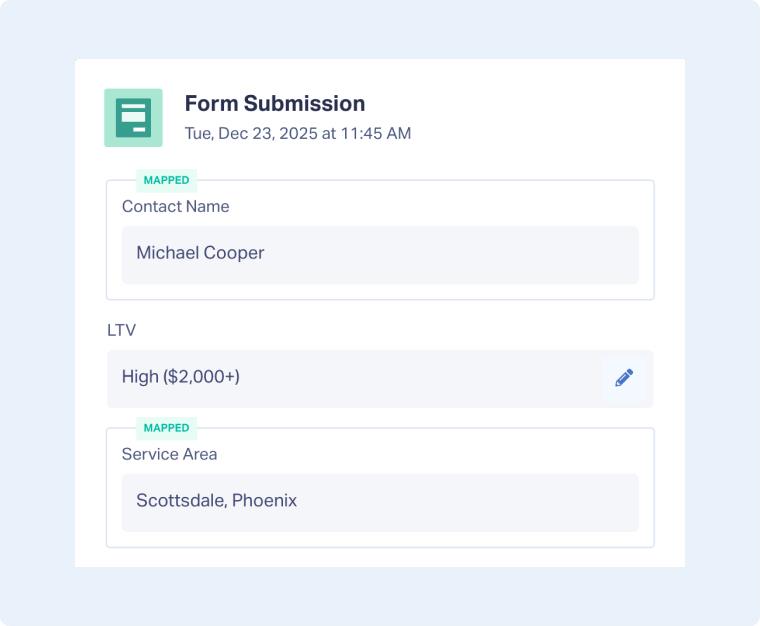
After importing, the Additional Fields appear in the Conversion Details section of the Lead Details page. To make them visible across the Lead Manager, Reports, and Lead Intelligence, you’ll need to map the fields to ensure your data stays consistent and organized.
Add Additional Fields in Bulk Using the Lead Import Tool
To import additional fields using the Lead Import tool:
- Create your CSV file with one identifier column (Lead ID, Email, or Phone Number) and the Additional Field column(s) you want to import (e.g., LTV - Lifetime Value).
- Upload your file to update existing leads. Make sure to select the “Update Leads” option in Step 1, and to choose “Additional Field” as the WhatConverts Field in the column mapping step.
- Once the import is complete, go to the Lead Details page to confirm your Additional Field has been imported.
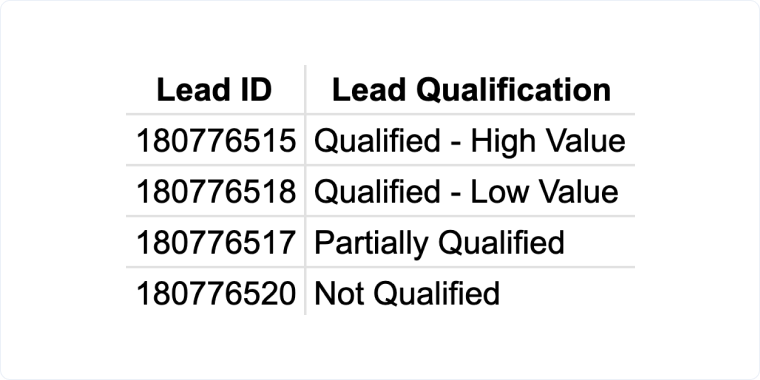
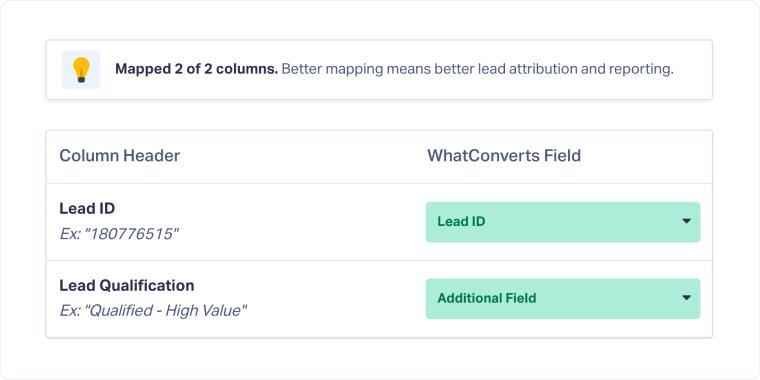
Tip: Extract the leads you want to update to get the Lead IDs needed for your CSV file.
Map the Additional Fields
Once your data is imported, follow these steps to make sure the new fields are available across your WhatConverts profile, including the Lead Manager, reports, and Lead Intelligence:
After that, your imported field will show as a Mapped Field everywhere in your profile.
Related Topics
Get a FREE presentation of WhatConverts
One of our marketing experts will give you a full presentation of how WhatConverts can help you grow your business.
Schedule a Demo






