















































Report on Lead Analysis Outcomes
Who has access to this feature?
Available on: Report Builder - Pro and Elite Plans
Access level: All Users
After analyzing and organizing your leads using Lead Analysis, you can use the Lead Manager and Reporting tools to measure your marketing and sales performance.
Lead Analysis outcomes help you understand what drives qualified, high-value leads and optimize campaigns using data extracted directly from conversations.
Use Lead Analysis in Quick Reports
Quick Reports are built right into the Lead Manager. They let you quickly create a visual report based on any Lead Analysis (LA) field, without leaving the page.
To create a Quick Report using Lead Analysis:
- Open the Lead Manager.
- Locate the Lead Analysis (LA) column you want to analyze.
- Click on “Quick Report by [Lead Analysis Field]” next to the column title.

You’ll instantly get a breakdown that shows how different intents, topics, or detected sentiments are performing.
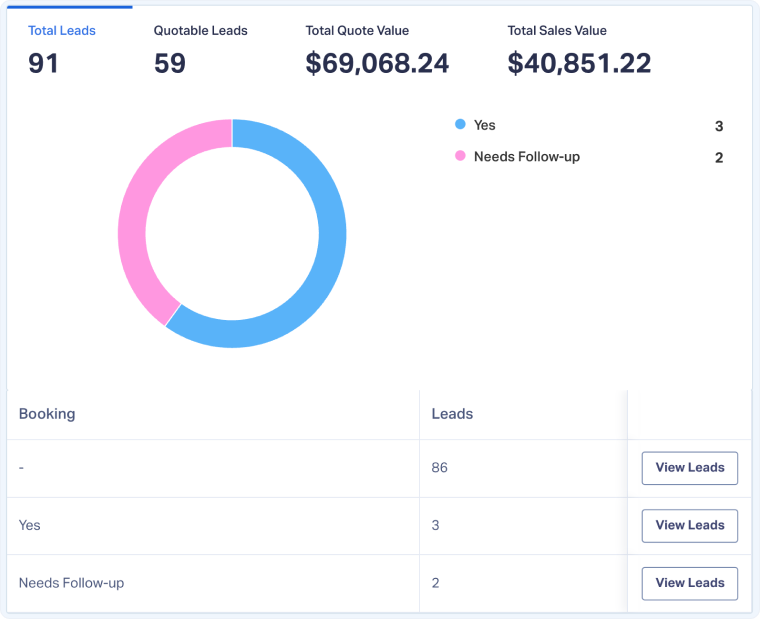
Use Lead Analysis in Custom Reports
Custom Reports give you more control and flexibility to visualize your AI-generated data using Lead Analysis fields.
They’re ideal when you need to filter, group, or compare AI insights across campaigns, sources, or agents.
The easiest way to create a Custom Report using Lead Analysis is:
- Start with a Quick Report using the Lead Analysis field you want to analyze.
- Click “View Full Report” to open the Report Builder.
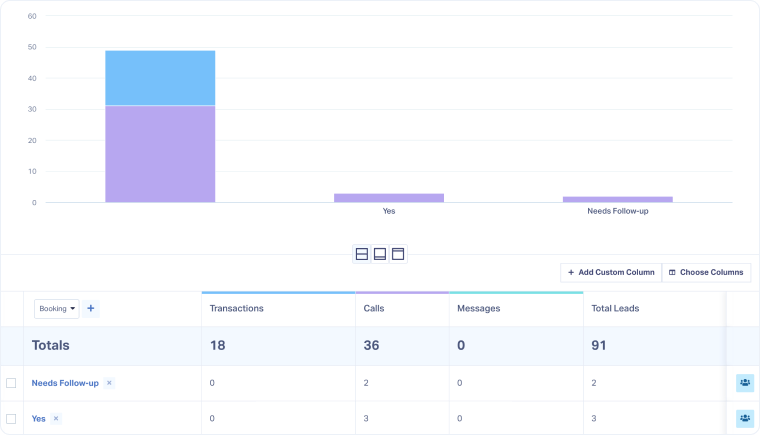
You’ll now see your Lead Analysis field used as the starting point in the report. From here, you can add dimensions, filters, or columns to tailor your view.
Tip: Combine Lead Analysis (LA) fields with Custom Fields or Mapped Fields to connect AI-detected insights with manual qualification data and have the full picture.
Related Topics
Get a FREE presentation of WhatConverts
One of our marketing experts will give you a full presentation of how WhatConverts can help you grow your business.
Schedule a Demo






