















































Use the Lead Details to Value and Qualify Leads
The Lead Details page gives you all the context you need to determine a lead’s quality and value.
By reviewing both the Overview and Lead Analysis tabs, you can extract insights from real interactions, assign Quote and Sales Values, and categorize leads consistently using Custom Fields.
Once your leads are valued and qualified, you can utilize that data in reporting, ROI analysis, and campaign optimization to focus on quality and revenue, rather than just volume.
Review and Analyze Your Leads
The Lead Details page helps you understand who your leads are, what they wanted, and how they interacted with your business, whether you review them manually or through AI-powered insights.
Using the Overview and Lead Analysis tabs together, you can:
- Review the Customer Journey to see how the lead found and converted on your website.
- Check Conversion Details to read form responses, chat logs, or call recordings for context.
- Reference contact and company information to connect leads with your CRM records.
- Use Lead Analysis insights (Intent, Topic, Summary, Keyword Detection, or AI Analysis) to:
- Quickly summarize what happened during an interaction, such as whether an appointment was booked, what service was discussed, or the customer’s intent.
- Understand call quality, urgency, and potential value without listening to entire recordings or reading full transcripts.
Use this combined context to identify each lead’s context, value, and quality, then update the relevant fields accordingly.
Tip: Even if you review leads manually, enabling Lead Analysis can save significant time by automatically summarizing interactions and extracting qualification insights for you.
Qualify, Categorize, and Value Leads Using the Lead Details
Once you have the full context from your review, use that information to qualify, categorize, and value each lead consistently:
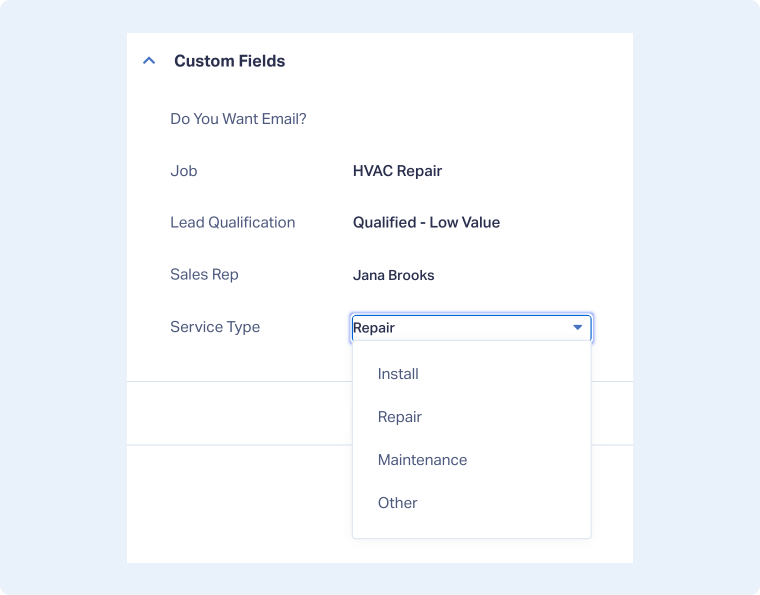
- Categorize the lead using Custom Fields.
- Update fields like “Service Type”, “Sales Rep”, or “Lead Quality” to categorize leads, giving extra context.
- Add extra context based on your review for more accurate categorization.
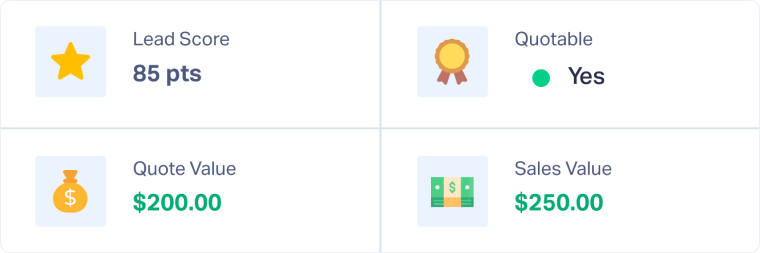
- Value and qualify the lead using the Lead Qualification section.
- Enter Quote Value when you know the potential job or service cost.
- Enter Sales Value once the sale is confirmed or transaction data is imported.
- The Quotable status will update automatically when Quote or Sales Values are added.
- Optionally, use a Custom Field to assign qualification status if your workflow requires it.
Note: You can update Custom Fields or Sales/Quote Values automatically using Lead Intelligence, or import them in bulk using the Lead Import Tool.
Related Topics
Get a FREE presentation of WhatConverts
One of our marketing experts will give you a full presentation of how WhatConverts can help you grow your business.
Schedule a Demo






