















































Allow Your Numbers to Receive Inbound Text Messages
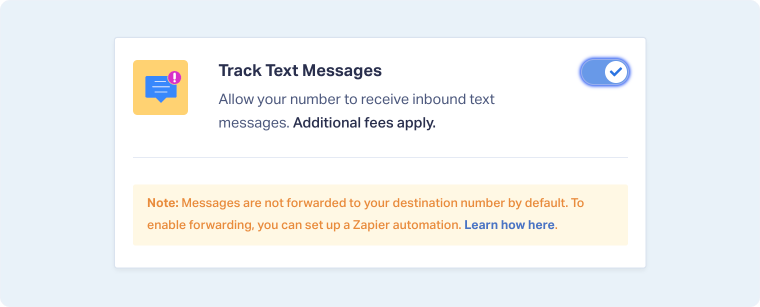
Enable text message tracking to capture inbound SMS conversations as leads in WhatConverts. When this setting is turned on, text messages sent to your tracking number will be recorded as Text leads within your account.
Track Inbound Text Messages to Your Tracking Numbers as Leads
- In your WhatConverts profile, select “Tracking” from the top menu.
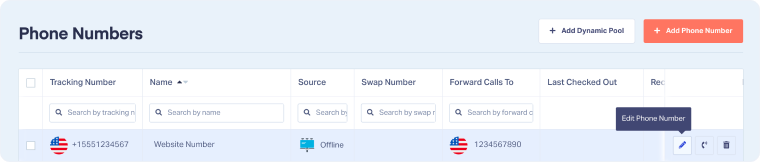
- Choose “Calls”, then “Phone Numbers”.
- Locate the phone number you want to update.
- On the right side of the row, click the Pencil icon to open the number’s settings.
- Scroll down to the Track Text Messages section.
- Toggle the setting on to allow the number to receive inbound text messages.
- Click “Finish” to apply the update.
Inbound texts sent to your tracking number will appear in the Leads section, listed under the Type column as Text.
Note: Text messages are not forwarded to your destination number by default. To enable forwarding, you can set up a Zapier automation. Learn more about this process in our Zapier integration guide.
Related Topics
Was this page helpful?
Get a FREE presentation of WhatConverts
One of our marketing experts will give you a full presentation of how WhatConverts can help you grow your business.
Schedule a Demo






