















































Enable Call Recording
Call Recording captures all incoming calls to your tracking numbers so you can review lead quality, assess sales performance, and verify campaign results. This feature is enabled individually for each tracking number within your profile.
Enable Call Recording for a Tracking Number
To enable Call Recording for a specific tracking number:
- In your WhatConverts profile, select “Tracking” from the top menu.
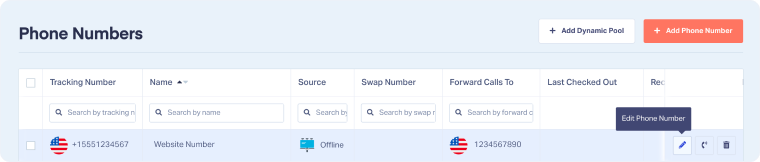
- Choose “Calls”, then "Phone Numbers".
- Locate the tracking number you want to update.
- Click the Pencil icon on the right side of the row to open the number's settings.
- Scroll down to the Call Recording (FREE) section.
- Toggle the setting on to enable call recording.
- Click "Finish" to save your changes.
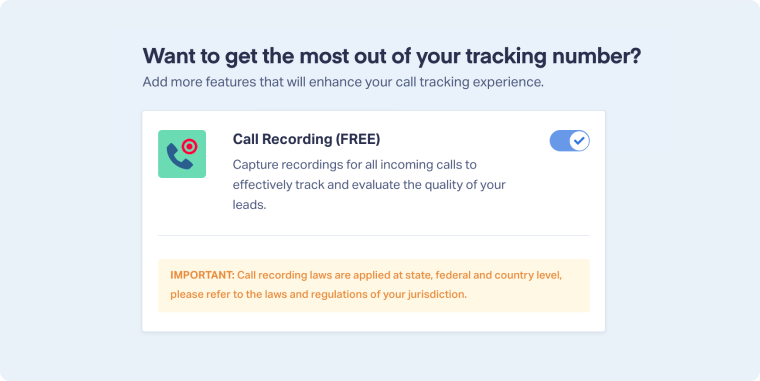
Note: Call recording laws vary by state, federal, and country-level jurisdictions. Please review local regulations to ensure compliance before enabling this feature.
Disable Call Recording
To turn off Call Recording for a tracking number:
- In your WhatConverts profile, select “Tracking” from the top menu.
- Choose “Calls”, then "Phone Numbers".
- Locate the tracking number you want to update and click the Pencil icon.
- Scroll down to the Call Recording (FREE) section.
- Toggle the setting off to disable call recording.
- Click "Finish" to save your changes.
Related Topics
Was this page helpful?
Get a FREE presentation of WhatConverts
One of our marketing experts will give you a full presentation of how WhatConverts can help you grow your business.
Schedule a Demo






