















































Configure a Smart Routing Step in a Call Flow
A Smart Routing Step routes calls based on marketing attribution data like ad source, campaign, keyword, or other lead details. This allows you to direct callers to different teams or phone numbers based on which marketing channel or campaign drove their call.
Add and Configure a Smart Routing Step
To add and configure a Smart Routing Step in an existing Call Flow:
- Open the Call Flow and add a new step.
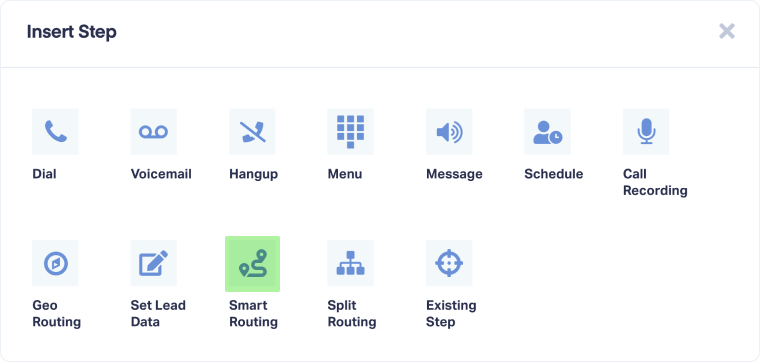
- Select "Smart Routing" from the available step options.
- Enter a descriptive name for the step (e.g., Campaign-Based Routing, Source Routing, Keyword Routing).
- Under "Create routing rules", define which callers follow which routes based on marketing data.
- Enter a descriptive name for each routing path (e.g., Google Ads Callers, Facebook Campaign, Brand Keywords)
- Configure conditions for each route:
- Dimension: Select the marketing attribute to evaluate (e.g., Source, Medium, Campaign, Keyword, Content, Landing Page, Lead Page)
- Complement: Choose Include or Exclude
- Match Type: Select how to match values:
- Contains: Matches if the field contains the specified text
- Exact Match: Matches only if the field exactly equals the specified text
- Begins With: Matches if the field starts with the specified text
- Ends With: Matches if the field ends with the specified text
- Value: Enter the text or value to match against (e.g., google, facebook, brand-campaign)
- Optionally, click "+ Add Rule" to add more conditions to the same route. Multiple rules within one route work together (AND logic).
- Optionally, click "+ Add Route" to create additional routing paths. Each route can have its own set of attribution rules.
- Click "Save Changes" to apply the Smart Routing Step.
After the Smart Routing Step, connect each named route to different Call Flow steps based on where you want callers from each marketing source to go.
Tip: Use “Contains” match type for flexible routing. For example, matching Source = "google" will catch "google / cpc", "google / organic", and any other Google sources
Related Topics
Get a FREE presentation of WhatConverts
One of our marketing experts will give you a full presentation of how WhatConverts can help you grow your business.
Schedule a Demo






