















































Add a Call Flow Step
Call Flows let you add steps to adapt the call flow to your business needs.
Add a Call Flow Step
To add a new Call Flow step:
- Go to "Tracking" from the top menu and select "Calls".
- Choose "Call Flows".
- Find the Call Flow you want to manage and click the “Edit” icon to open its settings.
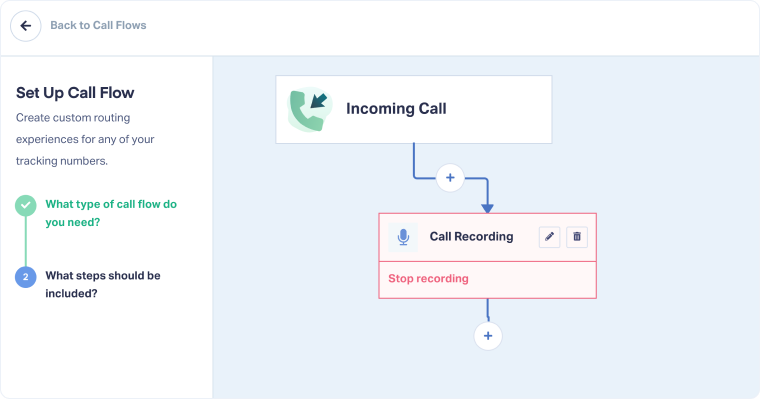
- In the Call Flow builder, click the "+" button where you want to add the step.
- Select the step type you want to add.
- Configure the step, then click “Finish”.
Related Topics
Was this page helpful?
Get a FREE presentation of WhatConverts
One of our marketing experts will give you a full presentation of how WhatConverts can help you grow your business.
Schedule a Demo






