















































Create a Lead Manager View
You can create custom Lead Manager Views to quickly access the columns and filters that matter most to you. Each view is saved for your user only and won’t affect other users in the account.
Create a New Lead Manager View
To create a custom view:
- Open the Lead Manager.
- In the table view, click “Choose Columns”.
- Select or deselect the fields you want to include in your view.
- Apply filters to your leads if needed.
- Click “Save View” and then select “Save as New View”.
- In the Save View for User dropdown, select your user account.
- Enter a name for your view and click “Save View”.
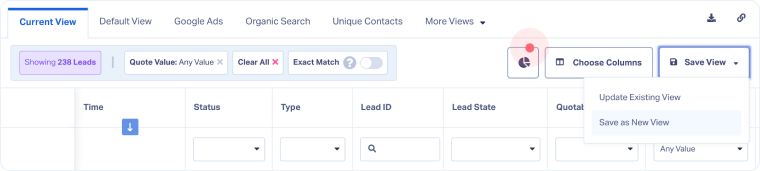
Note: Views are saved per user and are not shared across the Account or Profile.
Update a Lead Manager View
If you want to modify an existing view:
- Open the Lead Manager.
- Click “Choose Columns” and make your changes.
- Click “Save View” and select “Update Existing View”.
- Select the View to update and click “Update View”.
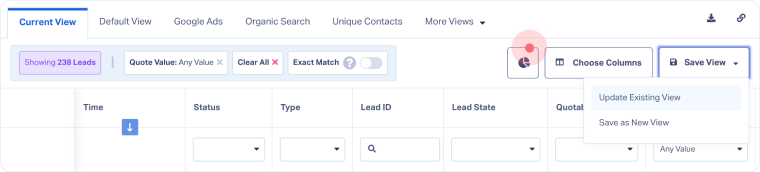
Your changes will overwrite the saved view.
Related Topics
Was this page helpful?
Get a FREE presentation of WhatConverts
One of our marketing experts will give you a full presentation of how WhatConverts can help you grow your business.
Schedule a Demo






