















































Filter Leads in the Lead Manager
The Lead Manager gives you flexible filtering options so you can quickly narrow down to the leads that matter most. You can filter by date, apply filters directly from the Lead Overview Chart, or use column filters for precise conditions.
Note: Filters applied in the Lead Manager also apply to the Lead Overview Chart, Quick Reports, and Lead Groups, ensuring that all views and reports reflect the same filtered data.
Filter by Date
To filter leads by date:
- Open the Lead Manager.
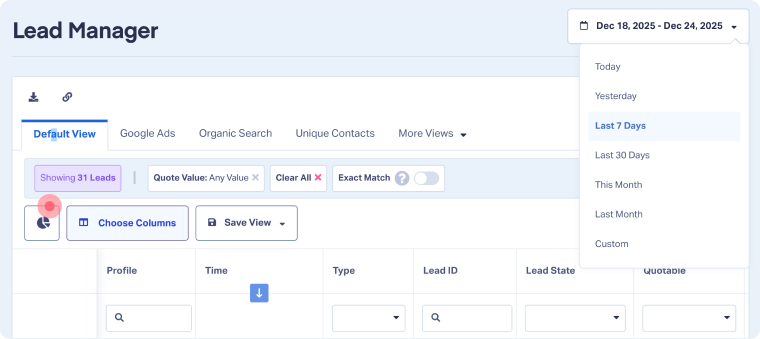
- Use the date picker at the top right of the Lead Manager.
- Select a pre-set range (e.g., Today, Last 7 Days, This Month) or set a custom date range.
- The Lead Manager will update automatically to show only leads within the chosen dates.
Filter From the Lead Overview Chart
To filter leads from the Lead Overview chart:
- Open the Lead Manager.
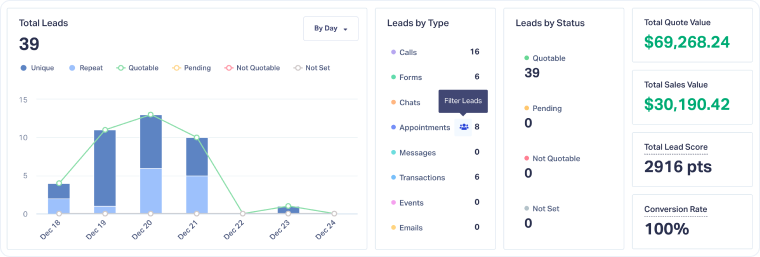
- From the Lead Overview Chart at the top of the Lead Manager, click on a lead type, status, or data point in the time chart.
- The Lead Manager will instantly filter the table to show only those leads.
Use Column Filters
Column filters give you granular control over your lead data.
- Open the Lead Manager.
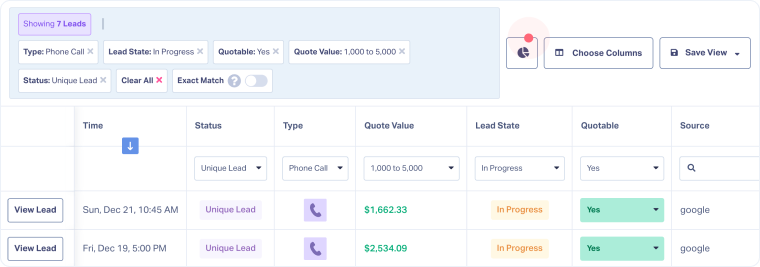
- Enter values in the filter boxes beneath each column header.
- Options include:
- Exact Match toggle: Turn on to only see results that exactly match your entry (e.g., if you type “hvac” in the Campaign filter, it will exclude “hvac local” when Exact Match enabled).
- != operator: Use this to exclude a value (e.g., !=google) or to filter out blanks (e.g., != will show only non-blank rows).
- Multi-filters: Apply filters across several columns at once to drill into specific lead sets.
Note: You can use other regular expressions (regex) to filter leads.
Manage Filters
Filters applied in the Lead Manager appear in the filter bar at the top of the table. From here, you can easily review, adjust, or remove filters.
- Filter bar: Shows all active filters you’ve applied (date, table, or column filters).
- Removing filters: Click the “x” next to an individual filter to remove it, or select “Clear All” in the filter bar to reset your view.

Related Topics
Get a FREE presentation of WhatConverts
One of our marketing experts will give you a full presentation of how WhatConverts can help you grow your business.
Schedule a Demo






