















































Group Leads in the Lead Manager
Grouping leads allows you to quickly organize your leads into categories based on any column in the Lead Manager. With grouping, you can review leads by campaign, keyword, quotable status, assigned sales rep, or any other field you choose.
Group Leads
To group leads in the Lead Manager:
- Open the Lead Manager.
- Ensure the column you want to group by is visible. If it isn’t, add the column.
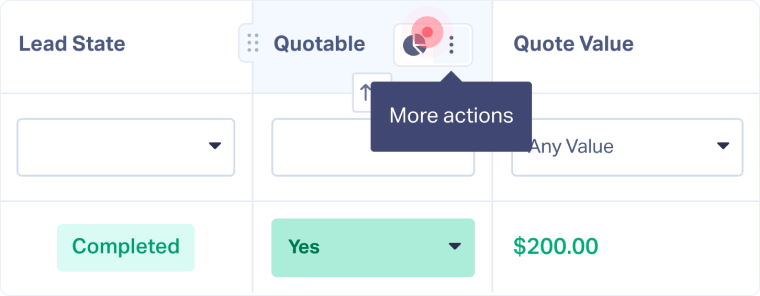
- In the column header, click “More Actions”.
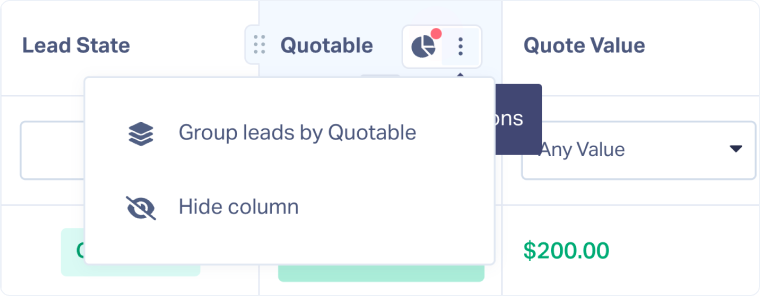
- Select “Group leads by [column]”.
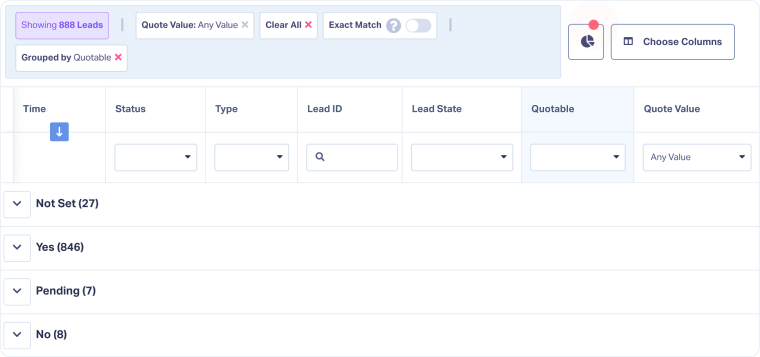
- Your leads will now be organized into collapsible groups with lead counts displayed.
- Click the dropdown arrows to expand or collapse each group for review.
- When finished, click the “x” next to the grouped field in the filter bar to return to the ungrouped view.
Related Topics
Was this page helpful?
Get a FREE presentation of WhatConverts
One of our marketing experts will give you a full presentation of how WhatConverts can help you grow your business.
Schedule a Demo






