















































Build Lead Intelligence Rules with Custom Fields
Once your Custom Fields are set up, you can use Lead Intelligence to automatically populate them at scale. Instead of updating fields manually or using the Lead Import tool, Lead Intelligence applies rules that assign values based on call transcripts, chat logs, or form fields.
Tip: New to Lead Intelligence? Learn more in Introduction to Lead Intelligence before getting started.
Update Custom Fields With AI-Powered Lead Intelligence
To automatically enrich your leads using AI-powered Lead Intelligence:
- Create a Lead Intelligence rule that uses Ask AI to extract values from call transcripts, chats, or forms.
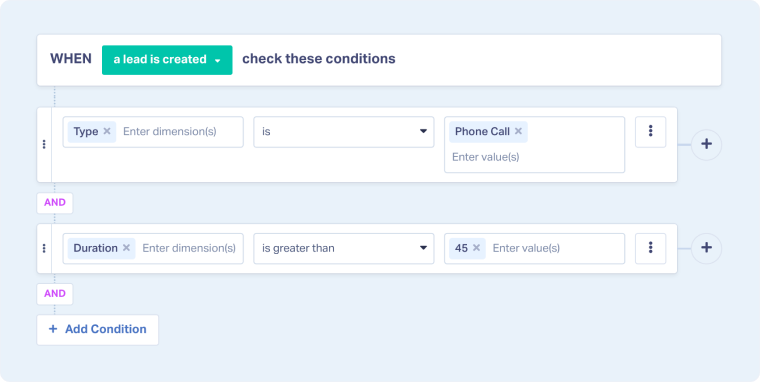
- Set the condition: Choose when the rule should run (e.g. Type is Phone Call and Duration > 45 seconds).
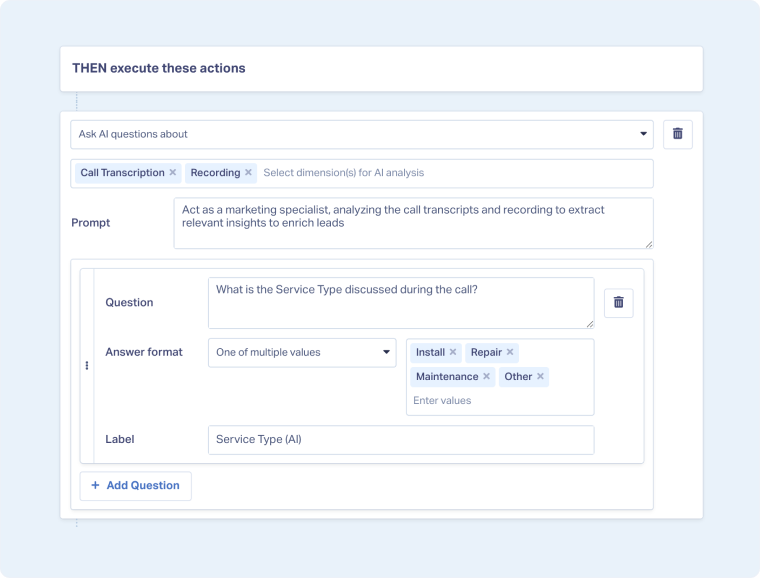
- Set the action: Select Ask AI questions about → Call Transcription, Recording, Chat field, or Form field.
- Enter your question (e.g. “What is the Service Type discussed?”) and define answer options.
- Label the answer (e.g. Service Type (AI)).
- The AI-generated values will appear as columns in the Lead Manager (e.g. Service Type (AI)), but your Custom Fields will remain empty.
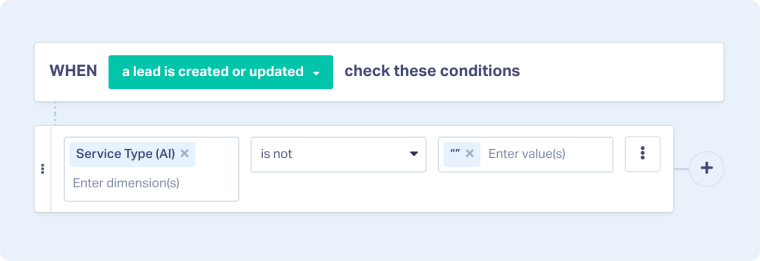
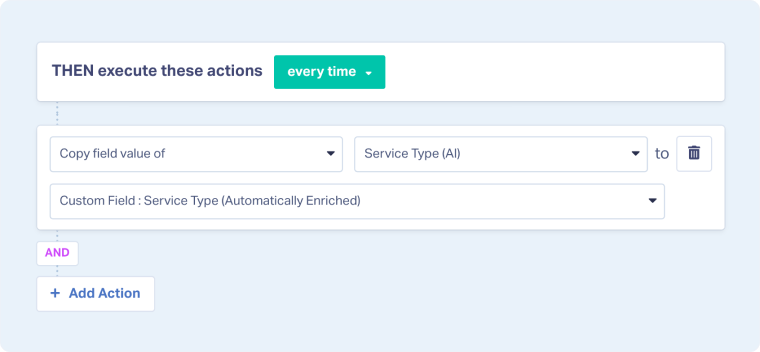
- Create a second Lead Intelligence rule that copies the AI value into the matching Custom Field. Note that all Custom Fields’ labels begin with “Custom Field:”.
- Set the condition: [AI Field] is not blank (e.g. Service Type (AI) is not blank).
- Set the action: Copy field value of [AI Field] to [Custom Field] (e.g. Copy value of Service Type (AI) → to Custom Field: Service Type).
- Go to the Lead Manager and the Lead Details page to ensure the Lead Intelligence rules are working as expected and the leads are automatically enriched.

Note: These two rules work together; one extracts the value, and the other copies it into the Custom Field that is used in the Lead Details page.
Tip: When using Custom Fields in Lead Intelligence, you’ll see both the original Custom Field and its automatically generated Mapped Field. For better consistency across reports and features, use the Mapped Field.
Tip: When using Lead Intelligence to populate Custom Fields, use Text fields and leave the default value blank, so it’s easy to see which leads have been enriched.
Related Topics
Get a FREE presentation of WhatConverts
One of our marketing experts will give you a full presentation of how WhatConverts can help you grow your business.
Schedule a Demo






