















































Import Custom Fields with the Lead Import Tool
Once you’ve created your Custom Fields, you can import or update them in bulk using the Lead Import tool to enrich your leads. This is a fast way to apply field values across many leads at once, instead of editing them manually.
Update Custom Fields With the Lead Import Tool
To import your Custom Field data using the Lead Import tool:
- Create your CSV file with one identifier column (Lead ID, Email, or Phone Number) and the Custom Field column(s) you want to update.
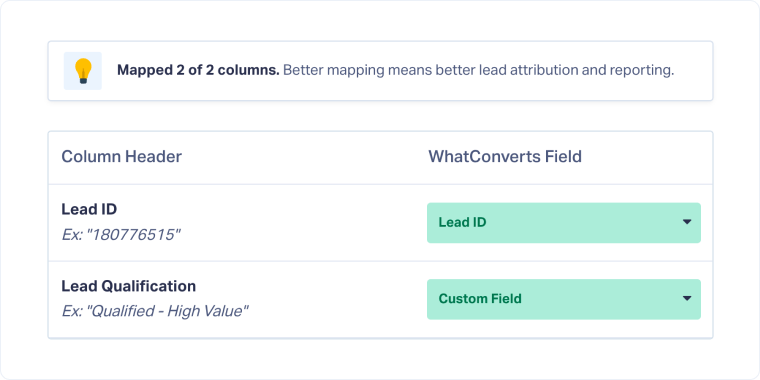
- Upload your file to update existing leads. Make sure to select the “Update Leads” option in Step 1, and to choose “Custom Field” as the WhatConverts Field in the column mapping step.
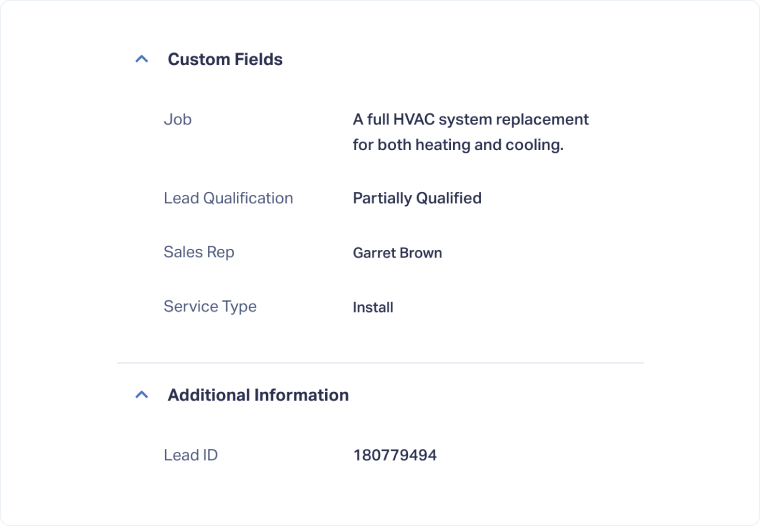
- Once the import is complete, go to the Lead Details page to confirm your Custom Field values were updated.
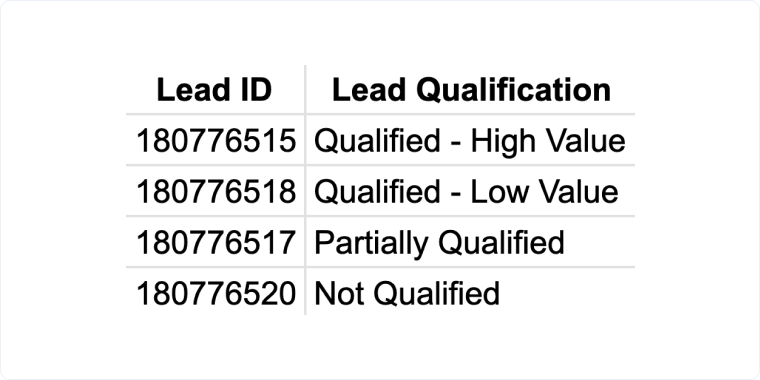
Tip: Extract the leads you want to update to get the Lead IDs needed for your CSV file.
Note: If the Custom Field didn’t exist, the system will create it for you when you import it.
Related Topics
Was this page helpful?
Get a FREE presentation of WhatConverts
One of our marketing experts will give you a full presentation of how WhatConverts can help you grow your business.
Schedule a Demo






