















































Organize the Lead Manager with Mapped Fields
Once you have enriched your leads with Mapped Fields, you can use the Lead Manager to filter and analyze them. This helps you gather insights and see which marketing sources, keywords, or services drive your best leads.
Use Mapped Fields to Filter Leads in the Lead Manager
To filter your Lead Manager using Mapped Fields:
- Open the Lead Manager.
- Locate the Mapped Field column (tagged as “MF”) you want to filter by, or add it if it is not already present.
- Enter a value in that column to filter your leads.
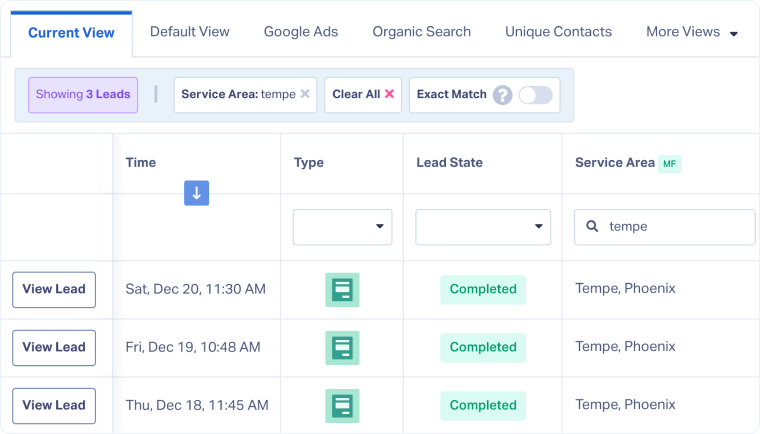
Tip: Mapped Fields automatically appear as columns in the Lead Manager. To enable or disable them, go to “Choose Columns”.
Tip: Grouping leads by Custom Fields lets you compare performance across categories like service type, sales rep, or campaign. Learn how in our Grouping Leads article.
Related Topics
Was this page helpful?
Get a FREE presentation of WhatConverts
One of our marketing experts will give you a full presentation of how WhatConverts can help you grow your business.
Schedule a Demo






