















































Enable Lead Analysis
You can enable Lead Analysis to automatically extract AI insights from calls, chats, forms, and other interactions.
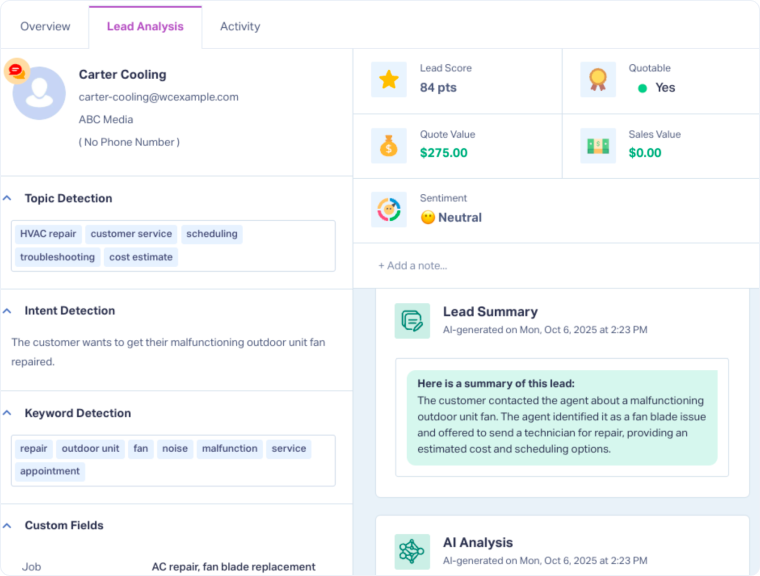
Lead Analysis detects lead intent, keywords, sentiment, and call handling quality, helping you qualify and categorize leads faster.
Enable Lead Analysis for Calls
If you’re tracking phone calls, you can enable Lead Analysis directly when setting up your tracking numbers.
- Go to Call Tracking, under Phone Numbers, to add or edit a tracking number.
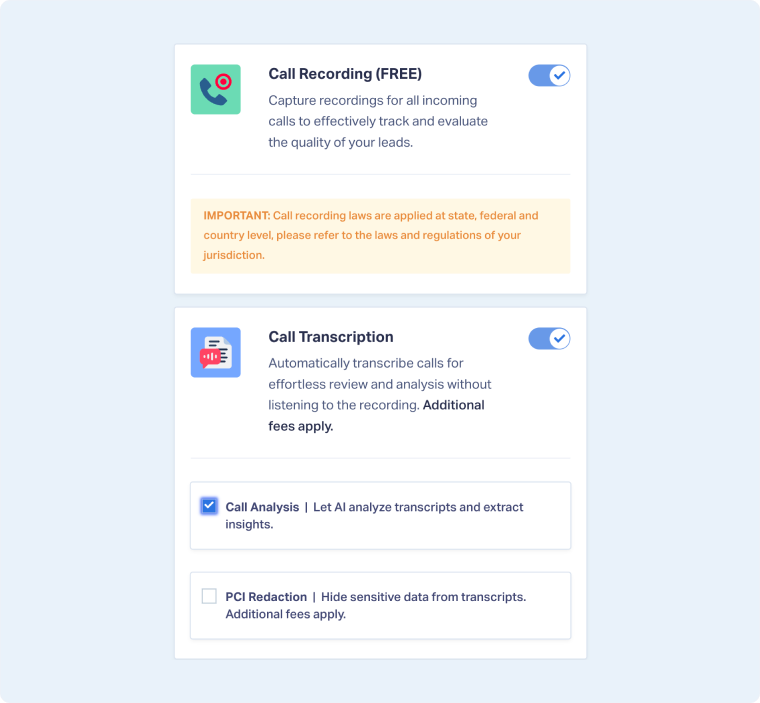
- Enable Call Recording to capture call audio.
- Enable Call Transcription to convert calls into text for analysis.
- Enable Call Analysis to let AI review transcripts and extract insights such as intent, sentiment, and call handling score.
- Click “Finish” to save your settings.
Once enabled, Lead Analysis will automatically transcribe and analyze each recorded call. You’ll find all the details in the Lead Analysis tab of your phone call leads.
Note: For detailed setup steps, see Set Up Tracking Numbers.
Enable Lead Analysis Using Lead Intelligence
You can also enable Lead Analysis for any type of lead (including chats, forms, or calls) using Lead Intelligence.
- Create a Lead Intelligence Rule in your profile.
- Under When, select the conditions of your rule.
- Under Then, select “Run lead analysis” as the action.
- Choose the dimension to analyze (e.g., Chat Log, Form Field).
- Review the Result Fields that will be created (such as Lead Summary, Sentiment Detection, Keyword Detection, and Intent Detection).
- Approve the additional costs for AI analysis and save the rule.
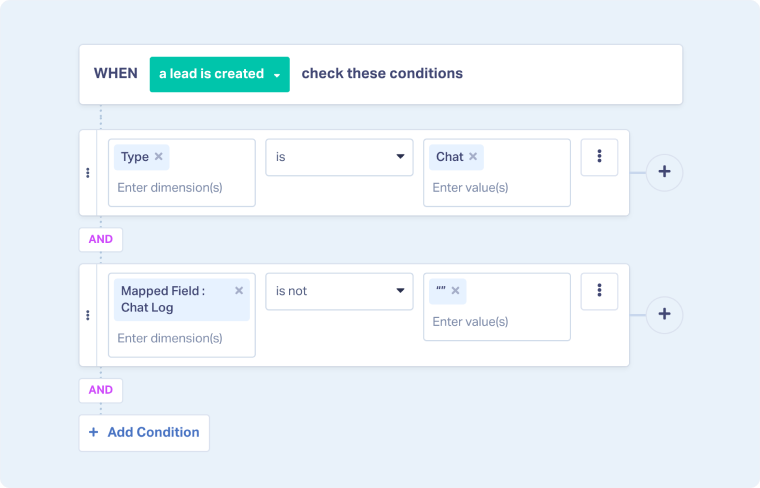
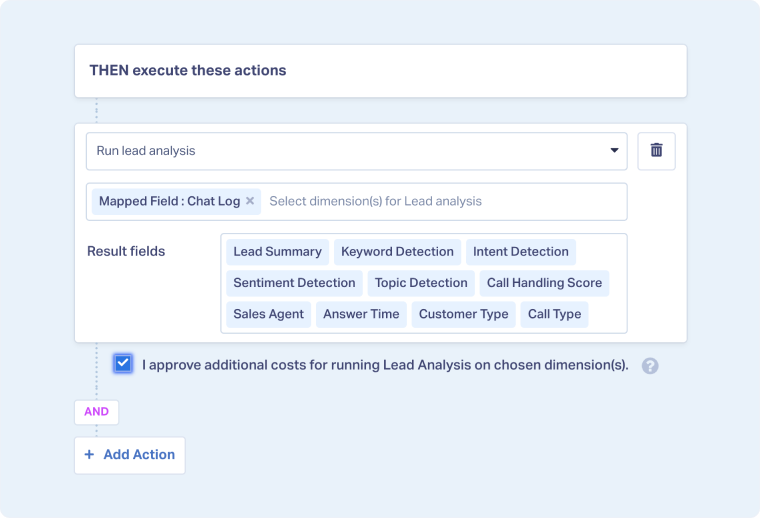
When a new lead matches your rule’s conditions, Lead Analysis will automatically run and display results in the Lead Analysis tab .
Note: If you want to enable the AI Analysis section, you must use Ask AI Lead Intelligence rules.
Related Topics
Get a FREE presentation of WhatConverts
One of our marketing experts will give you a full presentation of how WhatConverts can help you grow your business.
Schedule a Demo






