















































Mark a Lead as Duplicate Manually
Duplicate leads occur when the same contact generates multiple conversions within a short period. To keep your data clean and your reports accurate, you can manually mark any lead as a duplicate in the Lead Manager or inside the Lead Details page. Once marked, duplicate leads are excluded from the Lead Manager and all reports by default.
You can view duplicate leads in the Lead Manager to access and review them.
Note: Duplicate leads are automatically removed after 30 days. To keep a lead, switch the Duplicate status back to “No” before that time.
Mark a Lead as a Duplicate From the Lead Manager
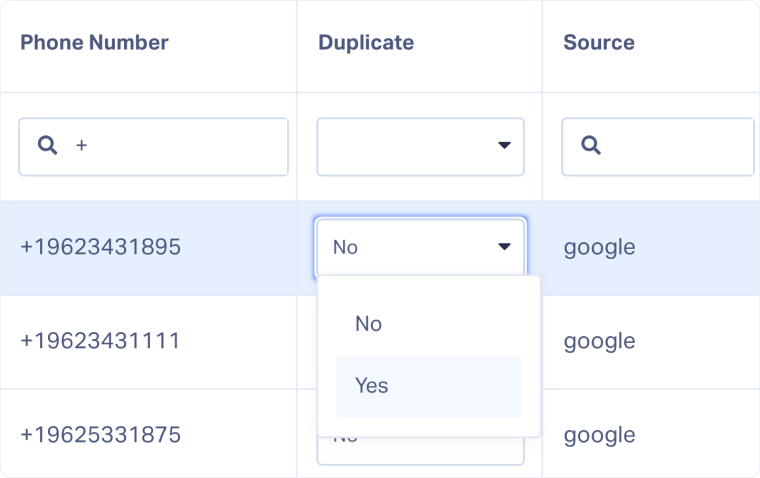
You can quickly mark a lead as duplicate directly from the Lead Manager table:
- Open the Lead Manager.
- Go to the Duplicate column, or add it if needed
- Locate the lead you want to mark as a duplicate.
- In the Duplicate column, open the dropdown and select “Yes”.
- The lead will now be flagged as a duplicate and excluded from the Lead Manager and Reporting by default.
Mark a Lead as a Duplicate From the Lead Details Page
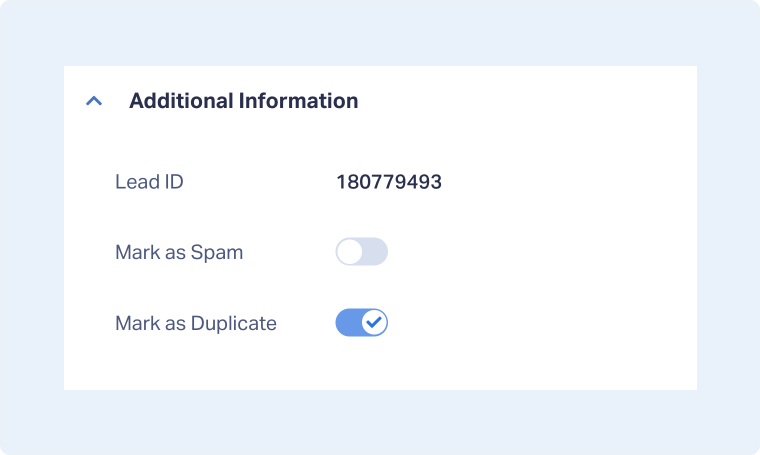
You can also mark a lead as a duplicate inside the Lead Details page:
- Open the Lead Manager.
- Click “View Lead” for the lead you want to update.
- In the Additional Information section, toggle “Mark as Duplicate”.
- The lead will now be flagged as a duplicate and excluded from the Lead Manager and Reporting by default.
Related Topics
Get a FREE presentation of WhatConverts
One of our marketing experts will give you a full presentation of how WhatConverts can help you grow your business.
Schedule a Demo






