















































Populate Contact Information with Conversion Details
To display the Contact Name and Company Name in the Contact Details section of the Lead Details page, you need to map the corresponding form or chat fields to the existing default Field Mappings in WhatConverts.
WhatConverts automatically includes four default Field Mappings: Company Name, Contact Name, Email, and Phone Number.
By mapping your lead fields to these system fields, the contact information will automatically populate when a lead is captured.
Populate Contact and Company Name in the Contact Details Section
To map the company or contact name fields:
- Go to the Profile Settings and click “Field Mapping”.
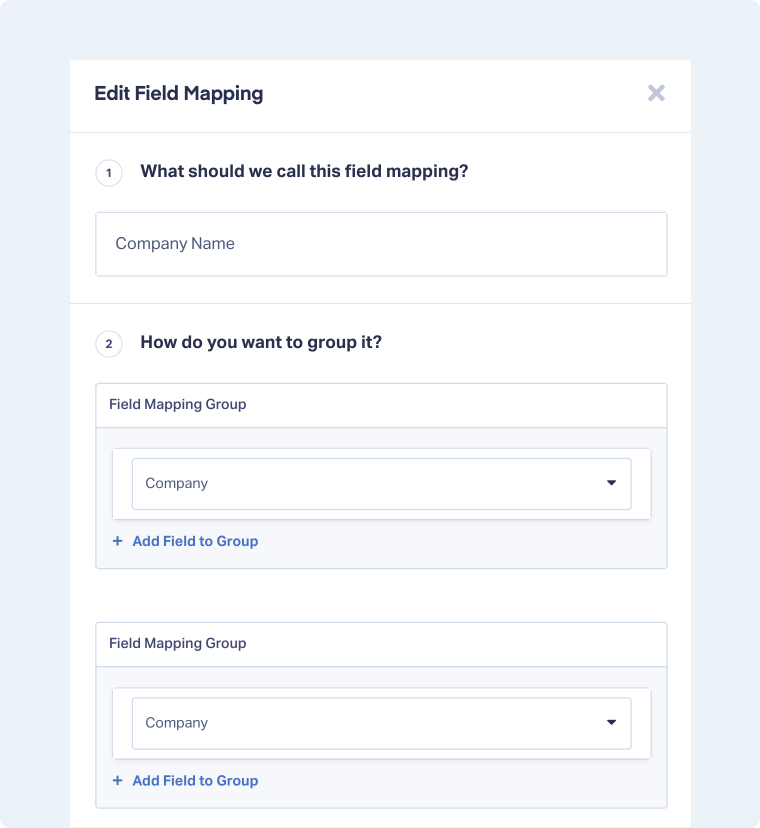
- Locate the default mapping, either Contact Name or Company Name.
Click “Edit” to add your form field(s) that capture the same data.
For example, if you capture data from two different forms, one with a field named “Company” and another with “Company_001”. Map both fields to the “Company Name” Field Mapping.
This ensures all company data is unified under a single Company Name field, which will automatically populate the Contact Details card.
- Click “Update Field Mapping”.
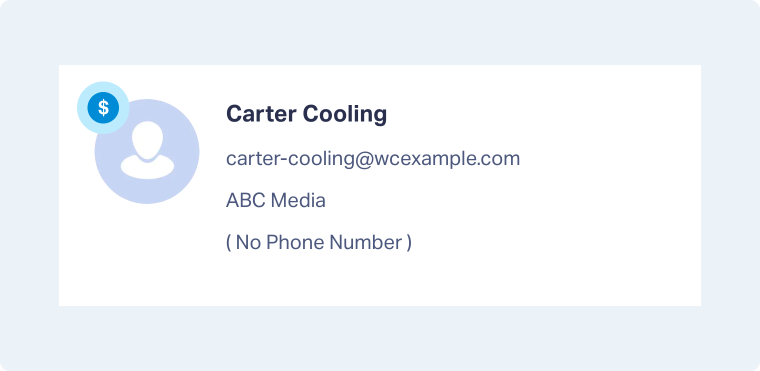
Once mapped, all future leads will automatically display the contact and company information inside the Contact Details section of the Lead Details page.
Tip: You can also map fields from the Conversion Details section, as explained in the Use Field Mappings article.
Note: The Field Mappings for Company Name, Contact Name, Email, and Phone Number are automatically created by WhatConverts. The Email and Phone Number fields populate automatically and don’t require mapping.
Related Topics
Get a FREE presentation of WhatConverts
One of our marketing experts will give you a full presentation of how WhatConverts can help you grow your business.
Schedule a Demo






