















































Understand the Lead Details: Overview Tab
The Overview tab in the Lead Details page helps you understand the full context behind each lead, from contact information and attribution data to recordings, transcripts, and conversion details.
This tab consolidates the essential sections that show:
- Who the lead is. Displays their contact and company information.
- Where they came from. Shows the full customer journey with attribution details across sources, mediums, campaigns, keywords, and landing pages.
- What they wanted. Displays the conversion details captured (e.g., call, form, chat, appointment, or transaction).
- How the interaction performed. Includes any qualification fields or metrics that help you assess lead quality and value.
Use the Overview tab to analyze leads, make data-driven marketing decisions, and gather the complete interaction context needed to categorize, qualify, and value every lead.
Section 1: Contact Details
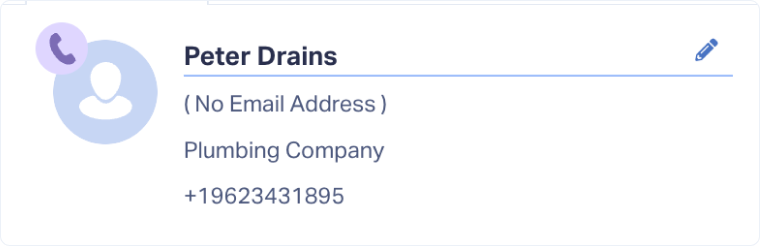
The Contact Details card shows who the lead is and what type of conversion it was (call, form, chat, appointment, transaction, etc.). The lead-type appears as an icon/label next to the contact.
What you’ll see, when captured:
- Contact Name
- Email Address
- Phone Number
- Company Name
Note: To populate Contact Name or Company from forms or chats, map those fields so they flow into Contact Details.
Note: Email and phone are used to connect multiple conversions from the same contact into a single Customer Journey
Section 2: Customer Journey
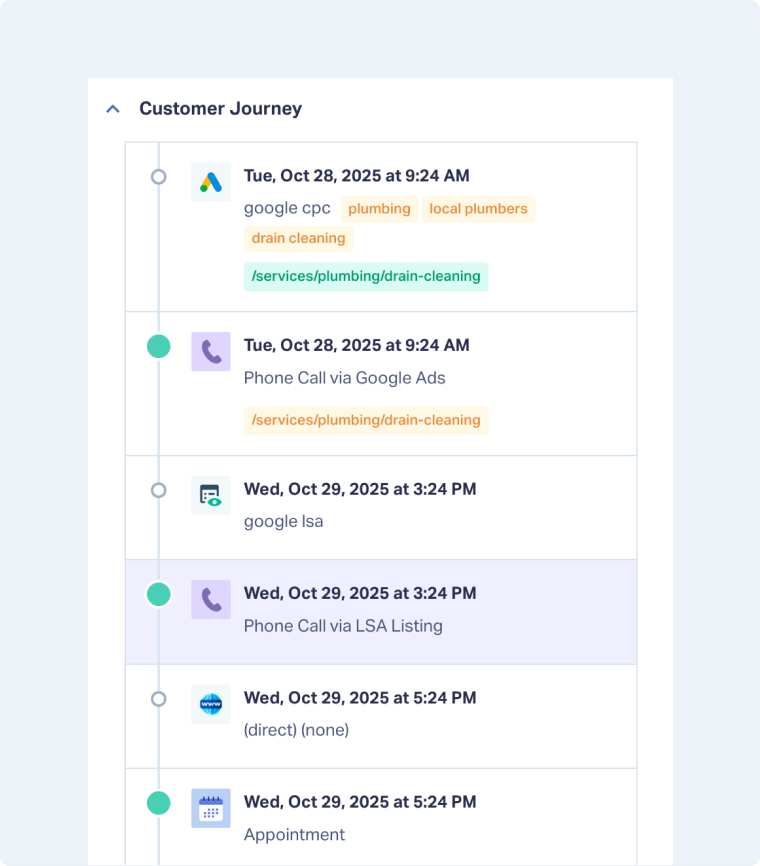
The Customer Journey shows the complete path a lead takes, from their first visit to every conversion. It gives you full visibility into where the lead came from and how they engaged with your marketing.
What you’ll see:
- Attribution details for every touchpoint, including Source, Medium, Campaign, Keyword, and Landing Page.
- Each conversion action (e.g., form, call, chat, transaction) displayed in chronological order with its timestamp.
- Connected conversions from the same person, built automatically when multiple leads share the same email or phone number.
Section 3: Custom Fields
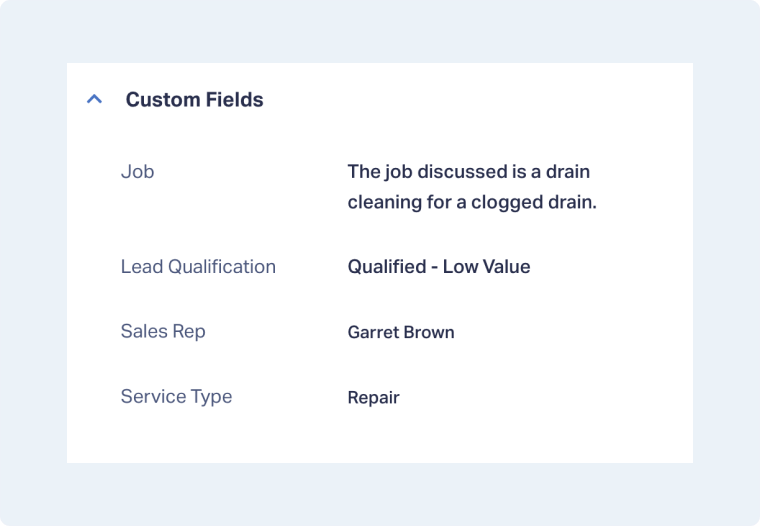
The Custom Fields section lets you categorize your leads with information specific to your business. You can use these fields to track key details such as service type, location, sales rep, or lead quality, giving you richer context than standard data alone.
This section helps you capture the information needed to qualify, categorize, and value each lead accurately.
Note: You’ll see Custom Fields in both the Overview and Lead Analysis tabs.
Section 4: Lead Qualification
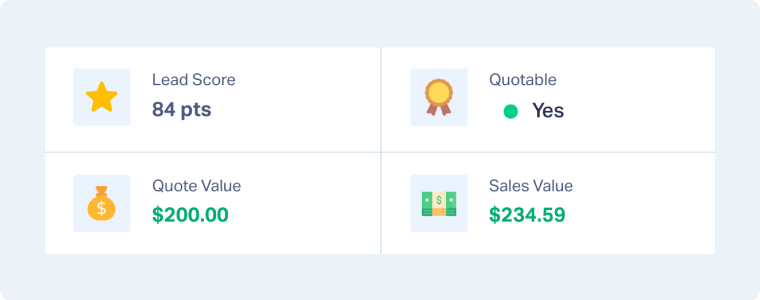
The Lead Qualification section helps you assess the potential quality and value of each lead. It includes fields that indicate how qualified a lead is based on your criteria. You can use Lead Score, Quote Value, Sales Value, or Quotable status to measure quality and revenue potential.
This section helps you:
- Track revenue potential and sales outcomes using the Quote and Sales Value fields.
- Distinguish between new, pending, qualified, or unqualified leads using the Quotable status.
- Use different Quotable values (No, Not Set, Pending, Yes) to track each stage of your qualification workflow.
- For example:
- Not Set: New lead awaiting review.
- Pending: Lead under follow-up or review.
- Yes: Qualified lead or confirmed quote/sale.
- No: Unqualified or junk lead.
- Measure lead quality and optimize campaigns using the Lead Score, which can be used to reflect quality and conversion likelihood.
For calls, this section, accessed from the Lead Analysis tab, also includes extra fields to evaluate call quality and handling, such as whether the call was answered, response time, or agent performance.
Note: Entering a Quote or Sales Value automatically sets the lead as Quotable = Yes.
Note: The Lead Qualification section appears in both the Overview and Lead Analysis tabs
Tip: Create Custom Fields for advanced status tracking. For example, create a field named Lead Qualification with values like New Lead, Pending Follow-up, Qualified - High Value, Qualified - Low Value, or Not Qualified - Out of Area/Junk.
Section 5: Conversion Details
The Conversion Details section shows the information captured at the time of conversion (e.g., when the phone call or web form was captured).
This section contains the most specific context about each interaction and reflects data collected directly from the conversion, as well as any related information you choose to import from your CRM or other systems.
Depending on your setup and lead type, this section can include:
- Form fields captured from your tracked web forms.
- Call recordings and transcripts (if enabled).
- Call metadata and details, such as duration, tracking number, or destination number.
- Chat logs and chat details from integrated chat tools.
- Appointment or transaction details that you choose to track or import into WhatConverts.
- Additional Fields from external systems, such as CRM
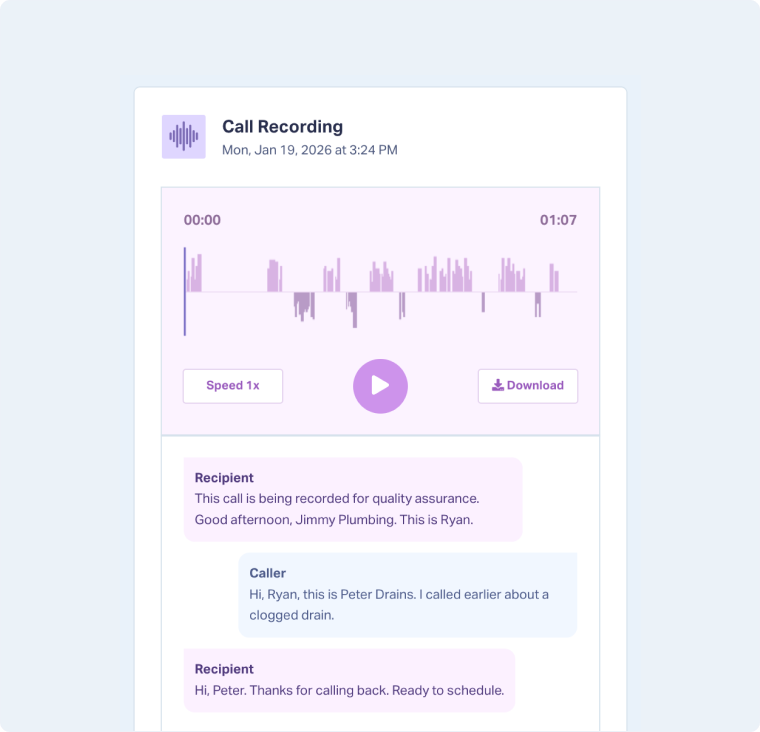
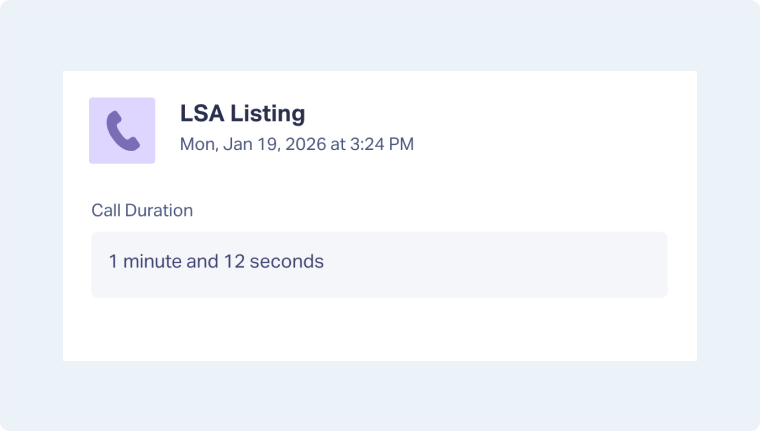
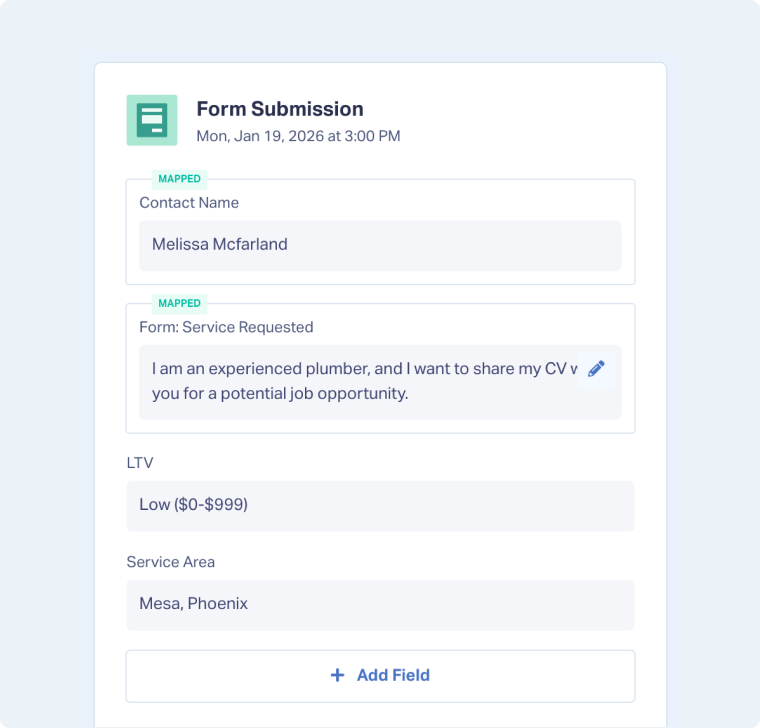
Tip: Make sure your tracking and integrations are properly configured so all valuable conversion data is captured and displayed in the Conversion Details section. To use these fields across the Lead Manager, Reporting, and Lead Intelligence, ensure they are mapped (you’ll see a “MAPPED” label once a field is successfully mapped).
Section 6: Additional Information
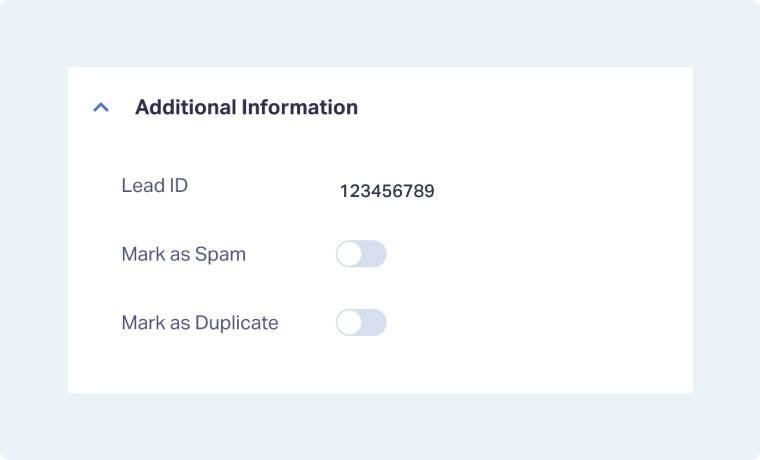
The Additional Information section shows lead metadata such as Lead ID or Call SID, and options to Mark as Spam or Mark as Duplicate.
Related Topics
Get a FREE presentation of WhatConverts
One of our marketing experts will give you a full presentation of how WhatConverts can help you grow your business.
Schedule a Demo






