















































Add a Phone Number to Track Google My Business Calls
Setting up a Google My Business call tracking number allows you to monitor calls coming from your Google Business Profile. This setup requires creating a tracking number in WhatConverts and then adding it to your Google My Business listing. Learn more about Call Tracking.
Note: Be sure your country qualifies for Google My Business. You can find which countries qualify for Google My Business here.
Add a Phone Number for Google My Business
Follow these steps to create a tracking number in WhatConverts for Google My Business.
- In your WhatConverts profile, select "Tracking" from the top menu.
- Select "Calls", then "Phone Numbers".
- Click "+ Add Phone Number". Select "Advanced Setup".
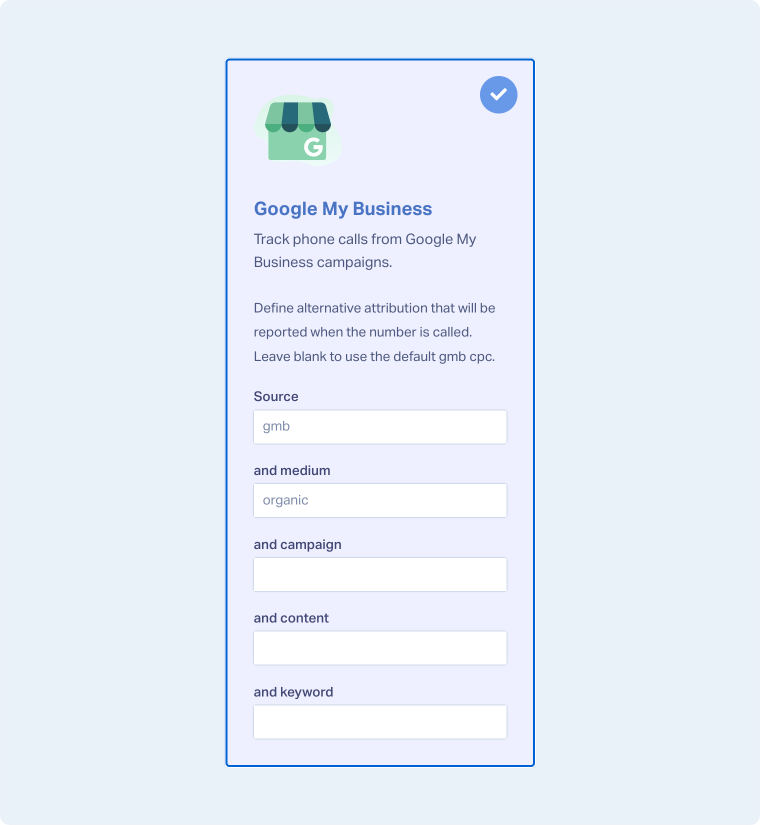
- Choose "Google My Business" and define any alternative attribution (e.g., source, medium, campaign, keyword, etc.).
- Click "Next Step".
- Move the slider to "1". Choose the country, phone number type (local or toll-free), and area code.
- Click "Find Numbers". Review the number and click "Next Step".
- Enter the Destination Number (the number calls will forward to) and give your phone number a descriptive name such as "Google My Business". Click "Next Step".
- Review and adjust optional features such as Call Recording, Call Greeting, Call Whisper, Tracking Text Messages, Call Transcription, or PCI Redaction.
- Once satisfied with your selections, click "Finish".
Add Your Call Tracking Number to Google My Business
After creating your tracking number, add it to your Google My Business listing.
- Log in to Google My Business. Click "Info" on the left menu. Locate your business's contact Number and click the Pencil Icon to edit the number.
- Click "Add phone number". Make your current business phone number your additional phone number, and change your primary phone to the call tracking number set up in WhatConverts.
- Click "Apply".
Note: Using this method helps you maintain NAP (Name, Address, Phone) consistency for your listing.
Use UTM Parameters to Identify Calls from Google My Business
When users click through to your website from Google My Business, the traffic is normally reported as source: Google, medium: Organic. You can update your URL in your Google My Business listing to capture a campaign name that identifies calls from Google My Business.
- Log in to Google My Business. Click "Info" on the left menu.
- Locate your business's website URL and click the Pencil Icon to edit the URL.
- At the end of your URL, add: ?utm_campaign=GoogleMyBusiness. Click "Apply".
Now, when a lead comes from Google My Business, the source and medium will still be reported as Google Organic, but it will have the campaign name GoogleMyBusiness.
Related Topics
Get a FREE presentation of WhatConverts
One of our marketing experts will give you a full presentation of how WhatConverts can help you grow your business.
Schedule a Demo






