















































Enable Call Transcription
Call Transcription allows you to convert recorded phone conversations into searchable text, so you can review calls without having to listen to the entire audio. Use transcription to qualify leads faster, extract insights from conversations, and improve sales or support performance.
Set Up Call Transcription
Before you begin, make sure Call Recording is enabled on your tracking numbers. Transcription requires recordings to be active in order to function.
- In your WhatConverts profile, select “Tracking”, then “Calls”.
- Choose “Phone Numbers”.
- Locate the number you’d like to add a whisper to and select the pencil icon to edit it.
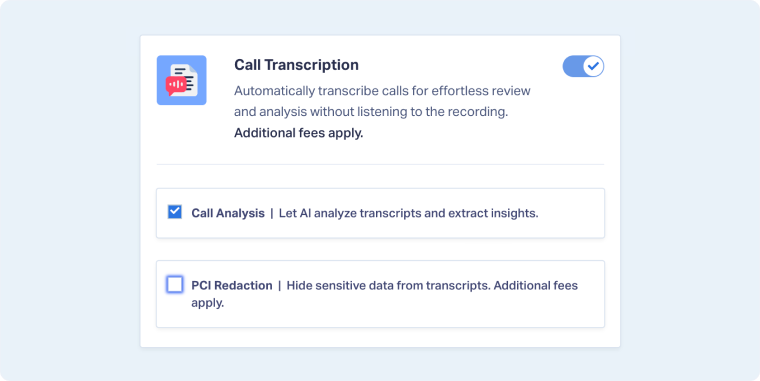
- Toggle “Call Transcription” on.
- If you also want to protect sensitive data, toggle “PCI Redaction” on to automatically remove personal or payment information. Learn more about PCI Redaction.
- Click “Finish” to confirm your settings.
Tip: You can edit multiple phone numbers at once by selecting the checkboxes to the left of each number in your list. Any changes you make, such as enabling features or updating call options, will apply to all selected numbers simultaneously.
Additional Information
- Processing Time: Transcriptions are typically available within 5 minutes of the call ending. If PCI Redaction is enabled, processing may take slightly longer.
- Requirements: Transcription only works for calls that are recorded. Ensure that Call Recording is turned on.
- Languages Supported: English, Spanish, French, German, Italian, Portuguese, and Dutch.
- Billing: Transcription may incur a small additional cost per minute. PCI Redaction, if enabled, may have a separate rate.
- Compliance: Sensitive information like credit card or social security numbers is automatically redacted if PCI Redaction is enabled.
Related Topics
Get a FREE presentation of WhatConverts
One of our marketing experts will give you a full presentation of how WhatConverts can help you grow your business.
Schedule a Demo






