















































Block Spam Senders in Your Web Forms
Blocking spam email addresses prevents unwanted form submissions from cluttering your Lead Manager. This keeps your lead data clean and helps you focus on real customer inquiries.
Block an Email Address
To block a spam email address from submitting forms:
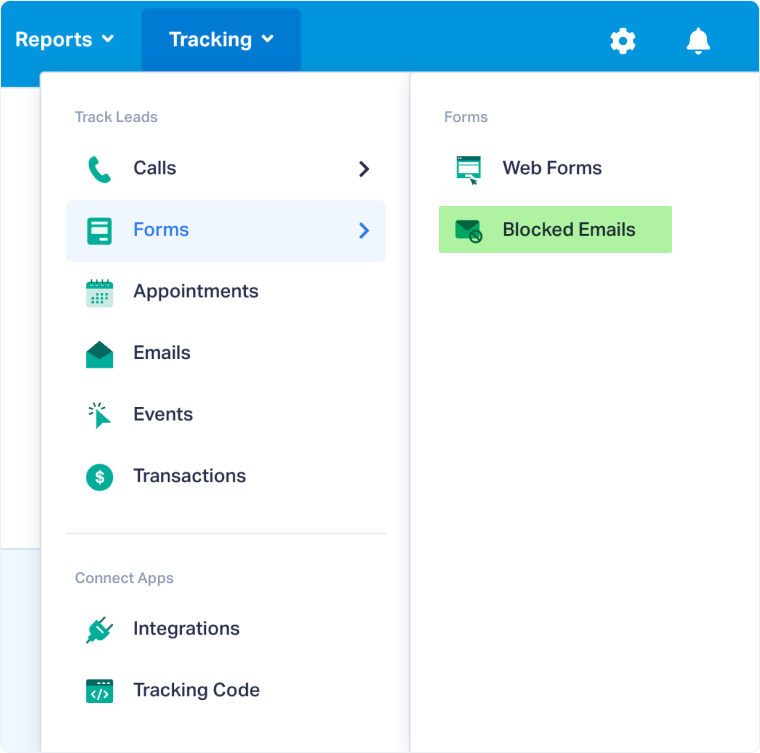
- In your WhatConverts profile, select “Tracking” from the top menu.
- Select "Forms" and open "Blocked Emails".
- Click "Add Blocked Email".
- Enter the email address you want to block (e.g., spam@example.com).
- Click "Finish".
Once you block an email address, any future form submissions using that email will be automatically prevented from appearing in your Lead Manager.
Tip: Block email addresses as you identify spam patterns. This prevents repeat offenders from submitting multiple forms.
Edit a Blocked Email
To update a blocked email address:
- Go to "Blocked Emails".
- Find the email you want to change and click "Edit".
- Make your changes to the email address.
- Click "Update" to save your changes.
Remove a Blocked Email
To unblock an email address:
- Go to "Blocked Emails".
- Find the email you want to unblock and click "Delete".
- Confirm the deletion to allow submissions from that email address again.
Related Topics
Was this page helpful?
Get a FREE presentation of WhatConverts
One of our marketing experts will give you a full presentation of how WhatConverts can help you grow your business.
Schedule a Demo






