















































Add Custom Columns to Your Reports
Custom columns in the Report Builder let you create new calculated fields based on your existing data. This feature helps you project values, calculate ratios, or apply custom formulas without needing external spreadsheets.
Add a Custom Column
To add a new custom column to your report:
- Open or create the report in the Report Builder.
- In the table view, click “+ Add Custom Column”.
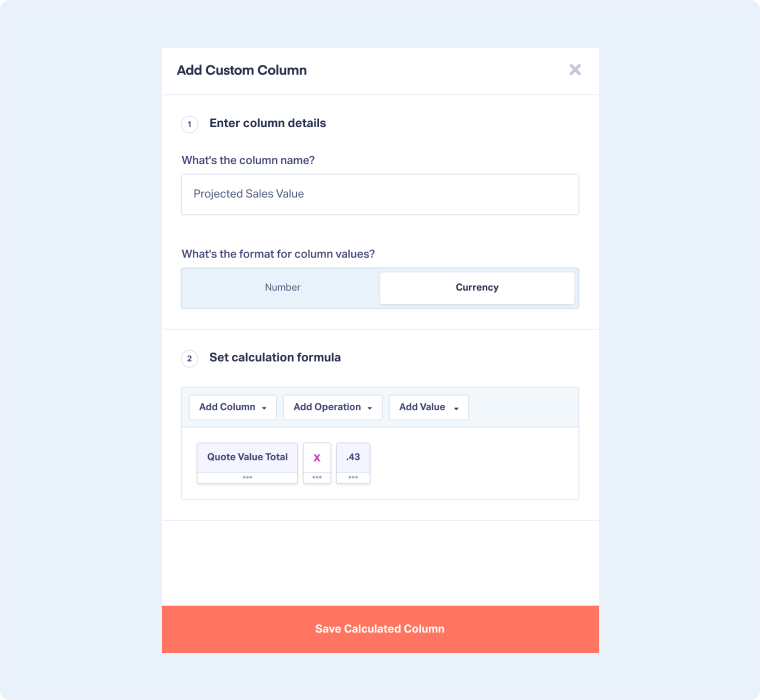
- In the Add Custom Column window:
- Enter column details:
- Add a name for your column (e.g., Projected Sales Value).
- Choose the format for the column values: Number or Currency.
- Set your calculation formula:
- Click “Add Column” and select a dimension (e.g., Quote Value).
- Click “Add Operation” and select an action (e.g., Multiply)
- Click “Add Value” and enter a value (e.g., 0.43 to represent 43%).
- Enter column details:
- Click “Save Calculated Column”.
- The new column will be added to your table.
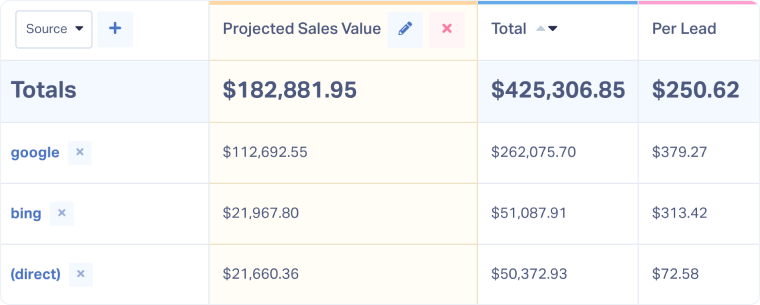
In this example, the Projected Sales Value column shows the expected sales value for each row, calculated as 43% of the total Quote Value.
Tip: The dimensions available under Add Column depend on the metric currently displayed in your report
Related Topics
Was this page helpful?
Get a FREE presentation of WhatConverts
One of our marketing experts will give you a full presentation of how WhatConverts can help you grow your business.
Schedule a Demo






